
Once you have finished connecting your BigoAds accounts in the first step of the Account Wizard process, you can continue connecting your tracking platform in order to have both traffic source and tracker data aggregated in one place.
Here are the steps you need to follow in order to connect ClickFlare to Taboola within TheOptimizer:
Step 1: Head over to Account Wizard, Select which BigoAds ad accounts you wish to connect to ClickFlare or click on Add New to connect a new BigoAds account. Then press Next.
Step 2: Now, you can connect your ClickFlare tracker account. Click on Add new and select ClickFlare from the drop-down list. You will need to get an API Key from ClickFlare in order to move forward.
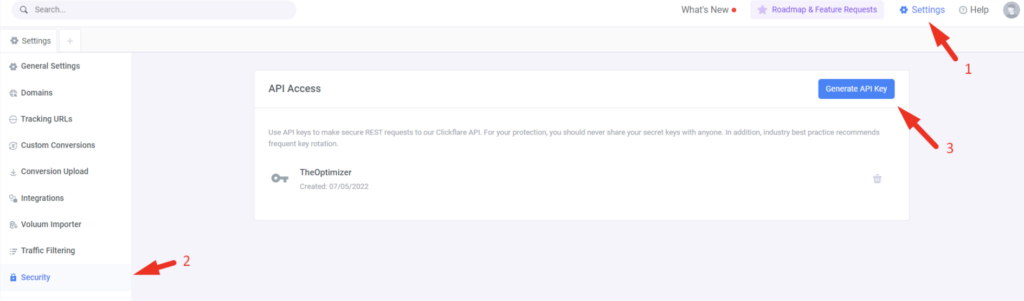
 NOTE: You can find your ClickFlare API information by logging into your ClickFlare account and going to Settings > Security > API Access. Click Generate API Key > Enter the required information, then click on Save. Name the API Key, then copy the generated details and paste them on TheOptimizer.
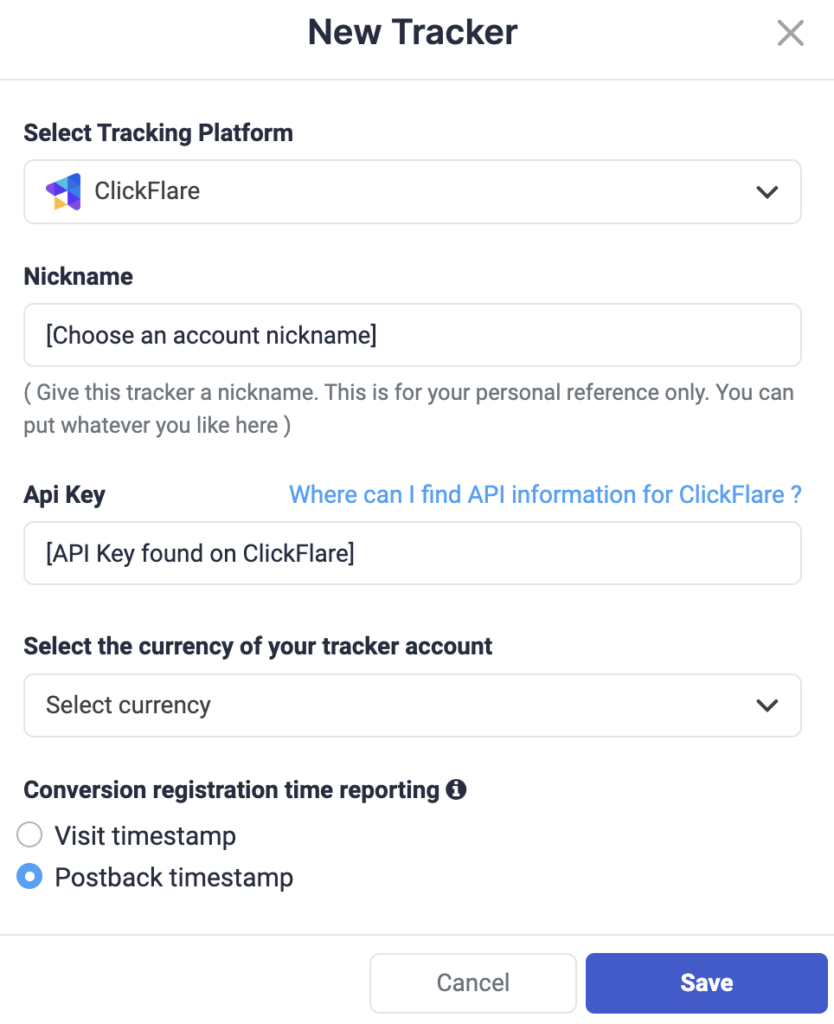
Step 3: Now, you need to fill in some basic information regarding your ClickFlare account (e.g., choose an account nickname, add the API key you copied above, and the currency & conversion registration time reporting, as specified on your ClickFlare settings). Click on Save to move to the final step.
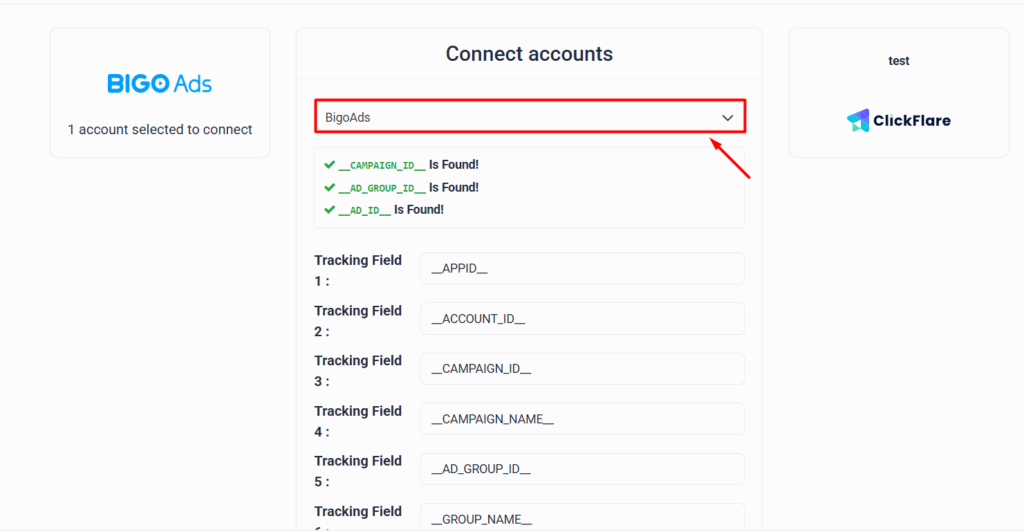
Step 4: To finalize the process, you need to connect the BigoAds account you selected in
Step 1 to ClickFlare. Simply select from the drop-down list which of the traffic source configurations found in your ClickFlare tracker belongs to the BigoAds account you are trying to match.
💡NOTE: When you are connecting ClickFlare as your tracker, you do not need to make any manual changes to campaign links. After Step 4, TheOptimizer will automatically populate with all your current and future campaign data.