Ad networks are the primary source of campaign data and the target of all automation actions. TheOptimizer pulls spend, impressions, clicks, and conversion data from your connected ad networks, and sends back any actions your rules trigger — pausing campaigns, adjusting budgets, and so on.
You must connect at least one ad network before anything else in the platform can function.
Supported Ad Networks
| Ad Network | Auth Method | Status |
|---|
| Facebook | OAuth (login with Facebook) | Available |
| Google Ads | OAuth (login with Google) | Available |
| TikTok | OAuth (login with TikTok) | Available |
| Taboola | API credentials (key/secret) | Available |
| Outbrain | API credentials (key/secret) | Available |
| MGID | API credentials (key/secret) | Available |
| MediaGo | API credentials (key/secret) | Available |
| BigoAds | API credentials (key/secret) | Available |
| Adskeeper | API credentials (key/secret) | Available |
| RevContent | API credentials (key/secret) | Available |
| NewsBreak | API credentials (key/secret) | Available |
| Trillion | API credentials (key/secret) | Beta |
| YahooDSP | API credentials (key/secret) | Beta |
Auth Methods
OAuth (Facebook, Google Ads, TikTok) — you log in directly with your social account. TheOptimizer stores a token after the OAuth flow completes. Tokens expire when you change your account password, the ad network detects suspicious activity, or security settings change. When a token expires, re-authentication is required.
API credentials (all other networks) — you enter an API key and secret provided by the ad network. These credentials do not expire unless you regenerate them in the ad network.
Connecting an Ad Network
OAuth Networks (Facebook, Google Ads, TikTok)
Click Connect
From the Integrations page, find the ad network and click Connect →.
Complete the OAuth flow
Log in with your account and grant the requested permissions. For Facebook, you will be asked which Pages and Business Managers to include — select all current and future Pages to avoid re-authorising every time you add a new Page.
Connection confirmed
TheOptimizer shows a confirmation screen with the number of ad accounts added. Initial sync takes up to 20–30 minutes. Campaigns and ads may not appear immediately — this is expected.
Connect a tracker (optional)
From the confirmation screen, click Connect Tracker to link a tracking platform to this ad network. You can also do this later from the Integrations page.
Get your API credentials
Log in to the ad network’s dashboard and locate your API key and secret. The exact location varies by network — typically found under Settings → API or Account → Integrations.
Click Connect in TheOptimizer
From the Integrations page, find the ad network and click Connect →.
Enter your credentials
Paste your API key and secret. Give the integration a name for your reference (e.g., “Taboola — Main Account”).
Confirm and sync
Click Connect. TheOptimizer verifies the credentials and pulls in your ad accounts. Initial sync takes up to 20–30 minutes.
Managing Ad Accounts
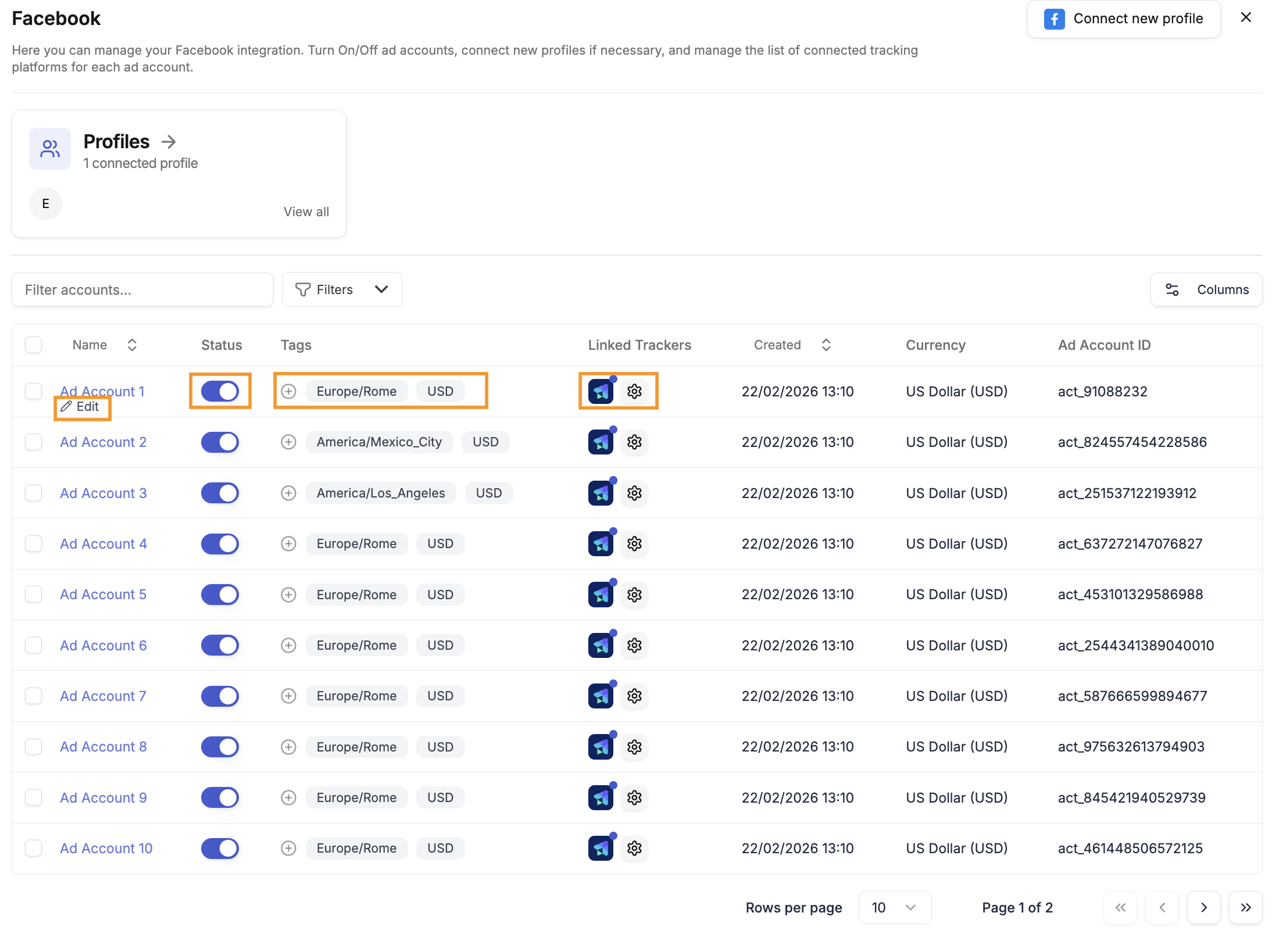
Once an ad network is connected, click on the integration to see the list of associated ad accounts.
Enable / disable accounts — use the ON/OFF toggle to pause syncing for a specific account. Pausing stops TheOptimizer from syncing data and running automation on that account but retains all historical data.
Archive accounts — archiving goes further than disabling. An archived ad account is fully hidden from the system: it no longer appears in dropdown selectors, filters, or the Campaign Creator, and TheOptimizer stops all processing — no data sync, no automation rules, no campaign visibility. Use this to permanently retire accounts you no longer want visible anywhere in the platform. Archived accounts can be restored at any time by filtering for archived accounts and using the Unarchive bulk action.
Both single-account and bulk archiving are supported. To archive a single account, hover its row and click the Archive inline action. To archive multiple accounts, select their checkboxes and click Archive in the bulk action bar that appears at the bottom. To view and unarchive archived accounts, use the Filters → Archived filter to surface them, then select and unarchive via the bulk action bar.
Assign ad accounts to profiles — each ad account uses one profile (the login or API credentials that TheOptimizer uses to access it). Ad account-to-profile assignments are managed from the Profiles panel: click Manage Ad Accounts on any profile card to open an assignment dialog where you can add or remove accounts from that profile. You can also reassign a single account directly from the ad accounts table by hovering its row and clicking Edit.
Add tags — tag ad accounts for organisation (by client, brand, vertical, or team) to make filtering and management easier across large account lists. Some tags (timezone, currency) are applied automatically.
Customise tracker connections per account — link a different tracker, pause the tracker connection, or edit the tracking template for a specific ad account without affecting other accounts in the same integration.
There is no limit on the number of ad accounts you can connect across all networks.
Managing Profiles
A profile is the authentication credential TheOptimizer uses to access an ad network — either an OAuth token (Facebook, Google Ads, TikTok) or an API key/secret (all others).
Multiple profiles — you can add multiple profiles to a single ad network integration. This supports team management (each team member’s own profile), backup access, and accounts under different logins.
Syncing new accounts — when you add a new ad account to a network you are already connected to, sync from your profile management settings to pull the new account in without going through the full connection flow again.
Re-authentication — OAuth tokens expire when you change your account password, the ad network flags suspicious activity, or security settings change. When this happens, TheOptimizer can no longer sync data or run automation for affected accounts. Re-authenticating refreshes the token without losing any account history or automation settings.
You will receive email notifications when an account needs re-authentication. If a profile becomes invalid and is not refreshed, all automation and data sync for accounts under that profile will silently stop. Check your integrations regularly, especially after changing passwords or seeing unexpected drops in data.