
TheOptimizer has direct integrations with all the major search feeds, including Tonic. Follow the steps below to connect BigoAds to Tonic inside TheOptimizer.
 NOTE: If you are using a tracker like ClickFlare to track the revenue from Tonic, and have already connected ClickFlare to TheOptimizer, then you do not need to also connect Tonic. TheOptimizer will pull revenue and conversion data from your tracker (ClickFlare).
Step 1: On Account Wizard, select which BigoAds ad accounts you need to connect to Tonic, then press “Next“.
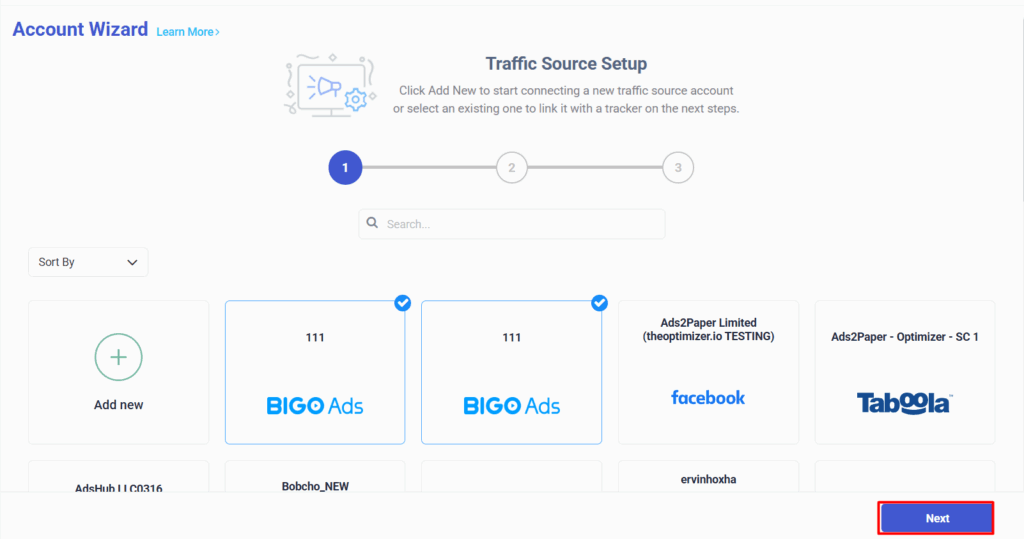
Step 2: Now, you need to click on “Add new” and select Tonic from a drop-down list of trackers and search feeds. Here, you will need to fill in some information about your Tonic account.
NOTE: You can find your Tonic API information by logging into your Tonic account and going to Account > Settings.
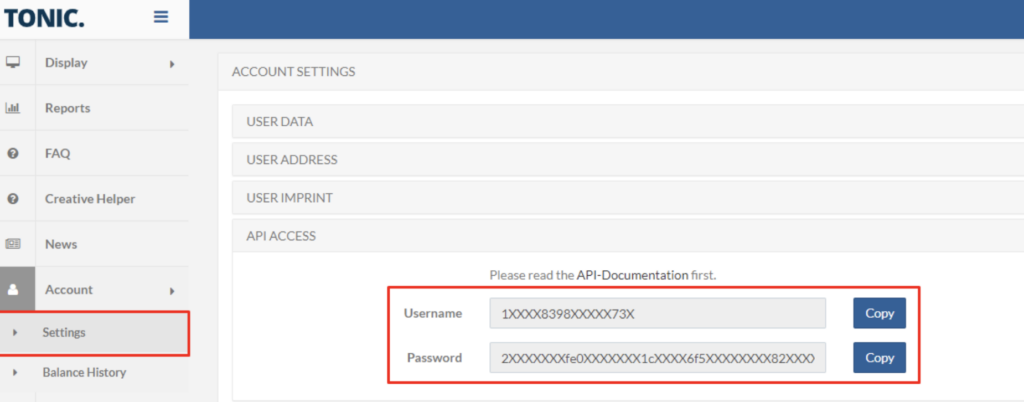
Step 3: Fill in the Tonic information shown below, including the API Key and API Secret you got from the previous step, to complete your account connection:
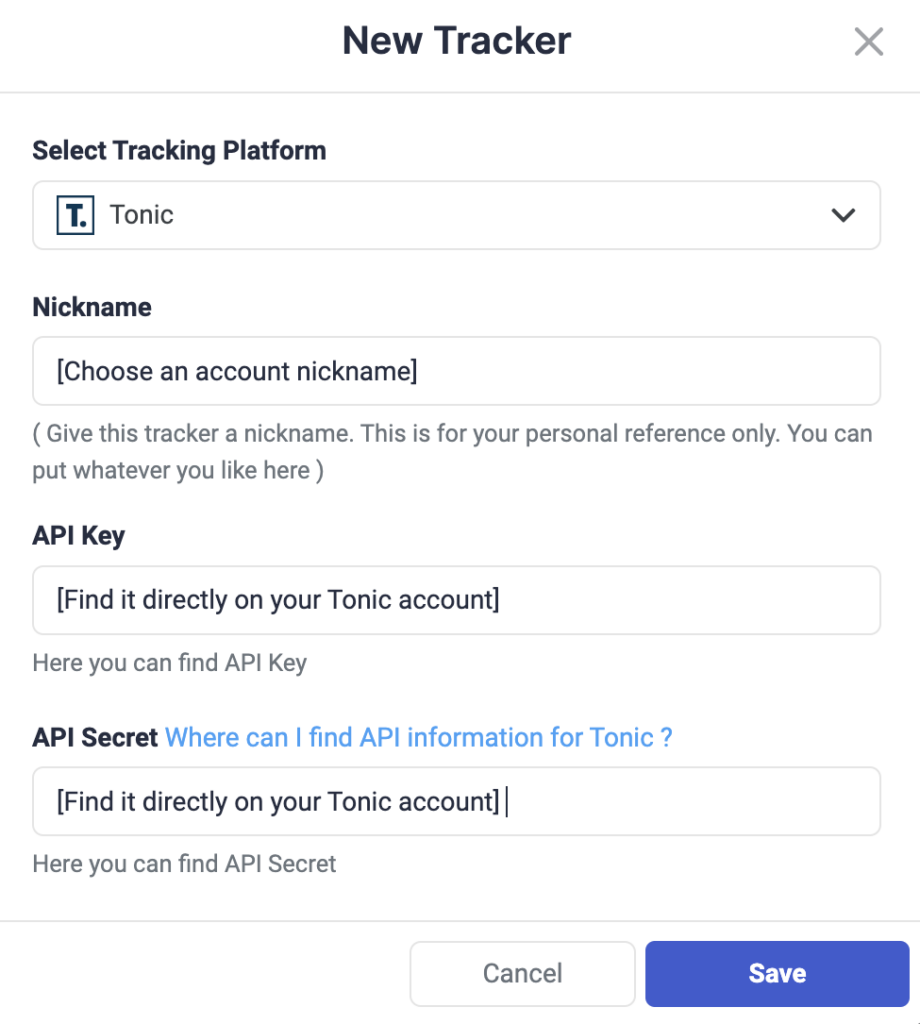
Step 4: After you have placed the API Key and API Secret from Tonic and Saved the information, you will need to specify which Tonic subids you are using to pass traffic source macros back to Tonic. Here is a possible configuration: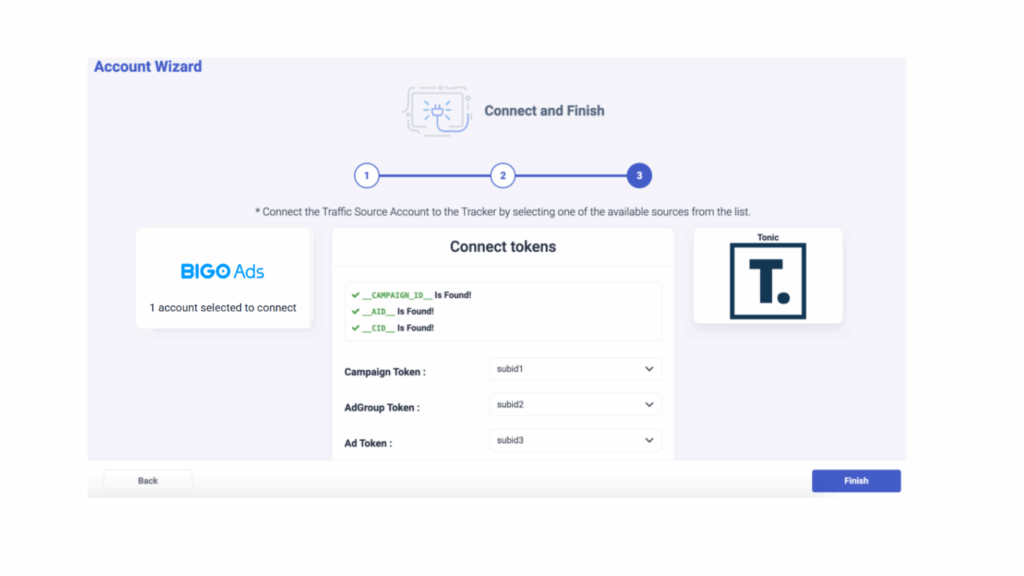
Step 5: As you noticed above, we are passing campaign tokens under subid1, adgroup tokens under subid2, and ad tokens under subid3. Once you click on Finish, you still have to update your BigoAds campaign links to ensure the generated tracking code is present
NOTE: Make sure all traffic source macros mentioned above are included in your configuration to ensure all data is being passed to TheOptimizer. For example, if you are not using the __CID__ macro, there will not be Tonic data for BigoAds ads in TheOptimizer.