
Let’s get started with connecting all your Facebook ad accounts first.
Once you have logged into TheOptimizer, click on Account Wizard on the left-side menu and follow these steps:
Step 1: Click on the Add New button with the plus size.
Step 2: On the pop-up integration, click on the traffic source drop-down list and select Facebook.
Step 3: Enter a nickname for the ad account you are connecting in order to easily identify it later.

Step 4: Click Save to be redirected to Facebook, where you will be asked to grant TheOptimizer access to your ad account.
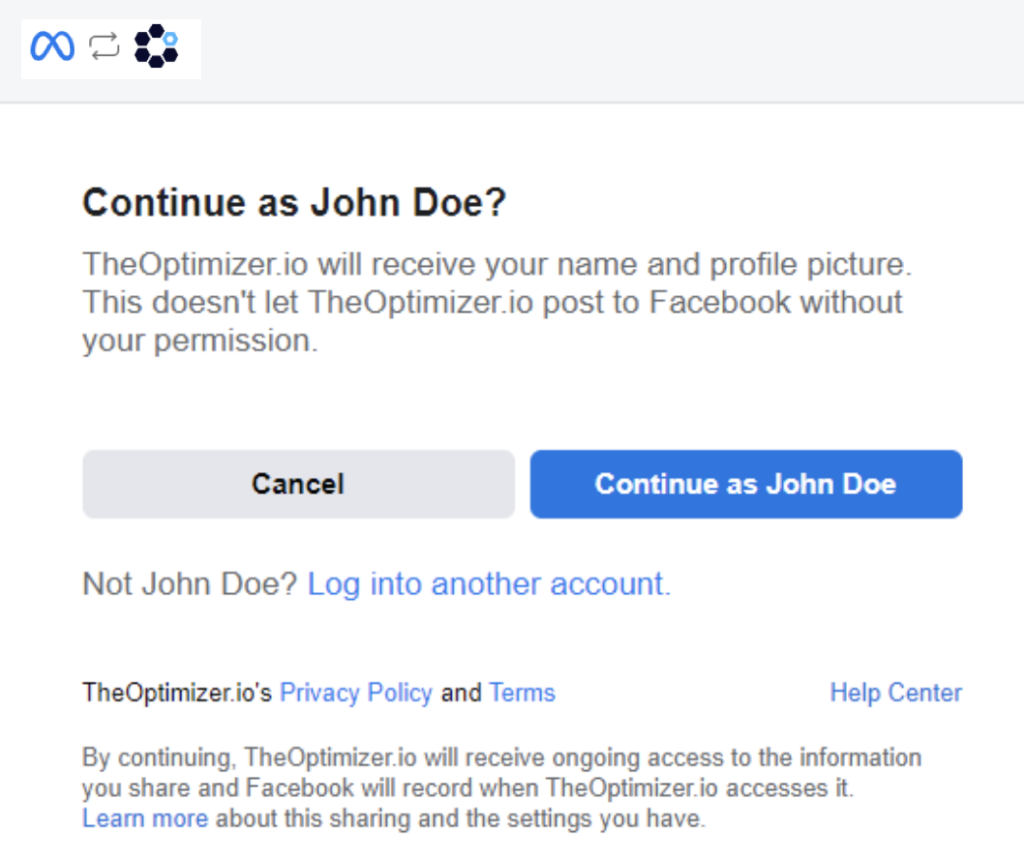
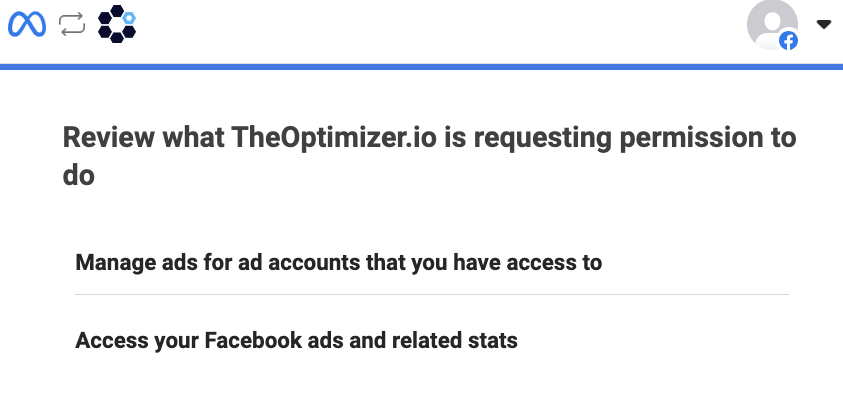
If you click on Continue, you will need to review TheOptimizer’s permission requests and approve them.
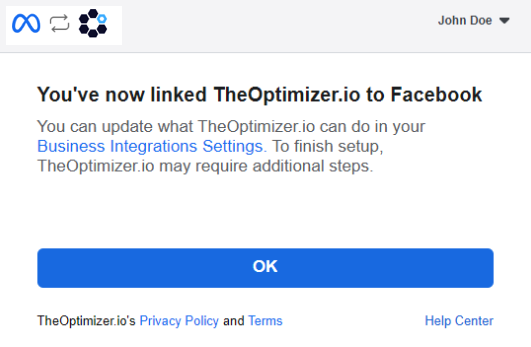
Once this is completed, you will see the confirmation message. Click OK to automatically return to your TheOptimizer account.
Step 5: When back on TheOptimizer’s account wizard page, select one or more ad accounts you want to connect.

Step 6: Click Save to continue to the next step.
Next step: Connect external revenue streams
Now, you can connect external revenue streams such as third-party trackers, search feeds, or manually upload your data:
- How to connect Facebook to ClickFlare
- How to connect Facebook to Google Analytics
- How to connect Facebook to Tonic
- How to connect Facebook to Sedo
- How to connect Facebook to System1
- How to connect Facebook to Ads.com (Bodis)
- How to connect Facebook to DomainActive
- How to connect Facebook to Voluum
- How to upload revenue data via CSV