
Meta Ads Placement Control in 2026: How to Actually Block Placements (It's Not as Simple Anymore)

If you've set up a new Meta campaign recently and excluded a placement like Audience Network or Facebook Right Column, you might have noticed something different. Meta now gives you a checkbox that says: Up to 5% of your budget is spent for each excluded placement when it's likely to improve performance.
And that checkbox is turned on by default.
That means when you exclude a placement, Meta doesn't fully exclude it anymore. Not unless you go back and manually uncheck that box. Your "excluded" placement can still receive up to 5% of your ad set budget. And that 5% applies per excluded placement, not total. If you've excluded 4 placements, that's potentially 20% of your budget going to places you specifically said you didn't want.
As PPC Land documented when the feature first appeared: "Campaigns with multiple placement exclusions could see significantly more than 5% of total budget directed to placements advertisers intended to avoid."
This is part of Meta's broader push toward algorithmic control over placement delivery. They've been steadily removing manual controls since 2024: detailed targeting exclusions were eliminated in January 2025, Dynamic Media was enabled by default for Advantage+ Catalog ads by October 2025, and now placement exclusions have this soft override baked in.
The logic from Meta's side makes sense. Their data shows that Advantage+ Placements (where Meta chooses everything) generally delivers lower cost per result because the algorithm has maximum flexibility to find cheap impressions wherever they exist. By sneaking 5% of spend into "excluded" placements, Meta is trying to prove that those placements can contribute to your results.
The problem is that many advertisers exclude placements for good reasons: brand safety concerns with Audience Network, low-quality traffic from specific surfaces, or simply because they've tested those placements and they don't convert for their offer. A default opt-in that overrides those decisions without clear notice is frustrating.
Let me walk you through how to actually control your placements in 2026.
How Placement Control Works at the Ad Set Level
At the ad set level, you have two options:
Advantage+ Placements (default). Meta decides where your ads run across all 25+ placement options. You give up control, and the algorithm finds the cheapest impressions. This is what Meta recommends for most advertisers, and honestly, for purchase-optimized campaigns with strong pixel data, it often works fine. The algorithm is good at finding cost-efficient impressions.
Manual Placements. You choose exactly which platforms (Facebook, Instagram, Messenger, Audience Network) and which surfaces within them (Feed, Stories, Reels, Marketplace, Search Results, etc.) your ads appear on. This gives you full control.
When you select Manual Placements and deselect specific placements, this is where the 5% spending feature kicks in. After you exclude placements, look for the checkbox that allows Meta to spend limited budget on those excluded surfaces. It may appear as a recommendation or as a checked option within the placement settings.

The catch: This feature currently applies to Sales and Leads campaign objectives. If you're running Traffic, Engagement, or Awareness campaigns, the behavior may differ. Check your specific campaign setup to confirm.
For campaigns where you're testing which placements work, leaving Advantage+ Placements on makes sense. You let Meta explore, collect data, and then review the breakdown reports to see which placements actually convert.
But once you have that data and know that certain placements don't work for you, switching to Manual Placements with genuine exclusions is a reasonable choice. Just make sure the 5% override isn't silently undermining your exclusions.
How Placement Control Works at the Account Level
Meta also offers account-level placement controls. These apply to every campaign in the account, so you don't need to remember to exclude specific placements each time you create a new campaign.
To access account-level placement controls
- Go to Advertising Settings in your Meta Ads Manager
- Select Placement Controls
- Toggle on "My business can only advertise on specific placements"
From here, you can exclude:
- Audience Network (ads on third-party apps and websites)
- Facebook Marketplace
- Facebook Right Column
These account-level controls are separate from the ad set level placement selections. When you set an exclusion at the account level, it overrides any ad set level settings. Even if someone on your team creates a new campaign with Advantage+ Placements, the account-level exclusion will still apply.
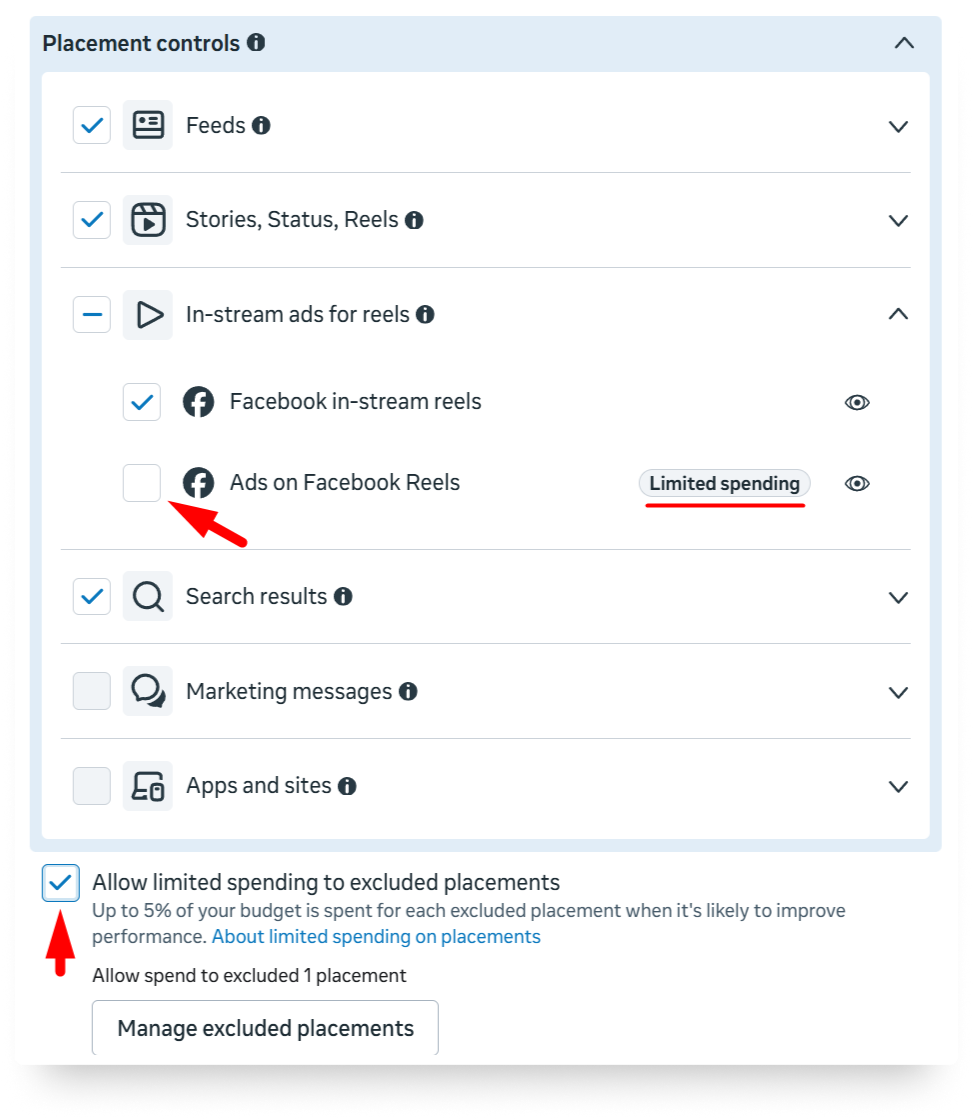
This is the cleanest way to permanently block a placement across your account. No checkboxes to worry about. No 5% overrides. The placement is simply off. However, if you want to exclude any specific placement like for example "Ads on Facebook Reels", then you have to do this at the ad set placement control settings.
When to use account-level exclusions:
- You've tested Audience Network extensively and it consistently delivers low-quality traffic for your business
- Your brand has content adjacency requirements that Audience Network can't satisfy
- You have compliance or regulatory reasons that require restricting where your ads appear
- You want a "set it and forget it" solution that applies to all current and future campaigns
Important:
Account-level placement controls are only available for Auction campaigns. If you are running Reach and Frequency campaigns, then you need to manage your placement selection under your ad set placement control settings.
Steps to Completely Remove a Placement
If your goal is to fully block a placement with zero spend leaking through, here's the process.
Option A: Account-Level Block (Recommended for Permanent Exclusions)
- Open Meta Ads Manager
- Go to Advertising Settings (gear icon > Advertising Settings)
- Click Placement Controls
- Toggle on "My business can only advertise on specific placements"
- Uncheck the placements you want to block (Audience Network, Marketplace, Right Column)
- Click Review Changes and then Apply
- Wait up to 48 hours for changes to take effect across existing campaigns
This is the safest method to get rid of Audience Network, Marketplace, Right Column. It applies to everything in the account and isn't affected by the 5% spend checkbox at the ad set level. For additional placements, consider option B.
Option B: Ad Set Level Block (For Per-Campaign Control)
- Create or edit your campaign
- At the ad set level, scroll to Placements
- Click on Show more settings to make Placement controls visible.
- Click and expand Placement controls
- Uncheck the placements you want to exclude.
- Look for a checkbox saying "Allow limited spending to excluded placements". This is the option that allows Meta to spend up to 5% on excluded placements and will appear only after excluding placements. Uncheck this box.
- Save and publish
If you don't uncheck the box on step 6, your "excluded" placements will still receive up to 5% of your ad set budget each.
Option C: Combine Both for Maximum Protection
Use account-level controls to permanently block placements you never want (like Audience Network), and use ad set level controls for per-campaign adjustments (like excluding Stories for a campaign that doesn't have vertical creative).
How TheOptimizer Handles Placement Optimization Automatically
Here's the approach I recommend for experienced buyers who want the best of both worlds: algorithmic flexibility for discovery, automated protection against waste.
Instead of manually excluding placements upfront (which limits Meta's ability to find cheap impressions), start with Advantage+ Placements or a broad manual placement selection. Let Meta explore. Then use automation rules to cut underperforming placements based on actual data.
TheOptimizer connects to Meta's API and lets you build rules that automatically block placements based on performance thresholds. Here's what that looks like:
Rule: Block Underperforming Placements
IF Placement Spend > $X
AND Placement CPA > Target CPA by 30%
AND Placement Conversions < Y
THEN Block Placement
Run every 10 to 30 minutes
This rule gives every placement a fair chance to prove itself. If a placement spends meaningful budget and doesn't convert at an acceptable rate, it gets blocked automatically. No manual checking. No forgetting to review placement breakdowns.
Why this is better than pre-excluding placements?
- You don't miss hidden winners. Sometimes a placement you'd normally exclude turns out to work well for a specific creative or audience. Automated rules let it run until the data says otherwise.
- You respond to real data, not assumptions. Excluding Audience Network because "everyone says it's bad" ignores the fact that for some offers and verticals, it converts at a very low CPC. Let the data decide.
- You handle the 5% problem automatically. Even if Meta's 5% override sneaks spend into an excluded placement, your automation rules will catch it if that spend doesn't convert. The placement gets blocked based on performance, not just preference.
- It runs 24/7. New placements, shifted spend patterns, seasonal changes. Your rules adapt in real-time without you needing to manually review breakdown reports every day.
This placement-level automation works alongside all the other rules I use for campaign management. Stop-loss on campaigns, budget scaling on winners, creative fatigue detection. See our 8 automation rules guide for the full set.
The approach is simple: give Meta room to find results across placements, but have automated guardrails that block anything that wastes money. You get the algorithmic flexibility Meta wants you to use, plus the cost protection you actually need.
FAQ
What is the 5% excluded placement spending feature?
When you exclude a placement at the ad set level for Sales or Leads campaigns, Meta now offers a checkbox (often enabled by default) that lets it spend up to 5% of your ad set budget on each excluded placement "when it's likely to improve performance." This means your excluded placements may still receive some budget unless you manually uncheck that option.
Does the 5% apply per placement or total?
Per placement. If you exclude 4 placements, each can receive up to 5%, meaning up to 20% of your budget could go to placements you tried to exclude. This is why the feature is more impactful than it sounds at first glance.
How do I fully block a placement with no spend leakage?
Two options. Either set an account-level placement exclusion (Advertising Settings > Placement Controls), which overrides everything and has no 5% checkbox. Or at the ad set level, select Manual Placements, exclude the placement, and explicitly uncheck the limited spend checkbox.
Should I use Advantage+ Placements or Manual Placements?
For purchase-optimized campaigns with strong pixel data, Advantage+ Placements generally works well. Meta's algorithm is good at finding cost-efficient impressions across surfaces. For campaigns optimizing for top-of-funnel events (link clicks, landing page views), manual placement selection is often better because Meta tends to exploit cheap, low-quality placements for these objectives.
Is Audience Network worth keeping on?
It depends on your campaign objective and offer. For e-commerce purchase optimization, Audience Network sometimes delivers very cheap conversions. For lead gen or top-of-funnel campaigns, the traffic quality from Audience Network is often poor. Test it, review the breakdown data, and decide based on your numbers. Or use TheOptimizer to automatically block it if it doesn't perform.
Can I use value rules instead of placement exclusions?
Partially. Value rules let you increase or decrease bids for specific placements, which can deprioritize a placement through lower bidding. However, not all placements are available as value rule criteria, and value rules don't fully exclude a placement. They just make Meta bid less for it. For a complete block, use placement exclusions or account-level controls.
Do placement changes reset the learning phase?
Adding or removing placements at the ad set level counts as a significant edit and can reset the learning phase. If you need to change placements on a running campaign, consider making the change during a low-spend period or creating a new ad set with the updated placements instead.