How to Bulk Upload Facebook Ads In 2026 (Step-by-Step)

Manually creating bulk Facebook ad campaigns is one of the most time-consuming tasks for an advertiser.
Even when the creatives are ready, uploading them one by one in Ads Manager is challenging and prone to errors that could cost you thousands.
Facebook advertising in 2026 rewards scale. Testing fifty creative variants per week versus five isn't a small edge. Over a month, that gap turns into the difference between knowing what works and still guessing.
That’s why advertisers are leveraging automation to speed up the process without sacrificing creative quality.
This guide walks through the top 3 methods for bulk creating Facebook ad campaigns. We’ve compared them, so you can find the approach that matches your volume and start testing at the speed your results actually require.
Why Bulk Campaign Creation Matters
Manually creating Facebook ads feels like just “part of the process”, and before you know it, you end up spending hours in campaign creation only.
At 3–5 minutes per ad set, building 50 campaigns takes between 2.5–4 hours per week, before any QA is done. With bulk campaign creation, the same 50 campaigns take 15 minutes to an hour, depending on how complex your setup is.
Accuracy is just as important here. Manual, repetitive work at speed produces errors, and in campaign setup, errors are expensive.
If the wrong budget is applied across all 50 ad sets, and nobody notices it, this amounts to wasted spend.
Creatives accidentally loaded into the wrong ad sets means test results you can’t trust.
At the same time, inconsistent naming means three months of data you can barely filter.
Bulk creation, on the other hand, is faster and structured. It’s a templated workflow that’s inherently more accurate than building the same thing 50 times by hand.
Let’s have a look at the 3 methods to bulk-create Facebook ad campaigns:
Method 1: Facebook Ads Manager’s Built-In Bulk Tools
The first way to bulk-create Facebook ads is through the Ads Manager's existing tools. There are two options for that:
Duplicate and Edit
The fastest setup is duplicating an existing campaign template that you know is performing well.
You can do this in a few simple steps:
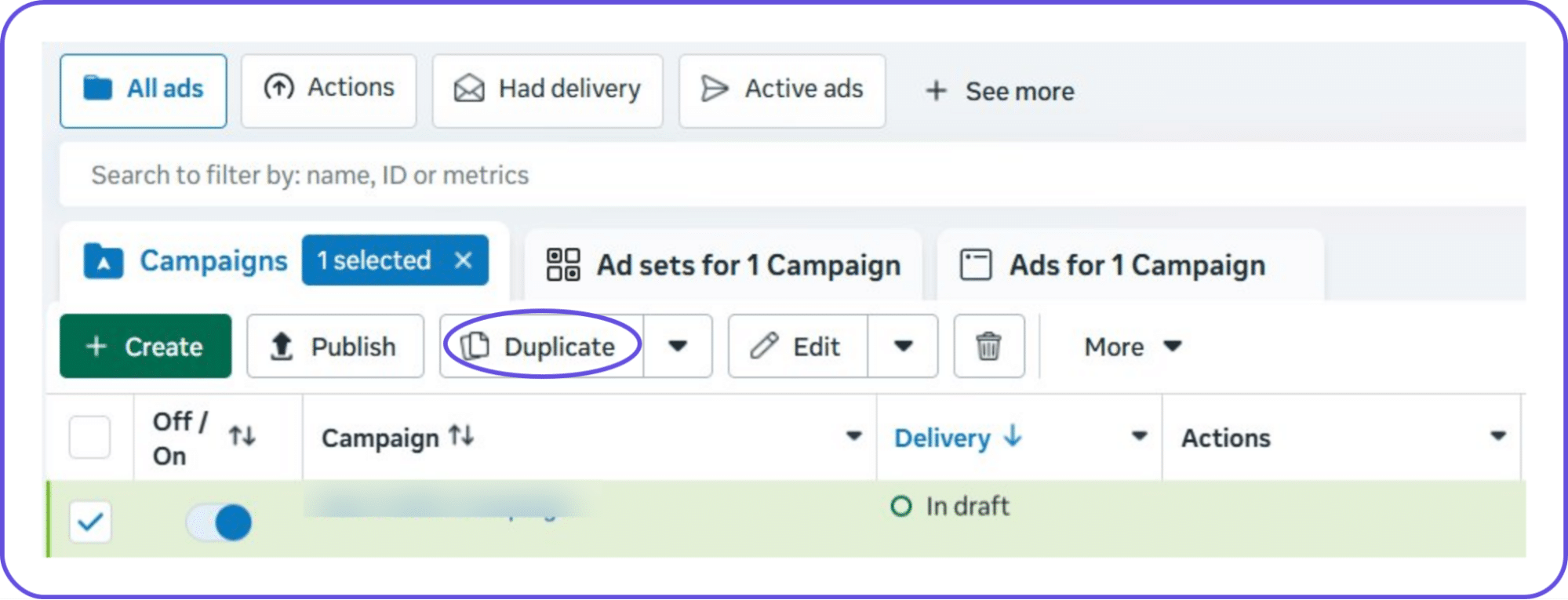
- Go to Campaigns, Ad Set, or Ads to find the item you want to copy
- Select it and hit the Duplicate button in the toolbar
- Bulk-edit the ad duplicates and publish them
When to use this method:
- Replicating a winning campaign quickly
- Launching 3–5 variations of a campaign, with minor changes
- Testing a new creative without rebuilding targeting from scratch
- Moving a campaign structure to a different ad account
Limitations of using this method:
- You still have to edit each duplicate individually.
- Not efficient if duplicating beyond 10–15 campaigns
- You can’t batch apply changes across all duplicates
This is a reasonable method for small-scale variation testing when you’re experimenting with creatives or creating a few audience variants off a proven structure.
However, this method is not effective when you’re scaling. You’d still have to go through each creative and duplicate it manually.
Bulk Upload Facebook Ads via Spreadsheet
Facebook has a built-in bulk upload tool inside Ads Manager. You export your existing campaign structure as a spreadsheet, make your changes in Excel or Google Sheets, then re-import the file back into Ads Manager.
Facebook reads your edits and applies them across all your campaigns at once.
How to access it:
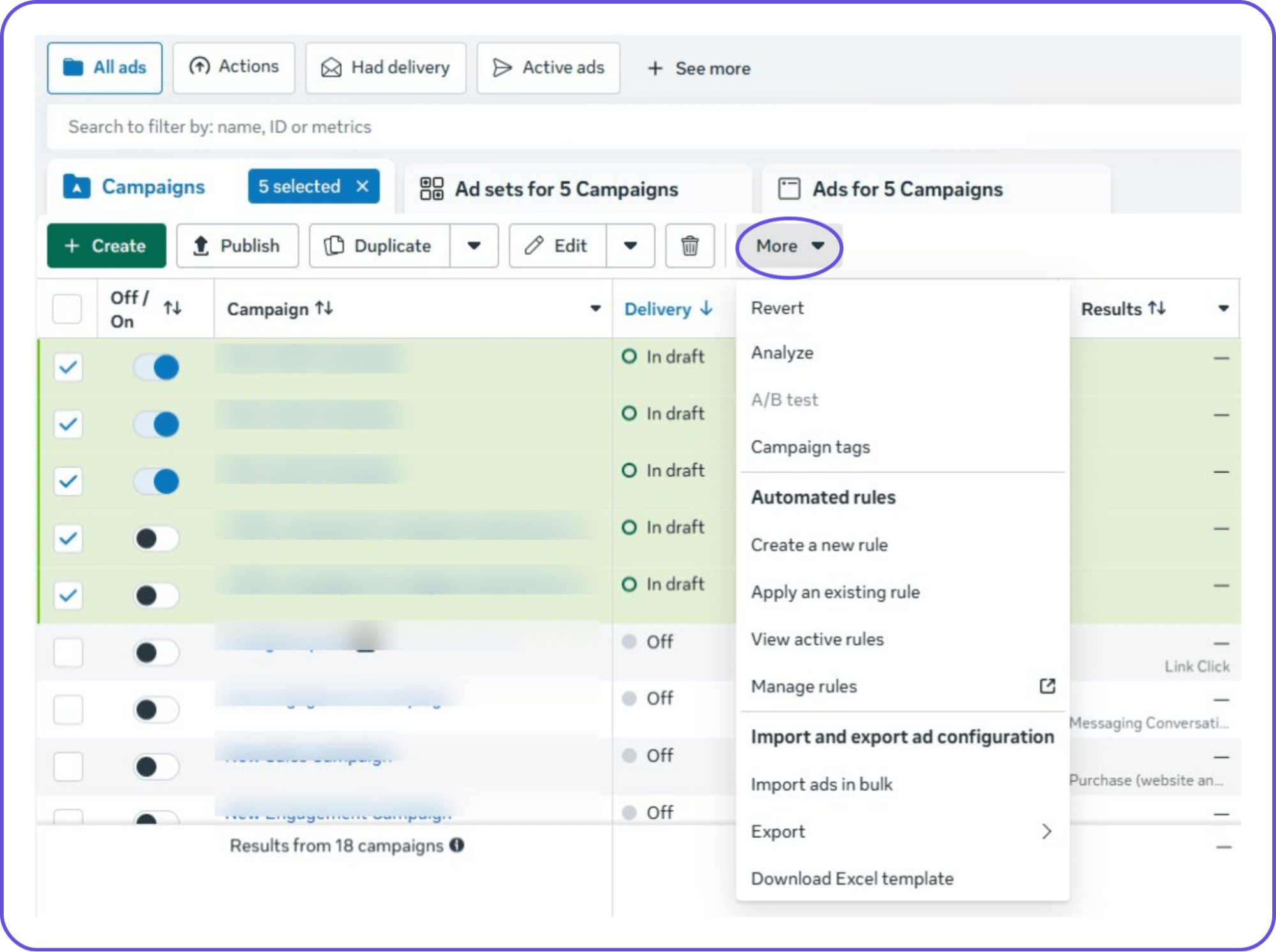
- Open Ads Manager and select the campaigns you want to edit
- Click the "More" button in the top toolbar
- Under "Import and export ad configuration," click "Export" to download your current campaign structure as an Excel file.
- Open the file, make your edits across as many rows as needed
- Go back to More > "Import ads in bulk" to re-upload the edited file
- Facebook validates the file and applies all changes simultaneously
(You can also download a blank Excel template from the same menu if you want to build from scratch.)
When to use this method:
- Changing budgets across plenty of ad sets at once
- Pausing or activating multiple campaigns at the same time
- Updating bid caps, schedules, or statuses in bulk
- Any other repetitive edit that you’d have to make one by one
Limitations of using this method:
- The spreadsheet format is complex
- You cannot upload creative files directly inside an Excel/CSV cell
- Building a brand new campaign from scratch requires understanding Facebook’s exact column schema
- There’s no visual preview before publishing
The process is complex enough that most advertisers use it primarily for bulk editing Facebook ads: changing budgets, statuses, and bid caps across existing campaigns. For true bulk creation with fresh creatives, dedicated tools handle it far more reliably.
Method 2: Excel/CSV Upload via Third-Party Tools
Third-party bulk upload tools (such as AdEspresso, Smartly.io, and others) sit between Meta's native tools and fully dedicated platforms.
They take the spreadsheet-based workflow but handle Facebook API publishing directly, with better validation and creative management than Meta's native import.
How it works:
- Download the platform's pre-formatted CSV/Excel template, mapped directly to Facebook's API
- Fill in your campaign structure (ad sets, creatives, headlines, targeting)
- Upload the file to the platform, which validates your data and flags errors before submitting to Meta
- The tool pushes everything live via the Meta Marketing API
- Campaigns appear in Ads Manager, ready to review and activate
When to use this method:
This method works best for teams whose planning already lives in spreadsheets. You stay in a familiar environment while the tool handles the API publishing.
It also works well for structured, repeatable launches where campaign details are mapped out before production begins.
Limitations of using this method:
- Still manual: every combination needs to be filled in by hand, row by row
- No auto-explode or permutation generation
- No multi-account publishing in a single action
- No automation rules at launch
- Creative files upload separately from the spreadsheet
Method 3: Dedicated Bulk Campaign Creation Platforms
Bulk campaign creation platforms like TheOptimizer were designed specifically to help media buyers run hundreds of campaigns per week automatically.
A few capabilities define what separates this (and similar) tools from the spreadsheet approaches above:
Bulk Creative Upload at Once
You can drag and drop an entire creative batch directly into the platform at once. Bulk Facebook campaign tools handle the upload and map assets to the campaign structure in one pass.
There’s no need to upload all creatives manually or use a reference ID from a spreadsheet.
Auto-Distribute
Once you’ve uploaded your creatives, auto-distribute splits them automatically into one creative per ad set (the isolated testing structure that gives you clean, comparable data on each variation).
Without it, you’d have to create 30 ad sets manually, assign one creative to each, and verify each assignment; on repeat.
Variation Groups and Permutations
When you define your variables, the bulk campaign platform generates every unique combination automatically. This is how experienced buyers find scale pockets.
For example, a creative that performs at $30/day often behaves completely differently at a broad interest stack. Testing across those dimensions manually is impractical, while automated permutations make it systematic and repeatable.
Multi-Account Publishing
You can easily build the full campaign structure once, then publish it simultaneously across ad accounts. Each account receives its own independent copy.
For high-spend advertisers distributing budget across accounts for performance or risk reasons, this turns what would otherwise be a multiplicative manual workload into a single publish action.
Reusable Templates
If you save an entire campaign configuration as a template, you can use it at any time in the future.
Automation Rules at Launch
Attaching stop-loss rules, CPA ceilings, and scaling rules before a campaign goes live means protection is active from the first impression. Overnight launches or campaigns running across time zones where no one is monitoring the account in real time benefit a lot from this feature.
Dynamic Naming
Define a naming template, like:
{campaign_objective}_{audience}_{creative_name}_{date}
And every campaign, ad set, and ad name itself is automatically created on creation. Whenever you need to compare creative performance across audiences, you’ll have something to actually filter on.
A Quick Comparison Table Between Three Methods
We built a table to help you compare three methods and decide which one could work best for your goals:
MethodAds ManagerExcel/CSV UploadDedicated bulk platformBest for3–10 campaign variations + quick campaign editsSpreadsheet-first teams50–200+ campaigns per week, creative testing at scaleSet up time for 50 ad sets3–4 hours1–2 hours10-15 min (+)Bulk creative uploadOne at a timeSeparate step, IDs onlyDrag & drop full batchAuto-distribute into isolated ad setsNot supportedManual rows in a spreadsheetAuto-generatedMulti-account launchOne account at a timeSave the spreadsheet manuallyFull configuration saved and reloadedAutomating rulesAttach manually afterNot supportedAttached before the first impressionDynamic namingManualFormula-based in a spreadsheetToken-based templatedLearning curveNoneMediumLow-medium
Step-by-Step: Bulk Creating 50 Campaigns with TheOptimizer
TheOptimizer provides an intuitive, all-in-one platform to bulk-create Facebook ad campaigns across multiple ad accounts. You can launch hundreds of creative variations in just a few minutes, while reducing manual work and preventing any potential human error.
We’ll demonstrate how to do it step-by-step:
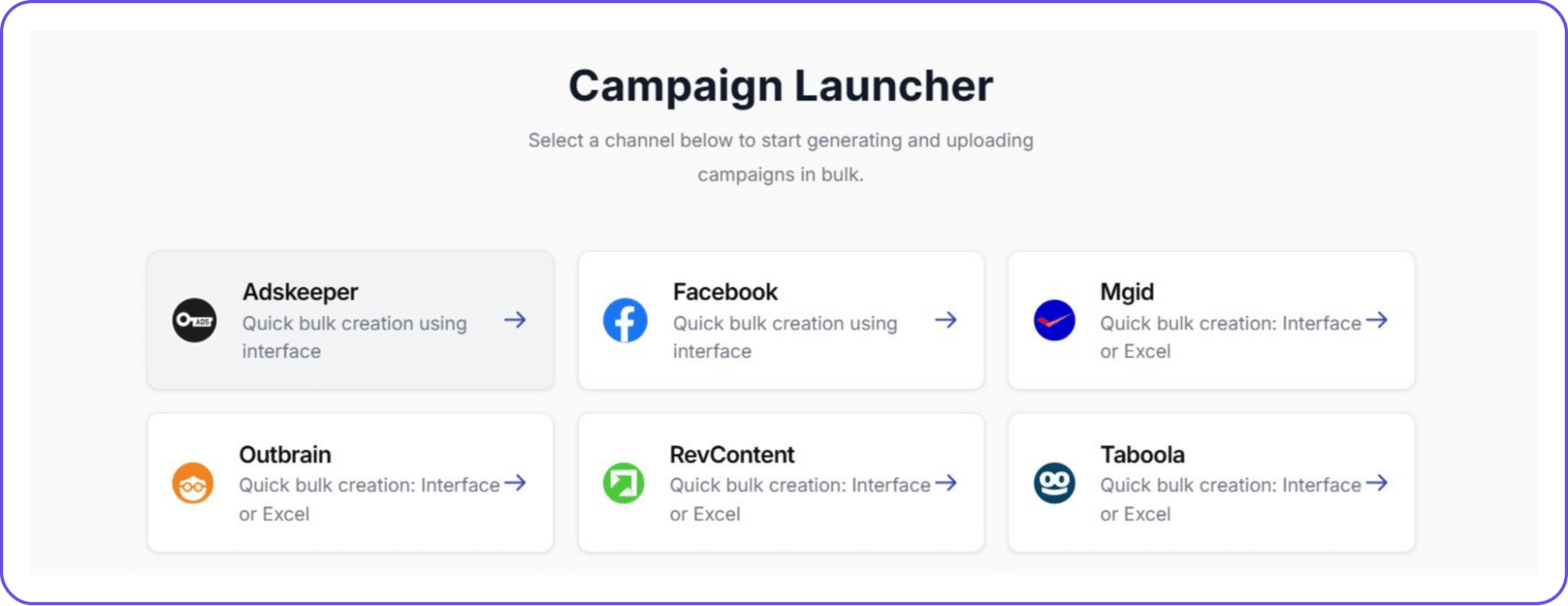
Step 1: Open Campaign Creator
Go to Campaign Creator in the left sidebar and select Facebook as your traffic source. If you’ve run this workflow before, load a saved template instead of starting from scratch. You’ll find existing templates on the right side of the dashboard (after clicking on the traffic source).
Otherwise, you’ll have to configure your campaign from scratch.
Step 2: Campaign-level defaults
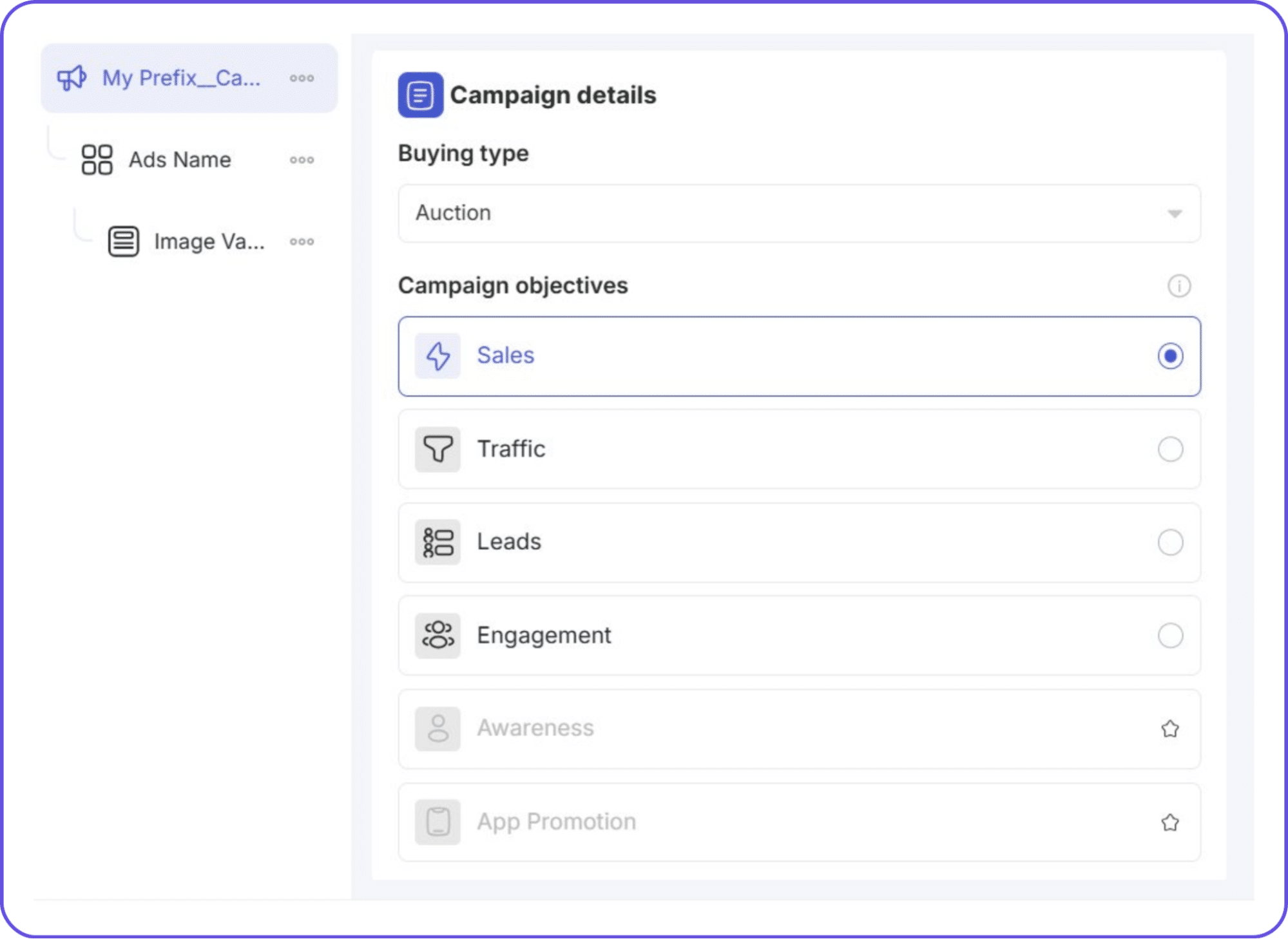
On the campaign level, configure:
- Ad account: Select which Facebook ad account to create campaigns in
- Campaign Objective: Sales, Traffic, Leads, Engagement
- Buying Type: Auction is the only supported type
- Budget: ABO is recommended when testing
- Special Ad categories: Select if your offer falls into one of the available categories
- Status: Choose Paused if your campaign will be reviewed by a team member
Step 3: Ad-set level defaults
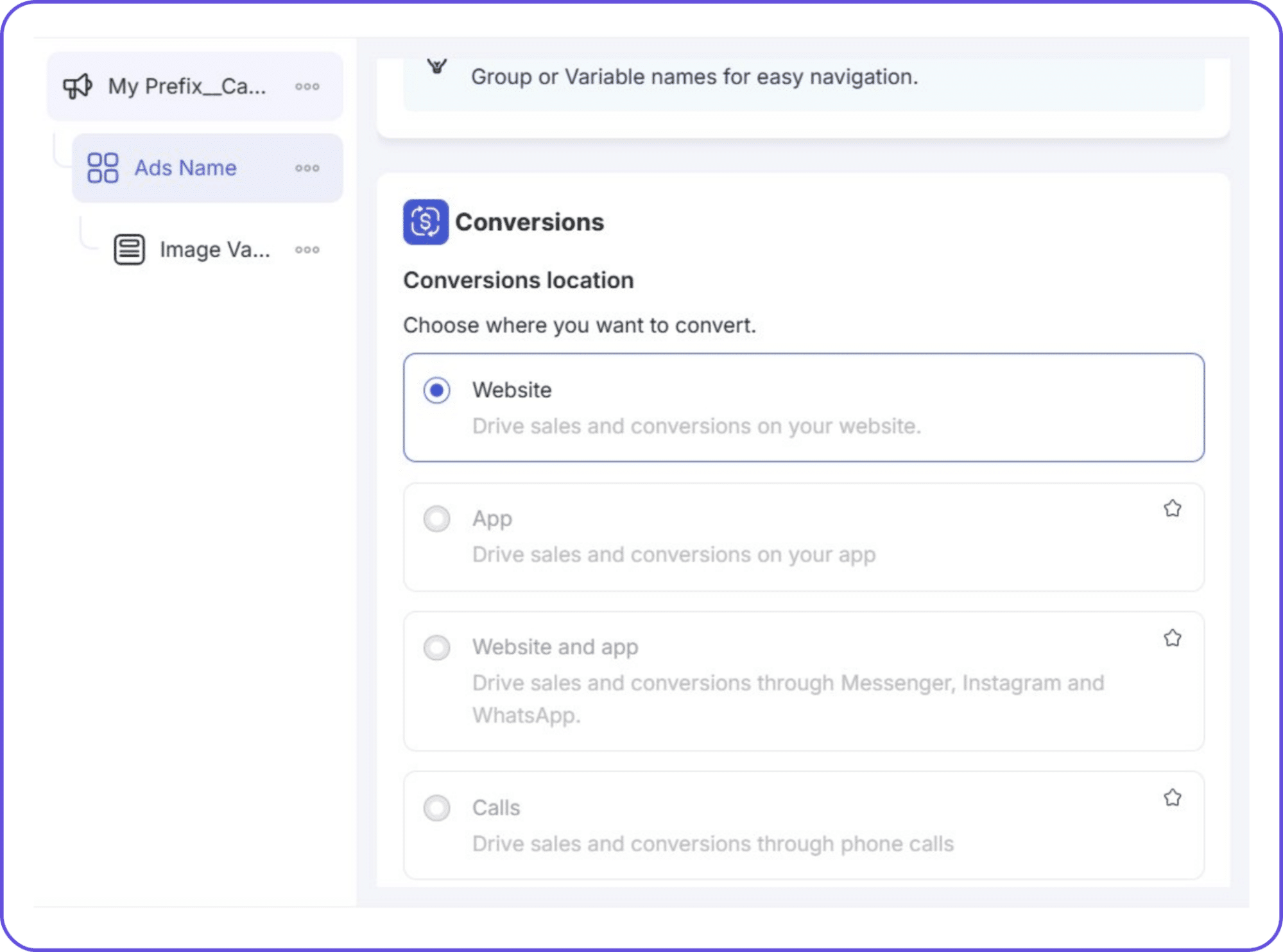
Everything set here becomes the baseline applied across every ad set this session generates.
- Ad Set name: Edit the naming template
- Conversions: Select your conversions location. Website is the most common for direct response campaigns.
- Performance Goal: e.g., Maximize Number of Conversions
- Pixel: Select your Facebook pixel
- Cost Per Result Goal: Optional, set a target CPA if using cost cap bidding
- Bid Strategy: TheOptimizer mirrors Facebook's options: Cost Cap, Bid Cap.
- Budget: Set your daily budget per ad set and your campaign start date. You can also set ad spending limits if needed.
- Audience Controls: Configure who sees your ads and other relevant details (locations, languages, etc.)
- Beneficiary: Required for ad sets targeting audiences in the EU
- Placements: Choose Advantage+ Placements (recommended by Facebook) or configure Manual Placements to control which platforms and positions your ads appear in
Once you’ve set everything, click on Save as Template on the top right to save this setup for next time.
Step 4: Upload creatives
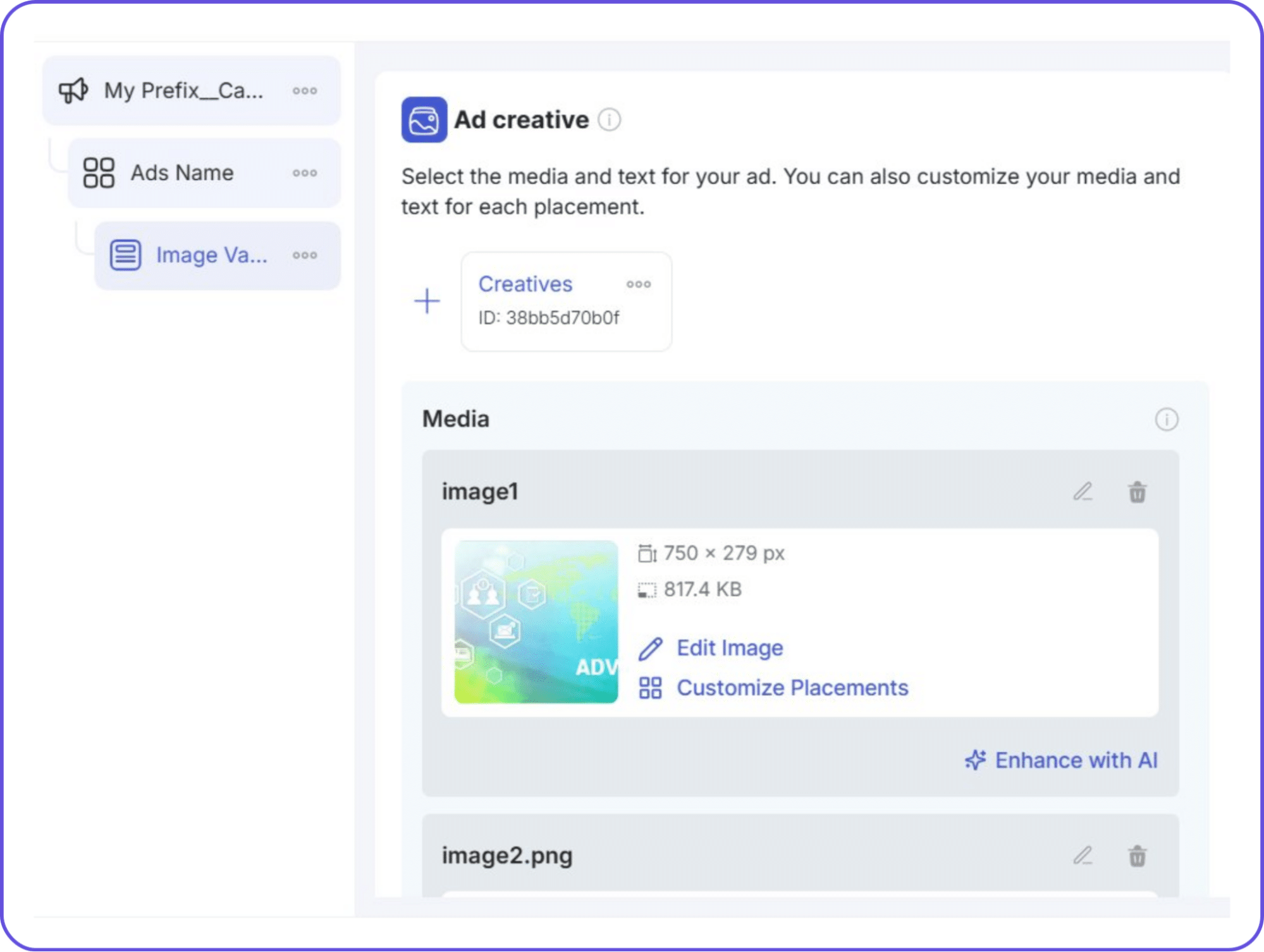
Drag the full batch of images or videos into the creative area. TheOptimizer processes them in bulk. Then fill in the ad copy that applies across creatives: primary text, headline, description, CTA, and destination URL.
Step 5: Auto-distribute
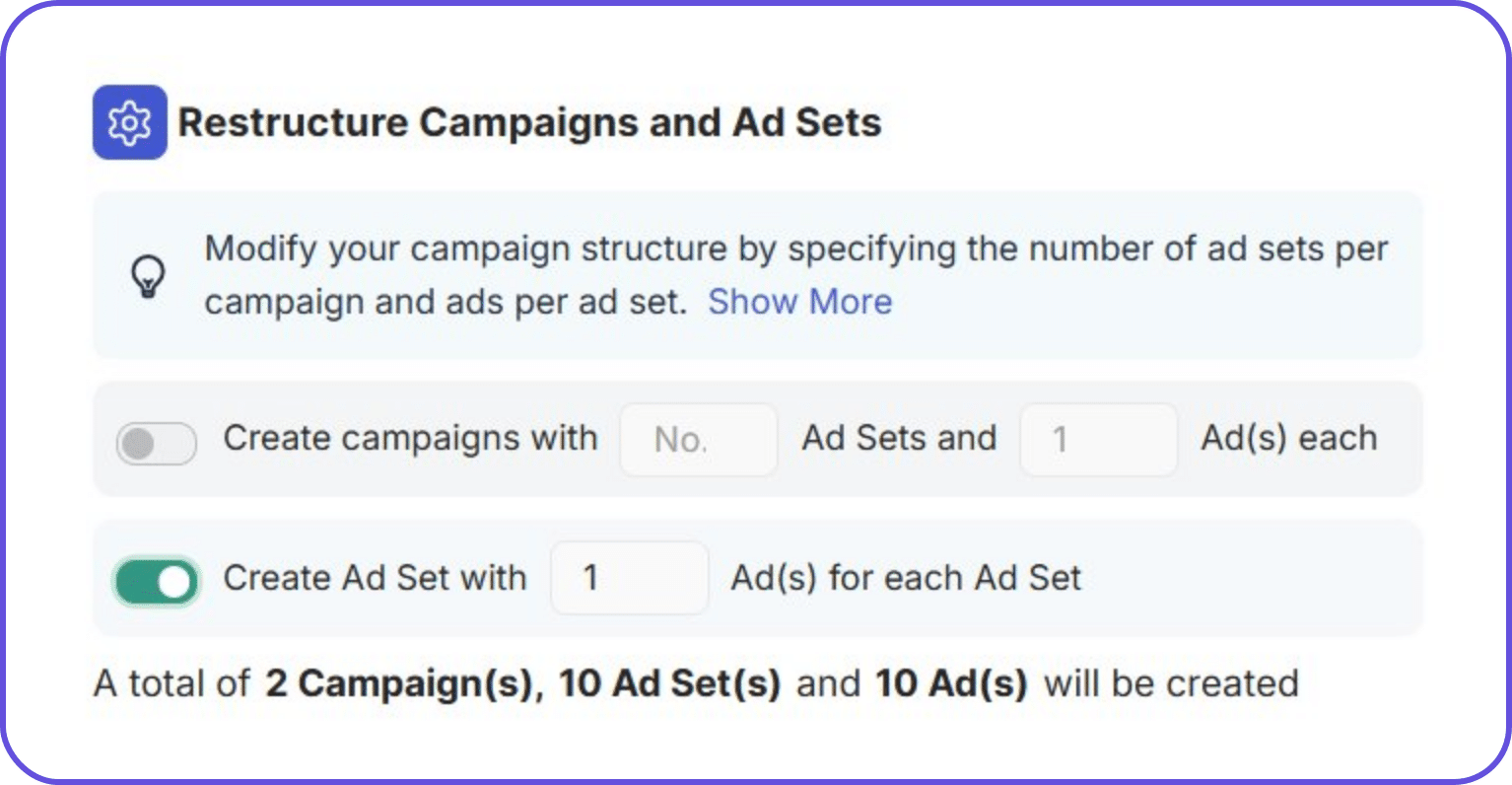
Once your creatives are uploaded, click on Manage Variations at the bottom of the screen. This opens the Restructure Campaigns and Ad Sets panel, where you’ll see two toggle options:
- Create campaigns with: number of Ad Sets and Ad(s) each. This explodes into one separate campaign per creative (full budget isolation per creative).
- Create Ad Set with: Ad(s) for each Ad Set. This one explodes into one ad set per creative under a single shared campaign budget.
Toggle the one that matches your creative strategy.
Step 6: Variation groups
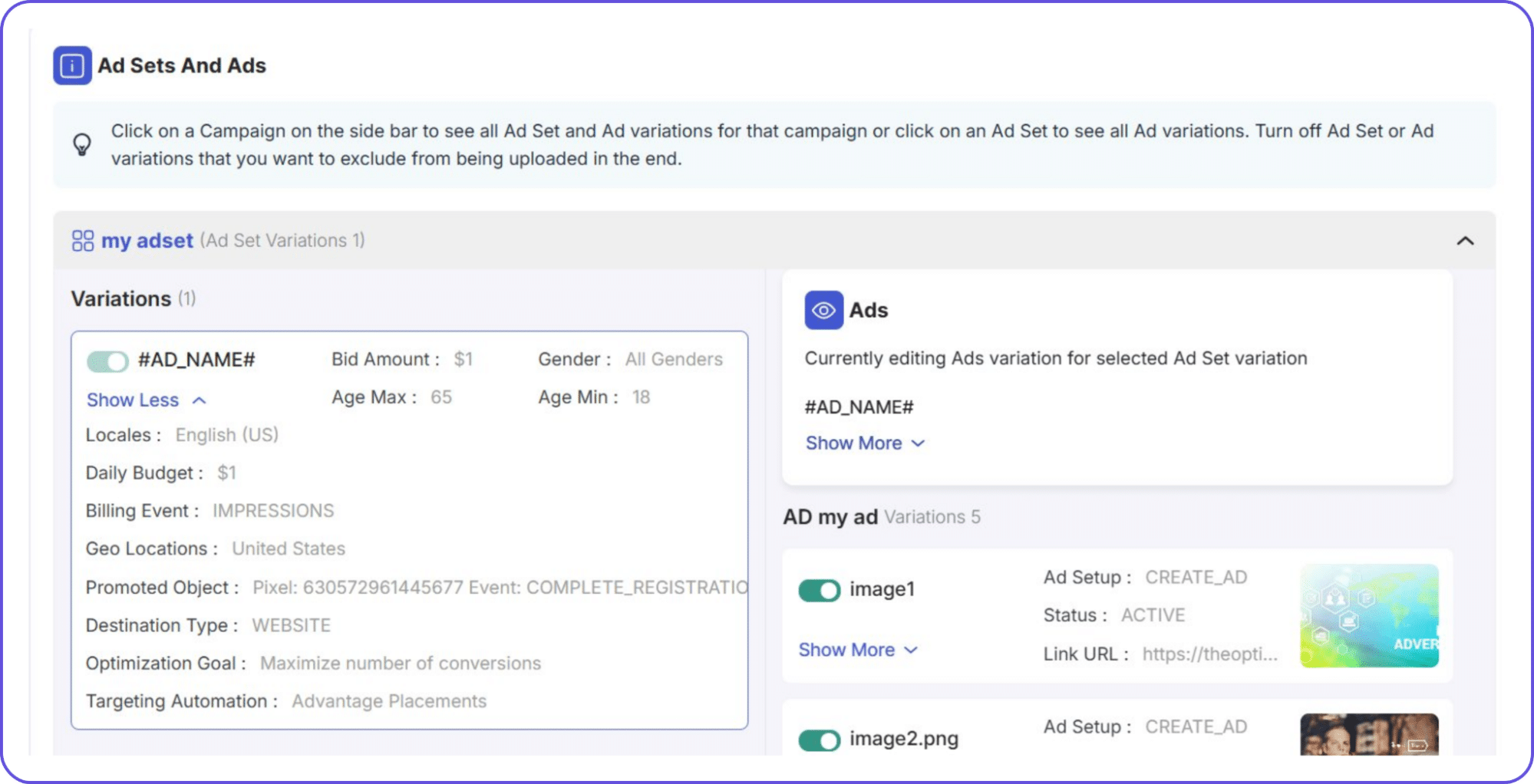
In the Ad Sets and Ads, you will see every variation that will be created. Toggle off any ad set or ad variation you want to exclude from this launch; everything toggled on gets published.
Step 7: Naming template
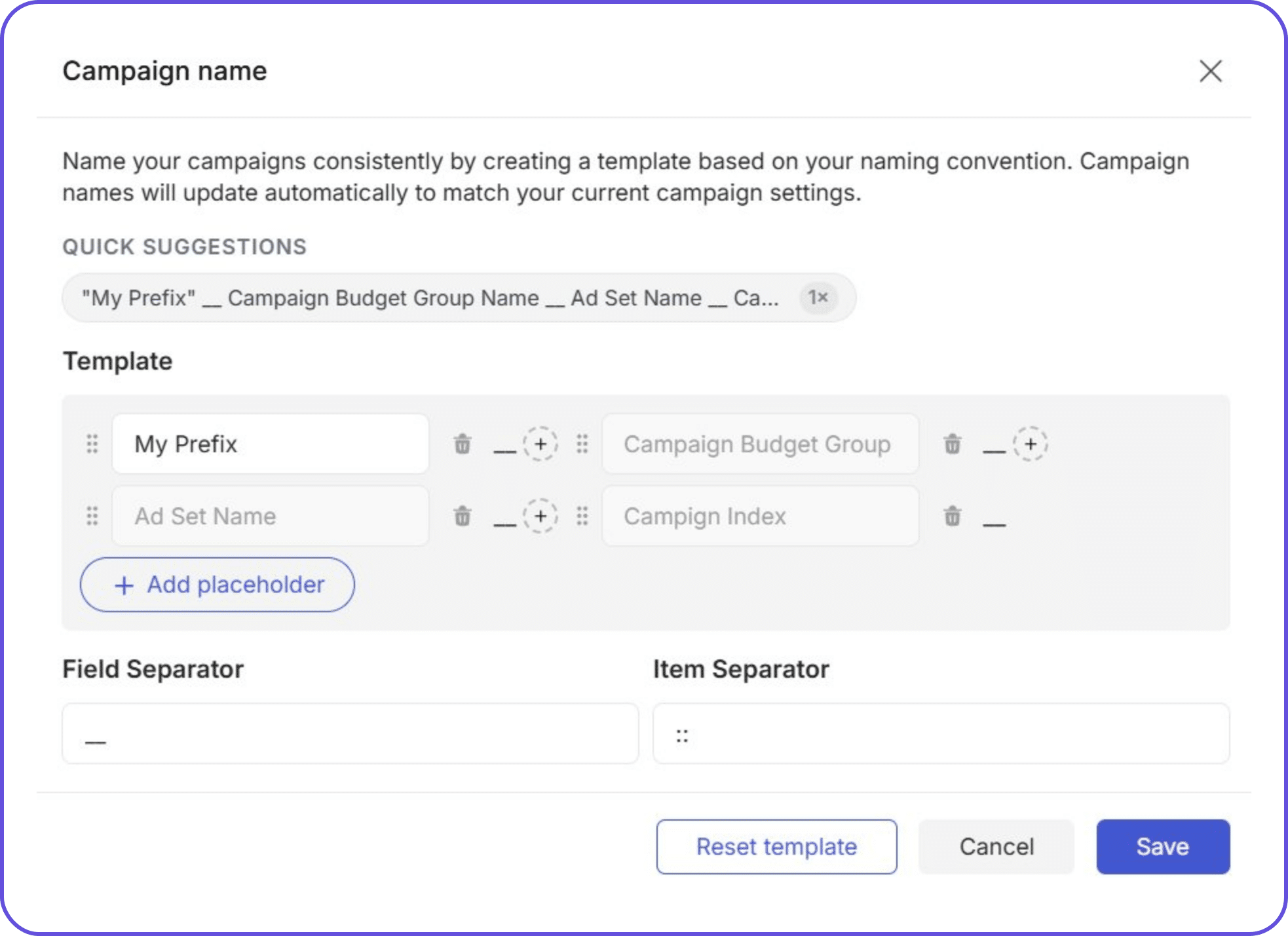
Click on the Campaign, Ad Set, or Ad level in the left panel tree. Next to the name field at each level, click + Create Naming Template (or Edit Naming Template if one already exists).
In the template dialog:
- Click + Add Placeholder to insert dynamic tokens: Targeting, Placement, Budget, Bid Amount, Bid Strategy, Group Name, Campaign Index, and more
- Set your Field Separator (e.g., __ between each token)
- Set your Item Separator for multiple values within the same field
- Click Save
Example output: TheOptimizer __ ABO-$25 __ US-Broad __ Apr2026
Step 8: Automation rules
Click Add Automation and Review at the bottom right of the screen. This is the final step before publishing.
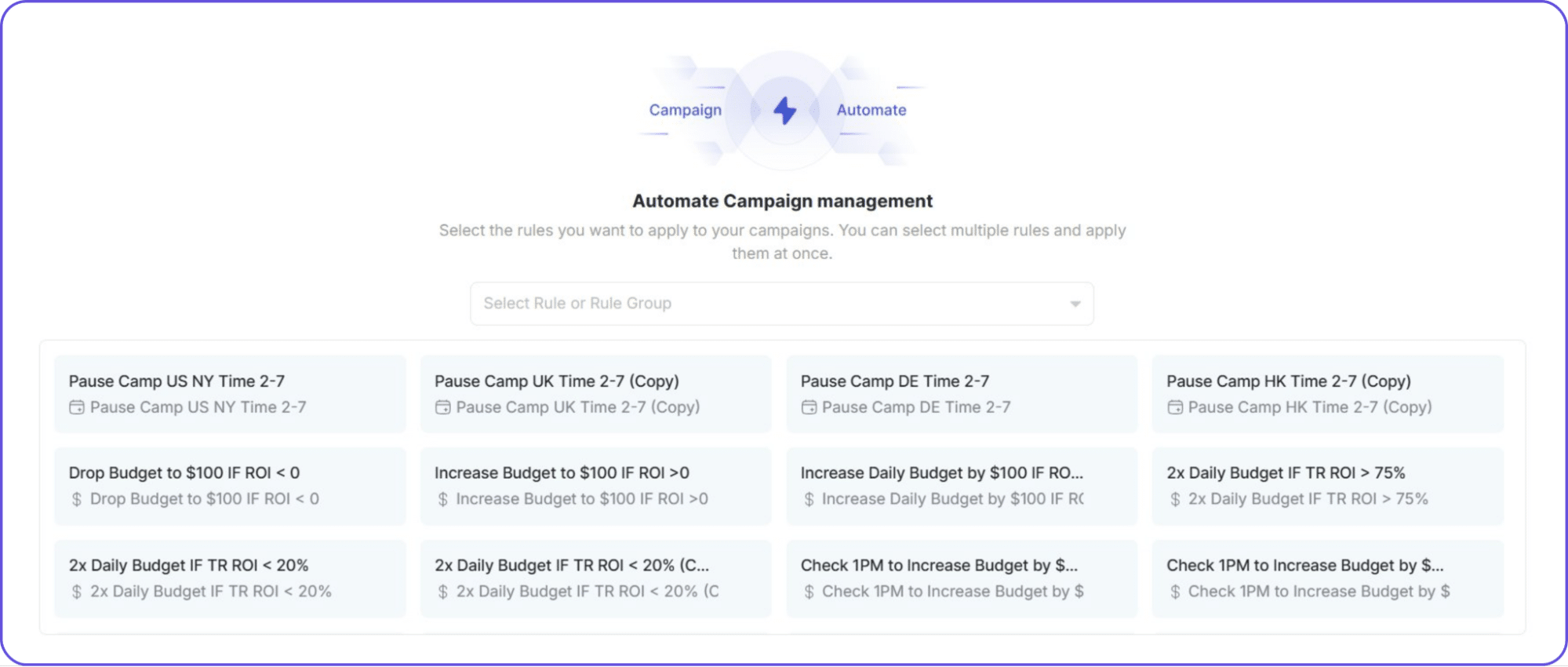
At the top of this screen, you'll see a dropdown to select automation rules. You can attach rules you've previously saved, load from TheOptimizer's built-in template library, or create new ones from scratch in Automation > Rules before launching.
Step 9: Account selection
Once your campaign structure is configured, click the three-dot menu (⋯) on the campaign in the left panel tree and select Duplicate. This clones the entire structure: every campaign, ad set, ad, naming template, and automation rule, exactly as configured.
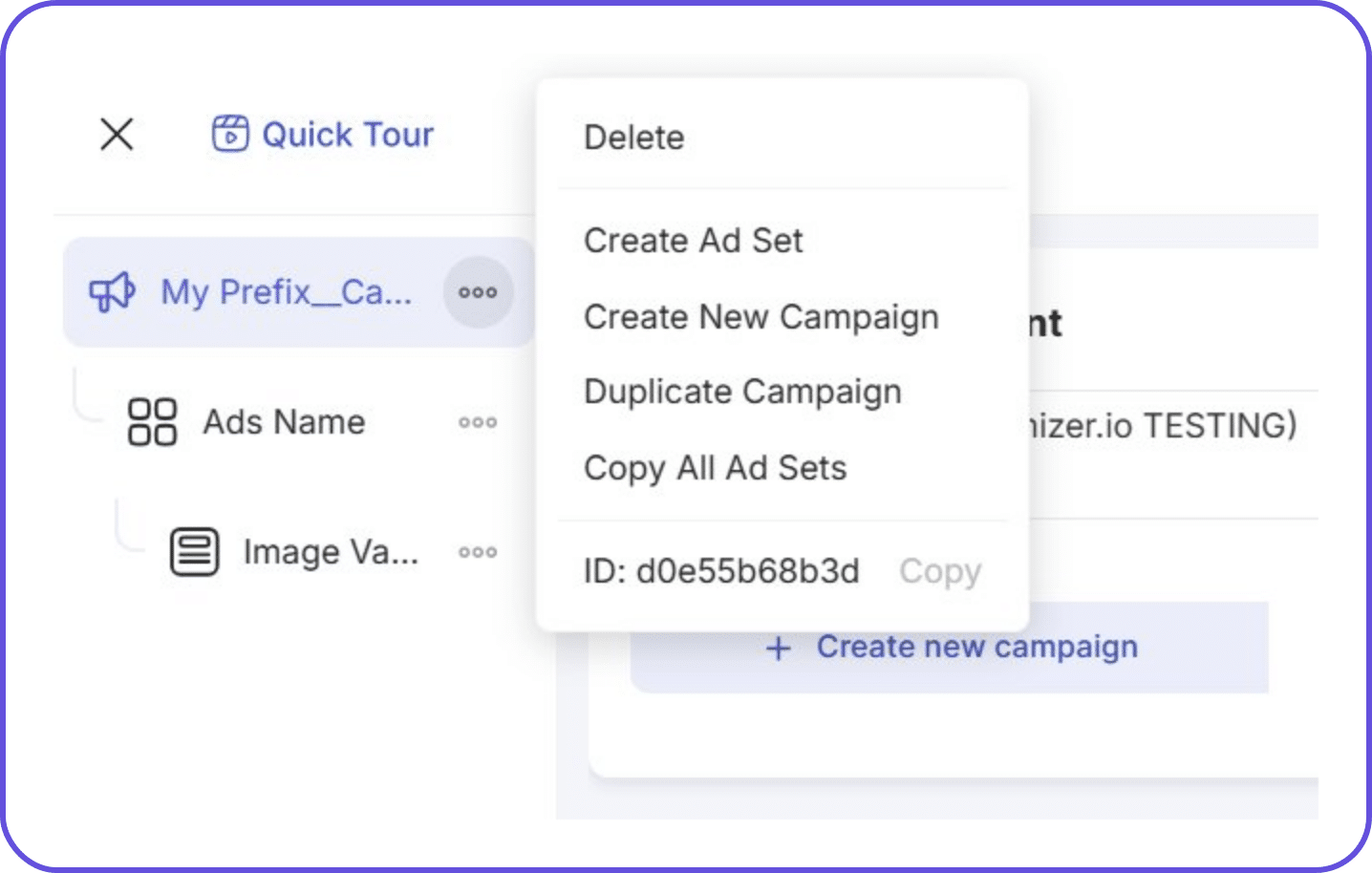
On the duplicate, update three things:
- Ad Account
- Facebook Page
- Pixel and conversion event
Repeat for as many accounts as needed; each account receives an independent copy with its own learning phase and its own delivery.
Step 10: Preview and publish
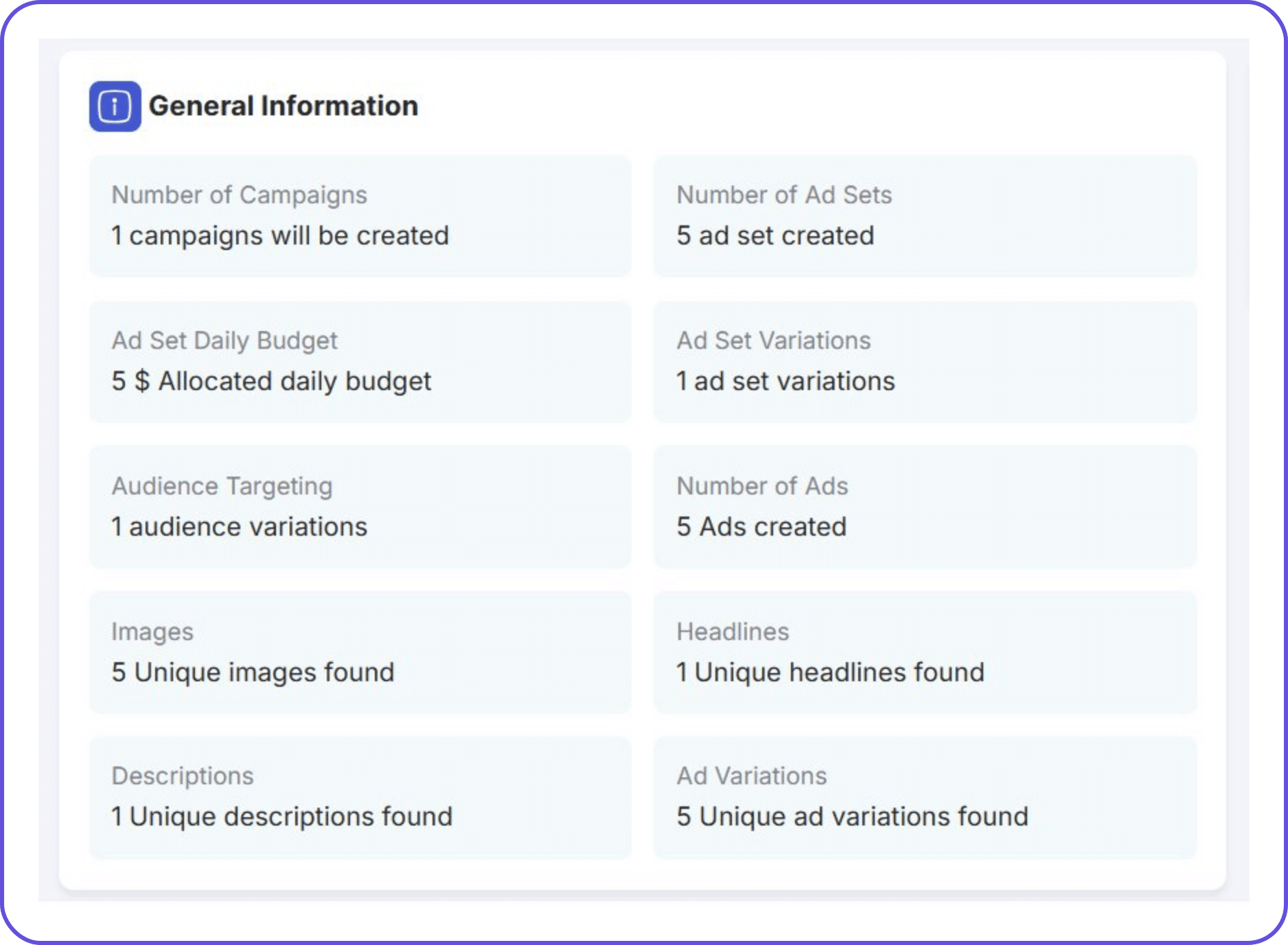
Review the full structure in the Campaign Creation Queue before anything goes live. Check audience assignments, budget values, and naming, then publish. TheOptimizer pushes everything to Facebook simultaneously.
Tips for Bulk Campaign Management After Launch
After launching your campaigns, now it’s time to review results without auditing all individual campaigns one at a time.
Filter by naming convention. If campaigns were built with structured naming, you can group and filter by creative type, audience segment, or launch date inside Ads Manager or any external reporting tool.
Let automation rules run the first 72 hours. The instinct to manually pause underperformers too soon usually costs more in lost data than it saves in budget. Stop-loss rules handle genuine disasters; if a campaign is burning through budget with zero conversions, it gets paused automatically. For everything else, give it time.
Review in aggregate. Group results by creative or audience in your reporting view and look for patterns: which creative concept is winning across audiences, which audience is performing consistently regardless of creative, and where the CPA floor seems to be.
Iterate the template. The most valuable thing about a bulk creation is that it evolves. After each weekly test cycle, you’re updating the targeting or budget assumptions in one place. The template becomes a running record of what you’ve earned.
Common Bulk Creation Mistakes
Some common mistakes to watch out for when bulk creating campaigns:
Uploading all creatives into one ad set
This is the most expensive mistake in creative testing. Facebook’s algorithm picks a winner among your creatives and starves the rest of the impressions. As a result, you don’t get pure data on your creatives, but Facebook’s biased opinion instead.
The whole point of bulk creation is to isolate each creative in its own ad set, so you get clean, comparable results.
No naming convention before launching
Launching 50 campaigns with similar, repetitive names is a recipe for disaster. You won’t be able to filter by creative, audience, or date when you’re looking for your creative.
Launching without automation rules attached
When campaigns go live, they start spending immediately. If you haven’t set stop-loss or CPA ceiling rules before launch, your budget is at risk. Always attach automation rules at the moment of launch, not after.
Not previewing before publishing
When creating a large number of campaigns, choosing the wrong setting gets replicated across every single campaign. Use the preview screen to verify the structure before hitting publish.
Skipping the test batch
Even experienced media buyers run a small test batch before scaling. It confirms that every setting looks right in practice. Once you’ve checked everything works, scale up.
Still building campaigns manually when volume exceeds 10 per week
If you're launching more than 10 campaigns a week and still doing it by hand, you're losing hours to work that a tool should be handling.
A dedicated bulk creation tool compresses hours of work to minutes. Most teams recover the cost of the tool in the first week saved, and that's before factoring in the reduction in errors and the increase in creative volume they can actually test.
The Simplest Way to Bulk-Create Facebook Ads
The underlying logic here is simple. If you’re running creative tests at any meaningful scale, you don’t want to spend hours just on campaign setup.
Bulk creating and publishing Facebook ads gives you the space to focus on creative strategy, audience analysis, or the actual work that moves results.
Ads Manager’s native tools handle small-scale work well enough. Spreadsheet uploads add structure and portability for teams already working that way. And when volume exceeds what both of those approaches can handle, purpose-built platforms change the equation entirely.
The goal is getting campaign setup down to a repeatable, templated, ten-minute task so the rest of the week can go toward the decisions that actually matter.
TheOptimizer does exactly that. It helps you create and publish hundreds of campaigns in just a few minutes.
Get started for free.
FAQ
What is Facebook ads bulk upload?
Facebook ads bulk upload is the process of creating or editing multiple ad campaigns simultaneously instead of one by one. You can do this through Meta’s native spreadsheet tool in Ads Manager, a CSV upload via a third-party tool, or a dedicated bulk creation platform.
How do I bulk edit Facebook campaigns?
To bulk edit campaigns natively, go to Ads Manager > select the campaigns you want to edit > click more > Export. Edit the spreadsheet in Excel or Google Sheets, then re-import via "Import ads in bulk.
What is the best software for bulk creation of Facebook ads?
The best software for bulk creation of Facebook ads depends on your volume. For teams launching 50–200+ campaigns per week, TheOptimizer is purpose-built for this; it combines drag-and-drop creative upload, auto-distribute into isolated ad sets, variation permutations, and other advanced features attached at launch.
For lighter volume, Meta's native spreadsheet tool works for basic bulk edits.
Can I bulk upload Facebook ads with images and videos?
Yes, but it depends on the method. Meta's native bulk upload via spreadsheet does not support direct creative file uploads; you can only reference existing Creative IDs.
Dedicated Facebook ads software lets you drag and drop entire batches of images and videos directly into the platform, which processes and maps them to your campaign structure in one pass.
How many campaigns can I create with bulk Facebook ad tools?
With Meta's native spreadsheet tool, the practical limit is several hundred ads per file due to a 2MB file size cap. Dedicated bulk Facebook ads platforms have much higher limits (you can create thousands of campaigns).\