
This article will guide you through the step-by-step process of how to connect your BigoAds account to TheOptimizer Native.
Once you have successfully logged in to your TheOptimizer Native account, click on the Account Wizard on the left-side panel of your screen, then follow the 4 steps below:
Step 1: When on the Account Wizard page, click on Add new button.
Step 2: On the pop-up integration, click on the traffic source drop-down list and select BigoAds.
Step 3: Fill in the required information as noted in the screenshot below: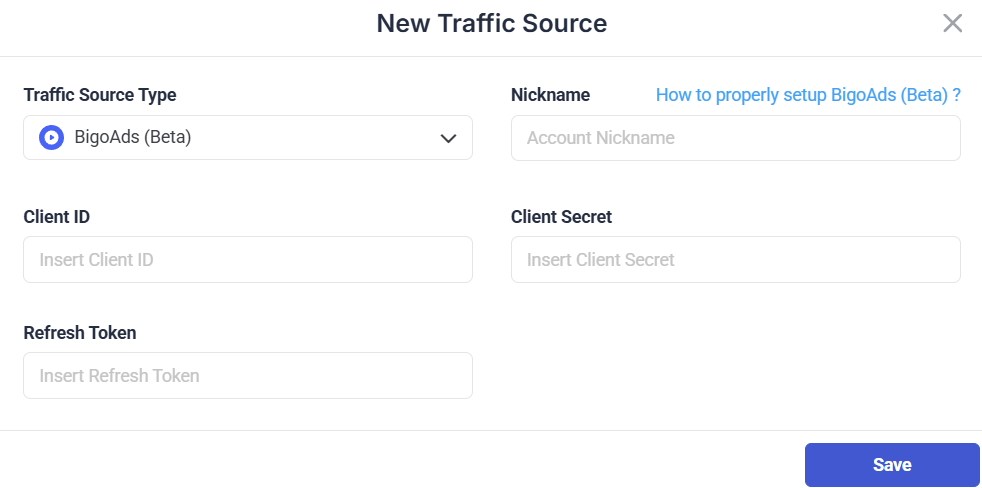 Step 4: Click Save and move to the next step to connect your tracking platform or finish the process if you don’t use a click tracker.
Required input information details:
– Nickname: Add a friendly name for the BigoAds account/sub-account you are about to connect.
– Email: Enter the email address associated with your BigoAds account (the same you use to log in to BigoAds Backstage).
– Password: Enter the password associated with your BigoAds account (the same you use to log in to BigoAds Backstage).
– Client ID: The API Client ID alphanumeric string provided by your BigoAds account manager or support (usually provided via email).
– Client Secret: The API Client ID alphanumerical string provided by your BigoAds account manager or support (usually provided via email).
Click here for more information on connecting your tracking platform to TheOptimizer Native.
Where can I find BigoAds API Information?
Click here for more information on BigoAds API