Facebook Dark Posts Explained: How to Use Post IDs to Preserve Social Proof

You finally found the one ad that’s performing. The engagement metrics are great, and the next actionable step that feels natural is duplicating it. Right?
Wrong.
If you duplicate a Facebook ad that’s been performing, you’ll watch it restart with zero interactions. Zero likes, zero comments, zero shares.
That’s because Facebook’s algorithm registers it as a new post, which comes along with a new, unique ID. Think of it as an identity card; each post has its own personal number, and the engagement your ad earned belongs to that number.
This is a social proof reset issue. The interactions your ads earned early belong to that phase, so when you scale, everything related to those metrics starts from scratch.
Fortunately, there’s a solution to this.
Facebook Dark Posts and Post IDs let you run the same ad creative across multiple campaigns, ad sets, and even ad accounts, while preserving the engagement.
In this blog, I’ll show you exactly how. We’ll walk through what dark posts are, why post IDs matter for ad performance, and the best methods to use them at scale.
Key Takeaways
- Facebook dark posts are unpublished page posts that only exist as paid placements and never appear on your Page’s public timeline.
- The Post ID is the identity of the ad creative. All engagement belongs to the post and carries over to every campaign or ad set that references the same Post ID.
- Duplicating an ad creates a new Post ID and resets social proof to zero, even if the creative is identical.
- There are four ways to find a Post ID: through Ads Manager, from the post URL in Publishing Tools, via the Facebook Graph API, or through a bulk campaign tool like TheOptimizer’s Campaign Creator.
- Your Facebook Page must be shared with every ad account you want to reuse a Post ID in. Otherwise, it will silently create a new post instead.
What Is a Facebook Dark Post?
Let’s kill the jargon first, because “dark post” sounds way more mysterious than it is.
A dark post is simply an ad that doesn’t appear on your Facebook Page’s timeline, as other ads do. It appears as a sponsored ad, and it’s officially called an “unpublished page post”.
Dark posts show up in the feeds of the audience you’re targeting. They’re invisible to anyone who doesn’t fall in that group.
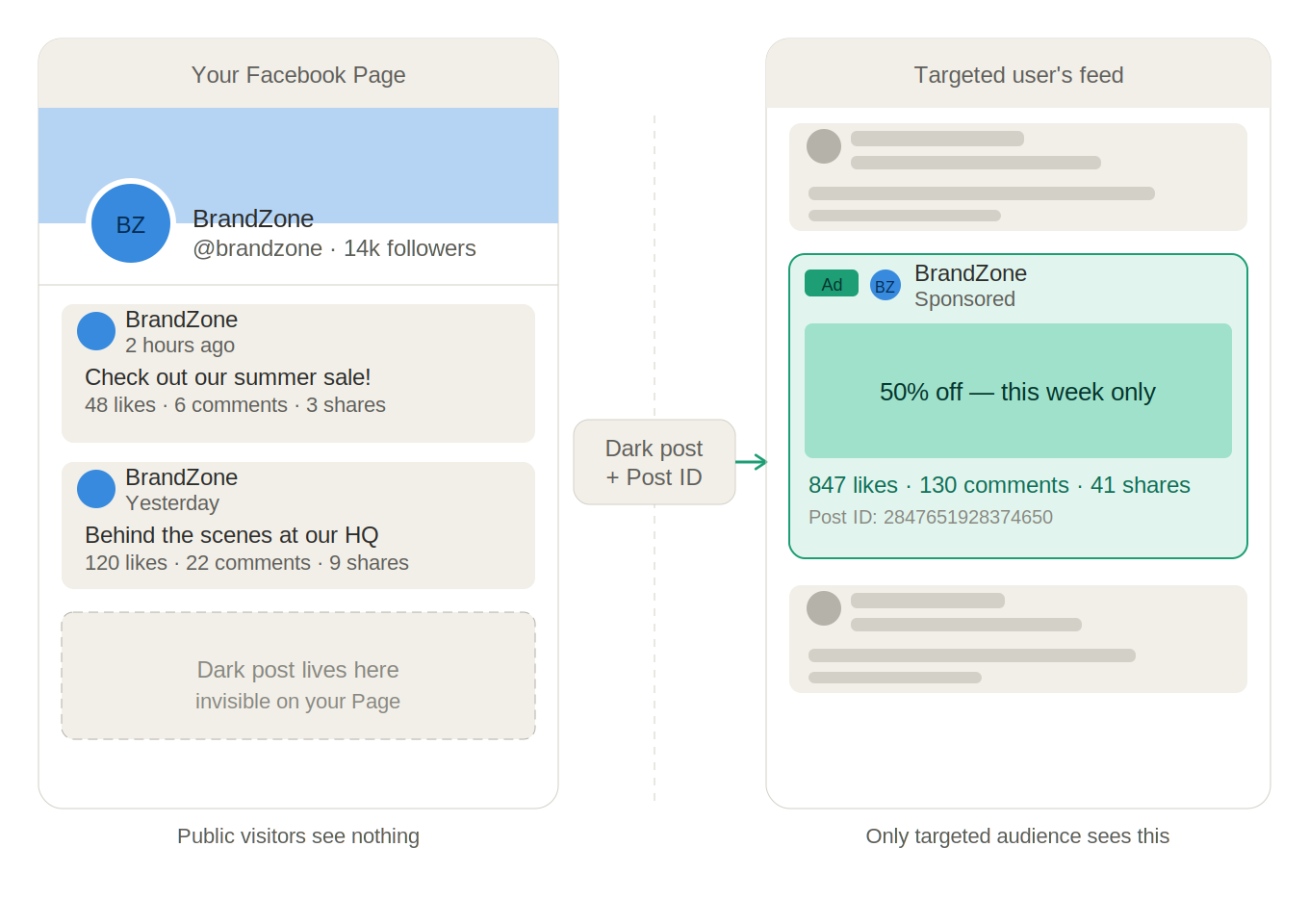
Every Facebook ad you create through Ads Manager is technically a dark post. When you build a new ad, Facebook creates an unpublished post behind the scenes and uses that post as the ad unit. You never see it on your Page because it was never intended to be organic content.
Now, the question is, if every ad is already a dark post, why do advertisers specifically choose to create them?
Well, one reason is to test multiple ad variations without cluttering the page. Dark posts allow advertisers to experiment with different creatives and see which one gets better results.
Another reason is to promote products or services to a specific audience. Dark posts are targeted; you’re showing them only to selected people. For example, if you’re selling a limited-edition perfume for women, there’s no need to display the ad to all audiences when you can target women only.
Dark Posts vs. Boosted Posts
It’s easy to confuse these two, but they are actually distinct.
A boosted post starts as an organic post on your Page. You publish it normally, your followers can see it, and you pay to boost it. The post exists on your Page before the ad does.
A dark post is never organic. It was born as an ad and exists solely as a paid placement.
This distinction matters because when you boost an organic post, you build on public engagement that grows naturally. When you create a dark post, all engagement is paid-only.
What Is a Facebook Post ID and Why Does It Matter?
A Facebook Post ID is a unique 15–17-digit number associated with every post on the platform. It allows advertisers to use the same campaign while maintaining the existing engagement; every like, comment, and share.
Facebook Post ID impacts social proof.
Imagine a user scrolling through their feed and seeing an ad with 847 likes, 130 comments, and a comment section full of people saying, “I bought this and love it.”
Now think about the same ad with zero engagement. Same creative, but completely different first impression.
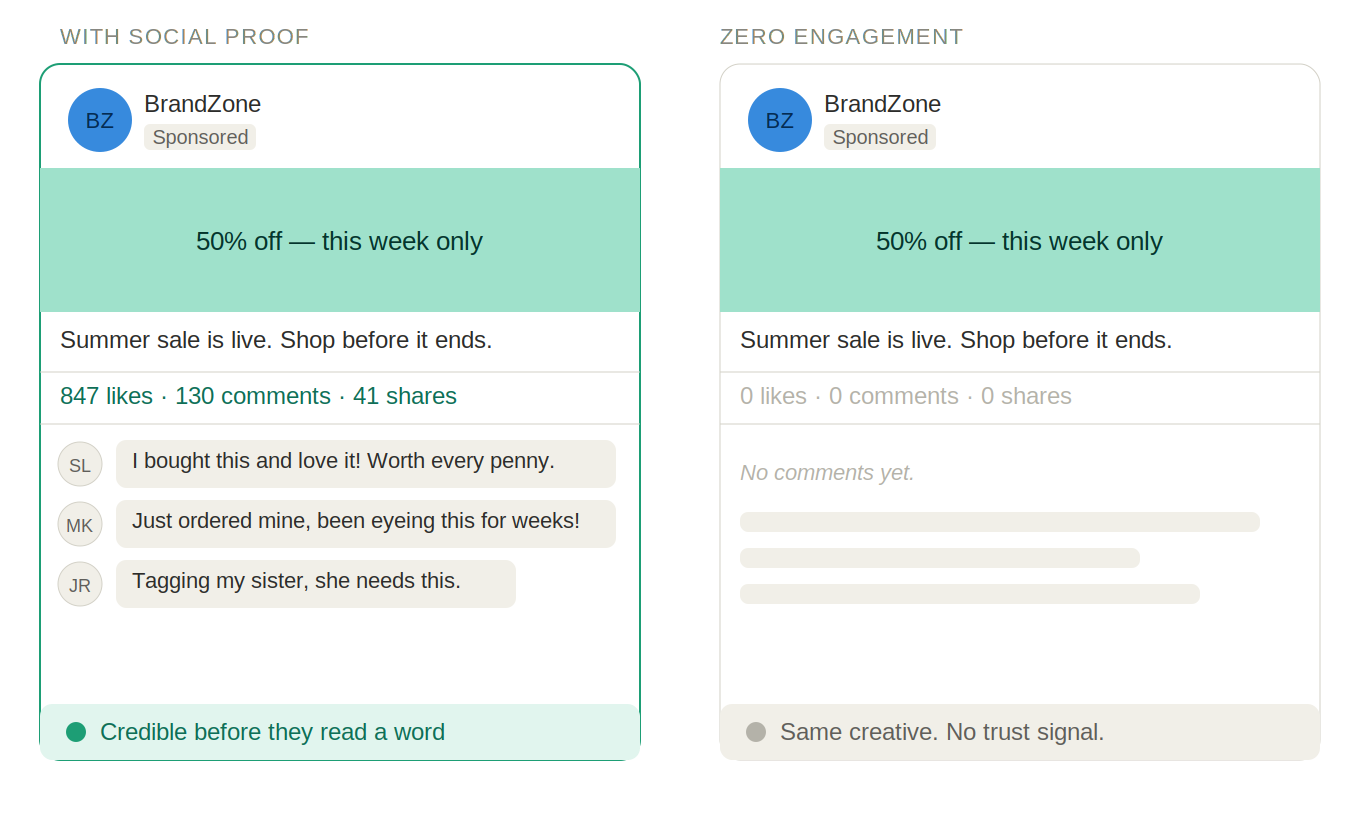
The ad with social proof builds credibility before the user has read a single word of copy. It reduces the psychological friction of clicking. And it triggers a subtle yet powerful herd mentality: if all these people are engaging with this, maybe it’s worth my attention.
The performance data backs this up:
Higher CTR: Ads with visible engagement outperform identical ads with no engagement. Users need validation, and as a result, they’re drawn to content that others have engaged with.
Lower CPMs: Facebook’s algorithm rewards engagement. High-engagement posts get shown to more people at lower cost, so the algorithm interprets engagement as a quality signal.
Better conversion rates: Social proof carries over into the purchase decision. An ad that feels trusted and credible before the click generates warmer traffic than one that feels brand new.
Cross-campaign consistency: When you’re testing in one campaign and scaling in another, using the same Post ID means you’re not reinventing the wheel. The testing phase builds the social proof, and the scaling leverages it.
How to Find a Facebook Post ID
There are a few simple methods to find a Post ID:
Method 1: From Ads Manager
This is the most common approach for advertisers who aren’t running at a massive scale.
- Open Ads Manager and navigate to the ad level
- Click Edit on the ad you want to find the Post ID for
- Under “Ad Creative,” look for “Use Existing Post”; the Post ID is displayed there
- Alternatively, click the ad preview link and extract the Post ID from the URL
Method 2: From the Facebook Post Directly
- Navigate to your Facebook Page
- Find the dark post via the Page’s Ad Posts section (under Publishing Tools)
- Click on the post’s timestamp to open it in a new tab
- The URL will contain the Post ID in this format:
facebook.com/[page]/posts/[POST_ID]
Method 3: Using the Facebook API
This method is mostly for technical teams managing creative libraries at scale. Facebook’s Graph API provides programmatic access to your Page’s posts, including dark posts, but you need to use the correct endpoint. The standard /feed endpoint only returns published posts and will miss your ad creative entirely. Use /promotable_posts instead:
GET https://graph.facebook.com/v20.0/{page-id}/promotable_posts
?access_token={page-access-token}
&fields=id,message,created_time,is_published
Setting is_published=false filters for unpublished posts only, which is exactly where your dark posts live. The id field in each result is your Post ID.
Method 4: From a Bulk Campaign Creation Tool
Manual Post ID retrieval from the methods above works great when you’re doing it occasionally. But when launching many campaigns per week, they’re inefficient.
TheOptimizer’s Campaign Creator is built specifically for this kind of scale: launching multiple campaign variations across multiple ad sets. It includes a dedicated space for the Post ID, which you can paste once, and it’s automatically applied across ad sets.
Every creative stored in the Creative Library retains its associated Post ID. When you move a winning creative into a new campaign, its Post ID comes along automatically. This keeps the social proof you built during weeks of testing. No one has to remember to look it up.
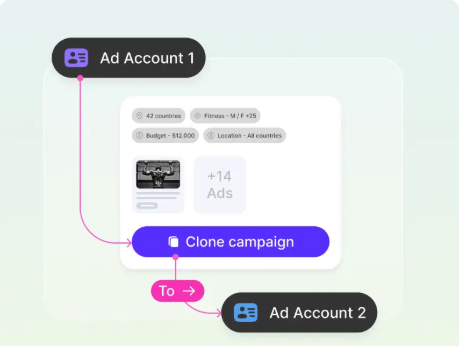
For agencies running campaigns across multiple client accounts, the tool also supports cross-account campaign cloning. When you clone to a new account, the Post ID connection is preserved, so you don’t have to start from scratch.
How to Use Existing Post IDs Across Campaigns
Once you have a Post ID, the workflow is straightforward:
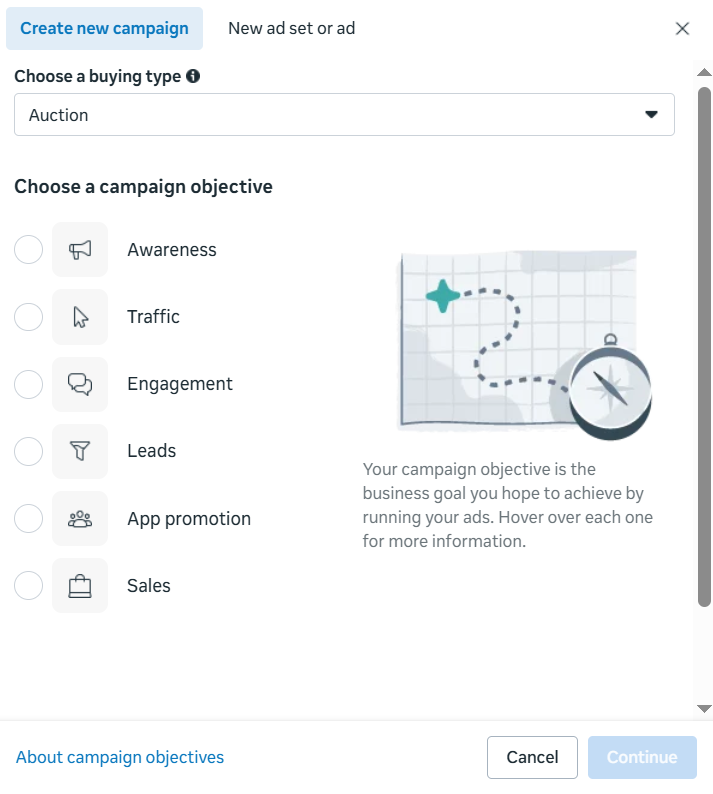
1. Create a new campaign. Configure all the settings like you normally would.
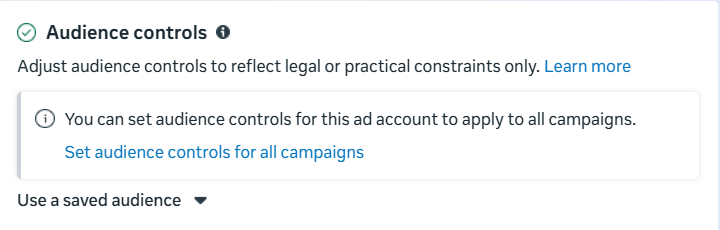
2. Configure your ad set. At the ad set level, the ‘dark’ part starts to take shape. You’re defining who will see your ad, while everyone outside that audience won’t see it at all.
3. Select “Use Existing Post”. This is a key step. When creating any future campaign with an existing creative, select “Use Existing Post”. In Ads Manager, at the ad creation level, you’ll see two options: Create Ad and Use Existing Posts.
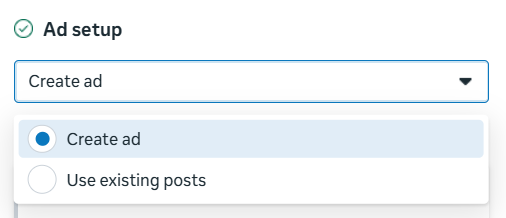
- Create Ad builds a brand new dark post with a new Post ID. Use this when launching a creative for the first time.
- Use Existing Post pulls an already published or dark post by its Post ID. Use this for every campaign after the first one.
4. Find and save the Post ID. The easiest way is to go to the ad level, click Edit, and look under Ad Creative. Copy the ID and paste it somewhere you won’t lose it (in a shared doc, a spreadsheet, or your creative library). This is the number you’ll use every time you want to run this creative again without resetting its engagement.
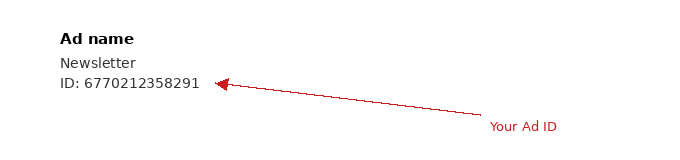
5. Reuse the Post ID in every future campaign. Any time you want to run the same creative again (in a new campaign, a new ad set, or a different ad account), go back to the ad level and select Use Existing Post. Paste the Post ID, confirm, and publish.
The Challenge of Using Post IDs at Scale
If you’re running a large number of campaigns across multiple ad accounts, manual Post ID management becomes too much to handle.
This is what that looks like in practice:
- You have 30 active creatives, each with its own Post ID. Which ID maps to which creative?
- Post IDs from one ad account don’t automatically work in another. You need the Facebook Page to be shared across all accounts. If one permission is missing, Facebook creates a new dark post instead.
- The moment when you’re moving a proven winner from testing to scaling is critical. One wrong ID or one accidental “Create New Ad” click could cost you months of accumulated social proof just as you’re trying to leverage it.
- If you don’t have a centralized record, you don’t know the engagement split across campaigns. You won’t know which Post ID to use when you want to revive an old creative.
That leads us to the next, most efficient solution: automating the process.
Using Post IDs at Scale — The Automated Approach
Campaign automation tools, like TheOptimizer, solve this problem by making Post ID management as simple as possible.
The steps look like this:
- Upload your creative to the tool
- Run your first campaign, and the tool generates and records the Post ID
- For every subsequent campaign or ad set that uses that creative, the Post ID is applied automatically from the creative library. No need for copy-pasting or human intervention.
Dark Post Best Practices
Always Use Post IDs for Scaling Campaigns
The Post ID moves with your creatives whenever you scale them. The engagement you gathered during testing shows that the creative works. Carry that evidence into your scaling campaign. Let the social proof do some of the heavy lifting.
Share Your Facebook Page Across All Ad Accounts
If you’re running ads across multiple ad accounts, the Facebook Page must be shared with all of them. Once it’s shared, Post IDs from the Page can be used in any connected account. Without this setup, Post IDs simply won’t work cross-account.
Maintain a Post ID Library
Whether you’re doing this manually or automatically, you’ll need a centralized record to keep:
- Creative Name
- Post ID
- Date created
- Current engagement totals
- Active campaigns using this Post ID
Don’t Edit a Live Dark Post
Once a dark post is live and accumulating engagement, don’t do any edits. This could trigger a new review process and potentially reset delivery. If you want a variation, create a new dark post; don’t modify the existing one.
Use Dark Posts for A/B Testing
Dark posts are a great way to run A/B copy tests using the same visual creative. Create three dark posts using the same image or video, but with different copy angles, hooks, value propositions, and CTAs.
Run each as a separate ad with its own Post ID. The winner accumulates social proof as you scale; the losers get paused without affecting your Page or your winning post’s engagement.
Common Dark Post Mistakes and How to Avoid Them
Check out these common dark post mistakes, so you can prevent them before they cost you thousands:
Duplicating ads instead of reusing Post IDs. The single most common mistake. Every duplication resets social proof to zero. It costs you nothing to use an existing Post ID instead, and it could cost you meaningful CPM and CTR performance when you don’t.
Not sharing Pages across ad accounts. If your setup involves multiple ad accounts and you haven’t configured Page sharing, your Post IDs will silently fail. Check this before you need it.
Editing live dark posts. The temptation to “just fix one last thing” is real. Resist it. Create a new post for the variation.
Losing track of Post IDs. No centralized record means you’ll recreate posts you already have, and eventually lose visibility into which Post ID belongs to each creative. Fix this with a spreadsheet at a minimum.
Using “Create Ad” when you mean “Use Existing Post”. It’s easy to confuse these two when you’re moving fast. The UI presents “Create Ad” as the default. Make Use Existing Post your default mental model instead.
Save Your Social Proof With Facebook Post ID
Dark posts are fundamental mechanics of how Facebook advertising works. Every ad is a dark post. The difference lies in the way you manage them.
Post IDs are the identity of these posts. By reusing the same Post ID across campaigns, ad sets, and accounts, you gather social proof. You turn months of engagement collection into a permanent performance advantage that carries forward into every new campaign.
At a small scale, a spreadsheet and some discipline are enough to manage this. At scale, the best practice is to use a tool that handles Post ID management as part of the workflow.
FAQs
What is a Facebook dark post?
A Facebook dark post is an ad that only appears in the targeted audience’s newsfeed and never shows up on your Facebook Page’s public timeline. It appears as a sponsored ad and is known as an “unpublished page post”.
What’s the difference between a dark post and a boosted post?
A boosted post starts as an organic post that your followers can already see on your Page. A dark post was never organic; it was created solely as a paid ad.
What is a Facebook Post ID?
A Post ID is the unique numeric identifier Facebook assigns to every post, organic or dark. It’s a series of numbers you see in a post’s URL or in the ad creative settings in Ads Manager.
Can I use the same Post ID across different ad accounts?
Yes, but only if the Facebook Page the post belongs to is shared with all the relevant ad accounts. Without Page sharing configured, the Post ID won’t resolve in another account, and Facebook will create a new post, resetting engagement.
How should I manage Post IDs at scale?
At a small scale, a shared spreadsheet tracking creative name, Post ID, date created, engagement totals, and active campaigns is enough. But if you’re trying to scale, manual management could slow down your operational work. The best solution is a bulk campaign creation tool with a built-in creative library that stores Post IDs against each asset and applies them automatically when launching new campaigns.