Connect Your Ad Network
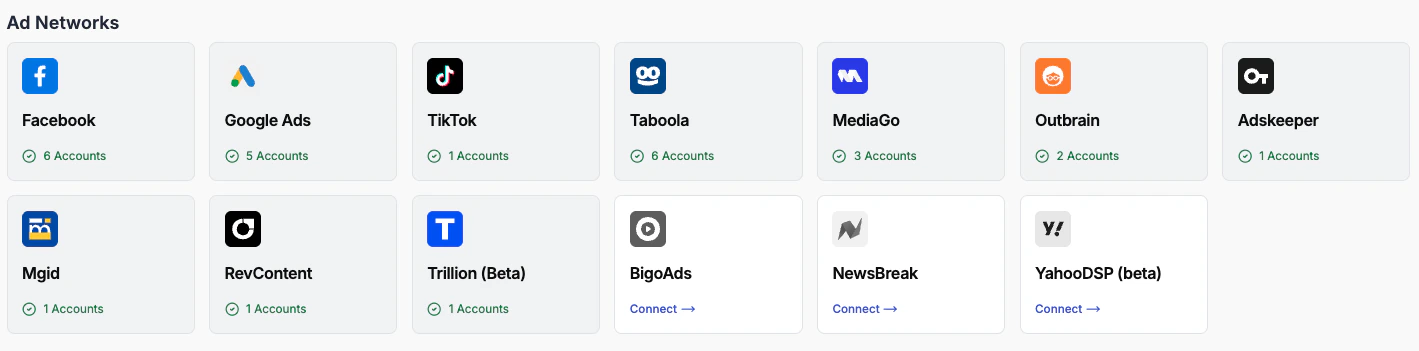
The first thing you need to do is connect at least one ad network. Without this, the platform has no campaign data to work with and cannot take any actions.Go to Integrations in the left-hand menu and open the Ad Networks tab. You will see a grid of all supported networks. Click Connect on the network you want to add and follow the authorization flow.
- Facebook, Google Ads, and TikTok connect via OAuth — you log in with your account and grant standard ads management permissions.
- All other networks (Taboola, Outbrain, MGID, MediaGo, BigoAds, Adskeeper, RevContent, NewsBreak, YahooDSP, Trillion) connect via API credentials, which you generate from the ad network’s own settings and paste into TheOptimizer.
After connecting a new ad account, the initial data sync can take up to 20–30 minutes. If you see empty stats immediately after connecting, wait a few minutes and refresh.
Connect a Tracking Platform (Optional)
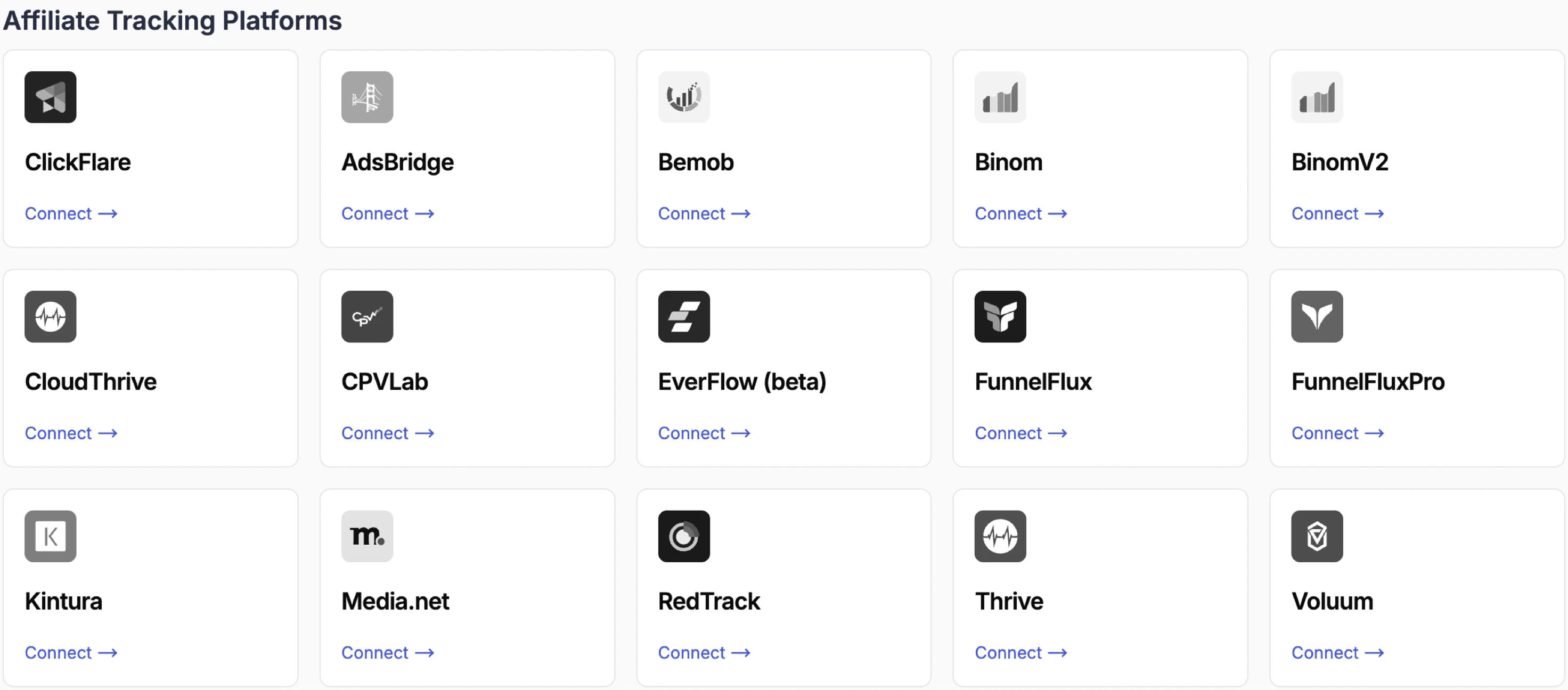
A tracking platform is not required, but it is strongly recommended. Connecting one gives you accurate cost and revenue data at the click level, browser and device breakdowns not available from ad networks alone, and a reliable revenue signal for your automation rules.Go to Integrations → Tracking Platforms and connect your preferred tracker. TheOptimizer supports ClickFlare, Voluum, RedTrack, Bemob, Binom, Everflow, Google Analytics 4, and others.If your tracker is not on the supported list, you can use the Google Sheets or Custom Data Source integration as a workaround — export your conversion data to a Google Sheet and TheOptimizer will sync from it automatically every 30 minutes. Or upload a CSV file manually or push one via API.
Once your tracker is connected, check the revenue source toggle on your Dashboard. TheOptimizer can display revenue from the ad network or from your tracker — use the toggle to switch between them. If you see zero revenue in the Campaigns view, this setting is usually the cause.
Explore the Campaigns Section
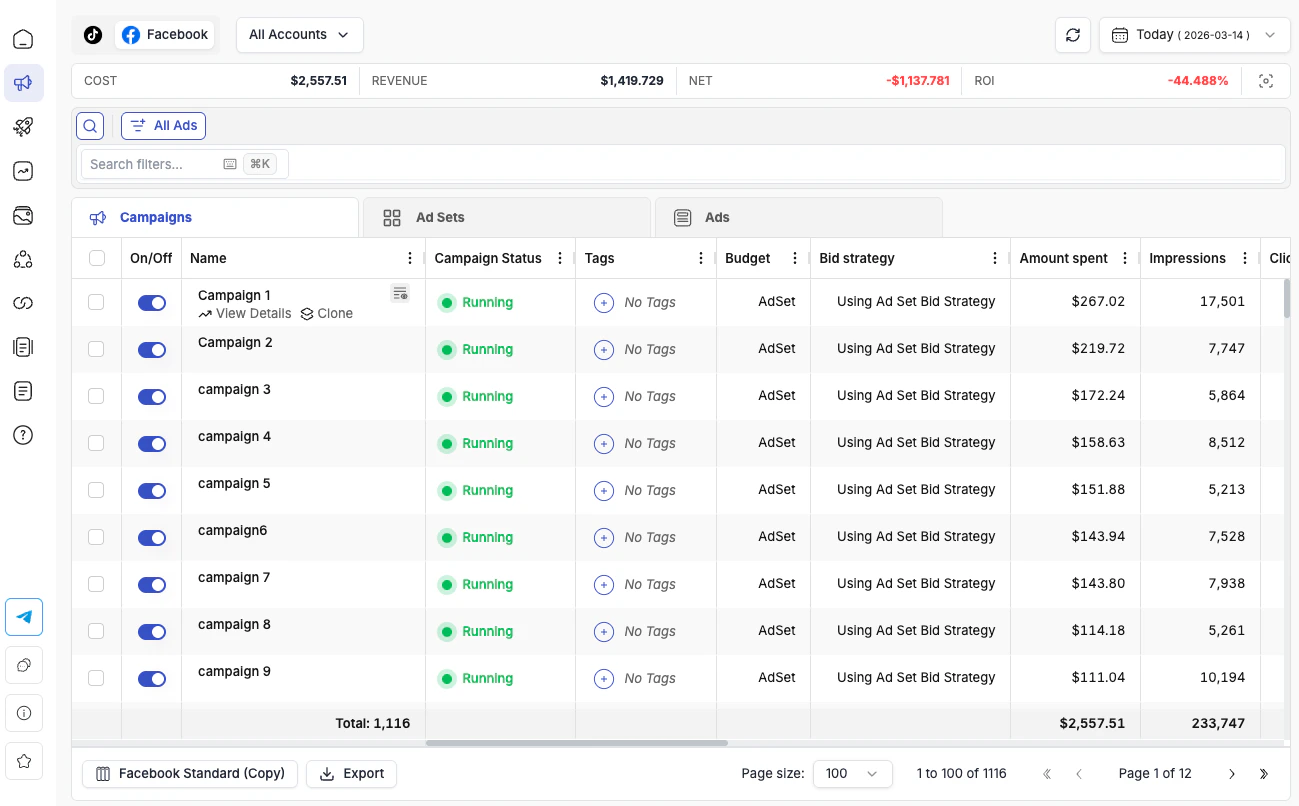
Once your ad network is connected, go to Campaigns in the left-hand menu. This is the central hub where you view and manage everything across all your connected accounts.At the top, a navigation bar shows all your connected ad networks as icons. Click one to enter the campaign view for that network. Next to it, the Ad Accounts filter lets you narrow down to specific accounts — or see all of them at once.Below that, a totals bar shows your total spend, revenue, net profit, and ROI for the selected date range.The main table has three tabs — Campaigns, Ad Sets, and Ads — that you can switch between freely. Selecting a campaign then switching to the Ad Sets tab shows only that campaign’s ad sets.Key things to try:
- Filtering — click the search bar above the table to access preset quick conditions (Delivering, Profitable, Losing Money) or filter by any metric, name, status, or tag. Save filters you use regularly as views — they appear as tabs above the filter bar for one-click access.
- Column customization — click the column settings icon at the bottom-left of the table to choose which columns are visible and in what order. Save multiple column presets and switch between them. You can also create custom metrics using your own formulas.
- Details view — hover over any campaign, ad set, or ad name and click View Details. This opens a side panel with performance charts, a change history log, attached automation rules, and publisher or site-level breakdowns for native ad networks. You can move to the next or previous item without closing the panel.
- Keyboard shortcuts — the Campaigns section is designed to be keyboard-navigable. You can launch the filter bar, navigate the table, and edit values without using the mouse.
Set Up Your First Automation Rule
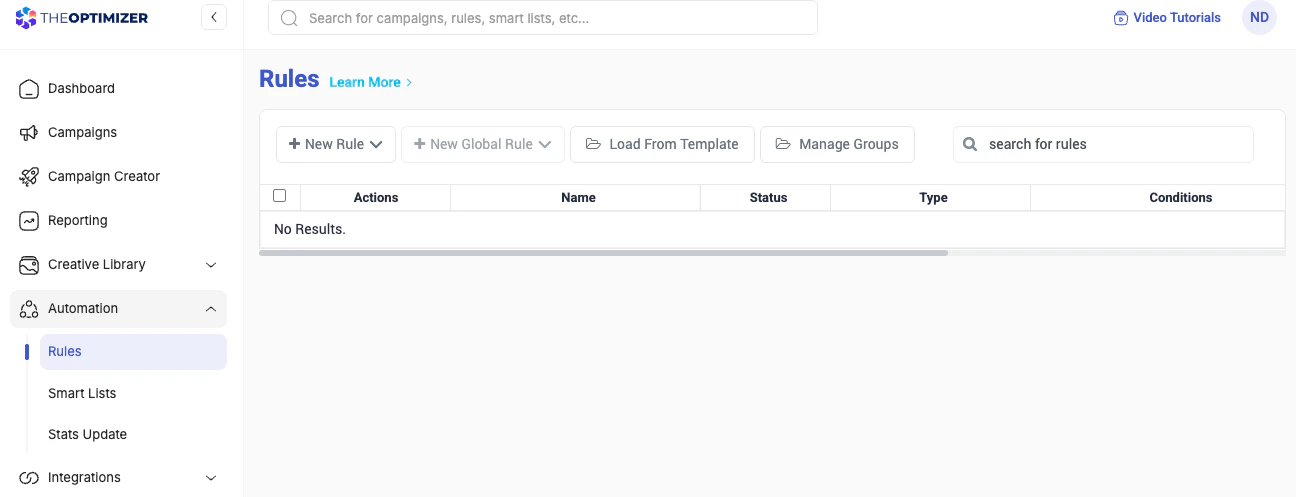
Set up your automation rules before your campaigns go live. Rules that are not attached to a campaign at launch must be added manually afterward, and there may be a window where the campaign runs without any protection.
Launch Campaigns with the Campaign Creator
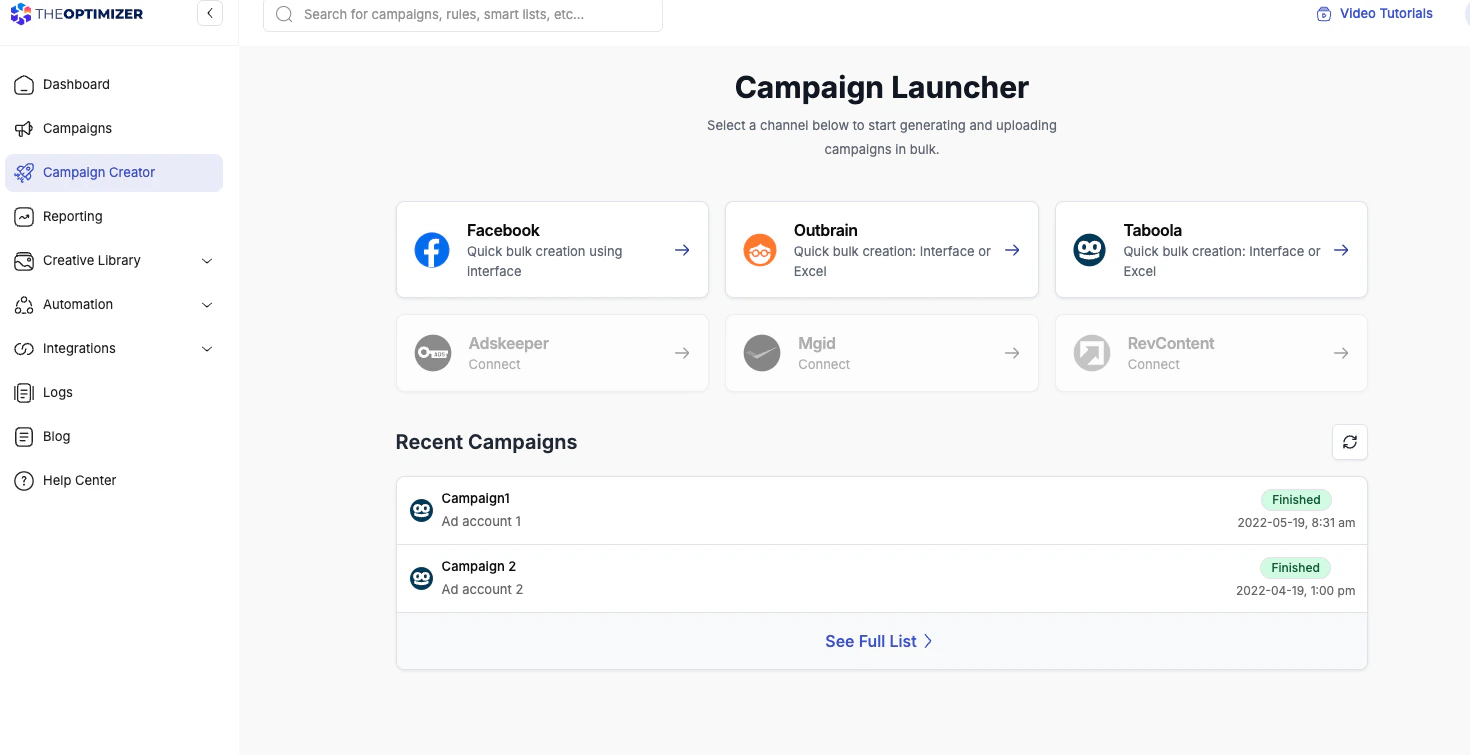
Once you are familiar with the Campaigns section and have automation rules in place, the Campaign Creator lets you build and launch campaigns at a scale that is not possible in native ad managers.Go to Campaign Creator in the left-hand menu. You will see a card for each supported network — click one to open the launcher.Supported networks: Facebook, Taboola, Outbrain, RevContent, MGID, AdsKeeper.Each network supports both an interactive interface and an Excel bulk uploader — except Facebook, which uses the interactive interface only.What makes it worth using:
- Upload 50–100 creatives and automatically generate one campaign (or ad set) per creative, each with isolated budgets — in a few minutes
- Test multiple audiences, budgets, or placements by defining variation groups and letting the system create all permutations
- Launch the same campaign structure across multiple ad accounts simultaneously
- Save your configuration as a reusable template for future launches
- Attach automation rules during the launch flow so they are active from the first impression