
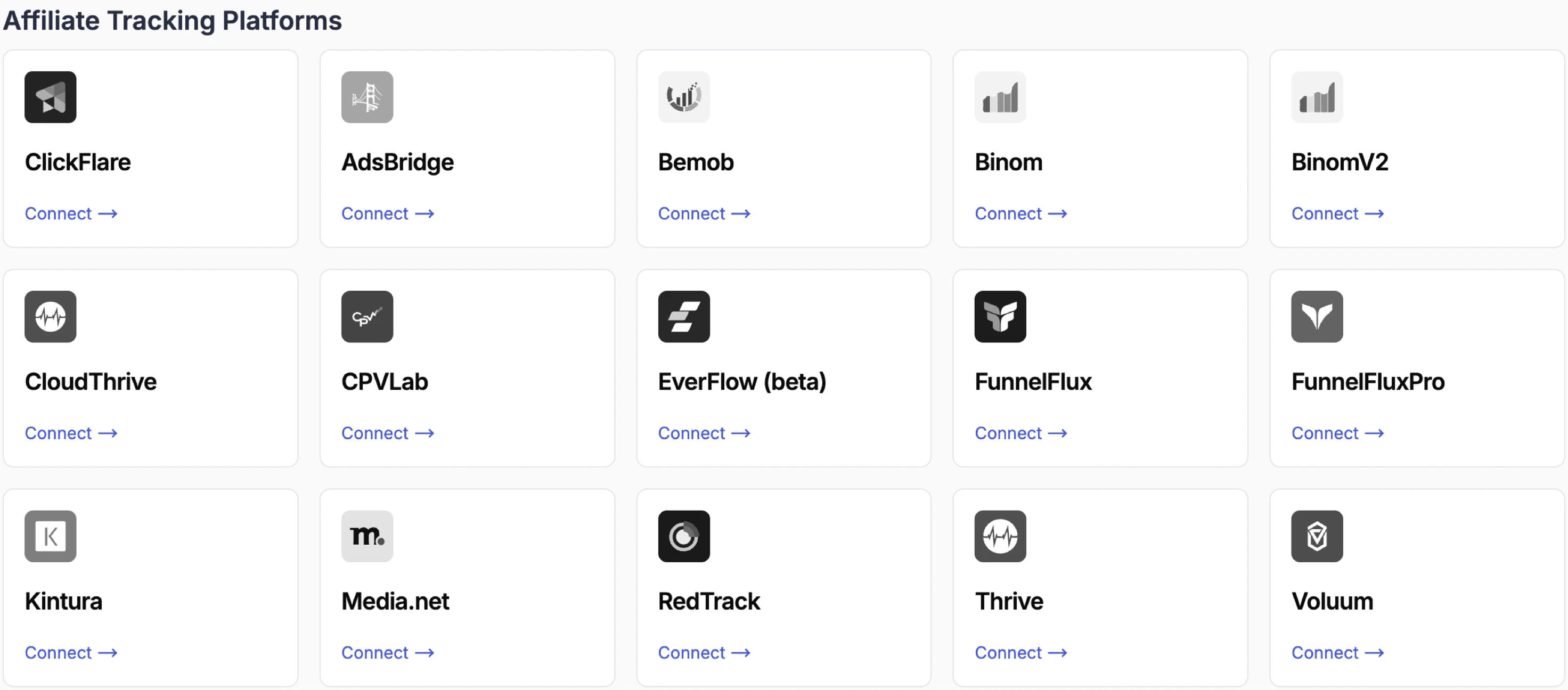
Supported platforms include ClickFlare, Voluum, RedTrack, Bemob, Binom, Everflow, and others.
How Tracker Integration Works
Once connected, TheOptimizer matches tracker-reported conversions to specific campaigns, ad sets, and ads, and factors that data into your automation rules. Tracker metrics (clicks, conversions, revenue, CPA, EPC, ROI) appear as separate columns alongside your ad network metrics.Connecting a Tracking Platform
The steps below use ClickFlare as the example. The process is the same for all tracking platforms that use API key authentication.Enter Your API Credentials
[The example below is using ClickFlare tracker]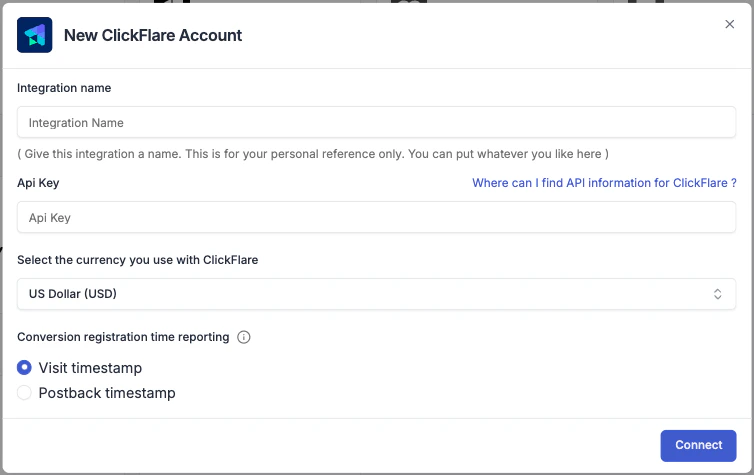
- Integration name — a label for this connection. Use something descriptive like “ClickFlare – Brand A”.
- API Key — found in your tracker’s settings or API section.
- Currency — the currency your tracker reports revenue in.
- Conversion registration time — choose whether conversions are reported at visit time (when the user lands) or postback time (when the conversion fires). This affects how data is matched across time windows.
Configure the Tracker for Each Ad Network
After connecting your tracking platform, TheOptimizer prompts you to configure the tracker for each ad network you are already using with TheOptimizer. This tells the platform how to match tracker data to ad network data.
\
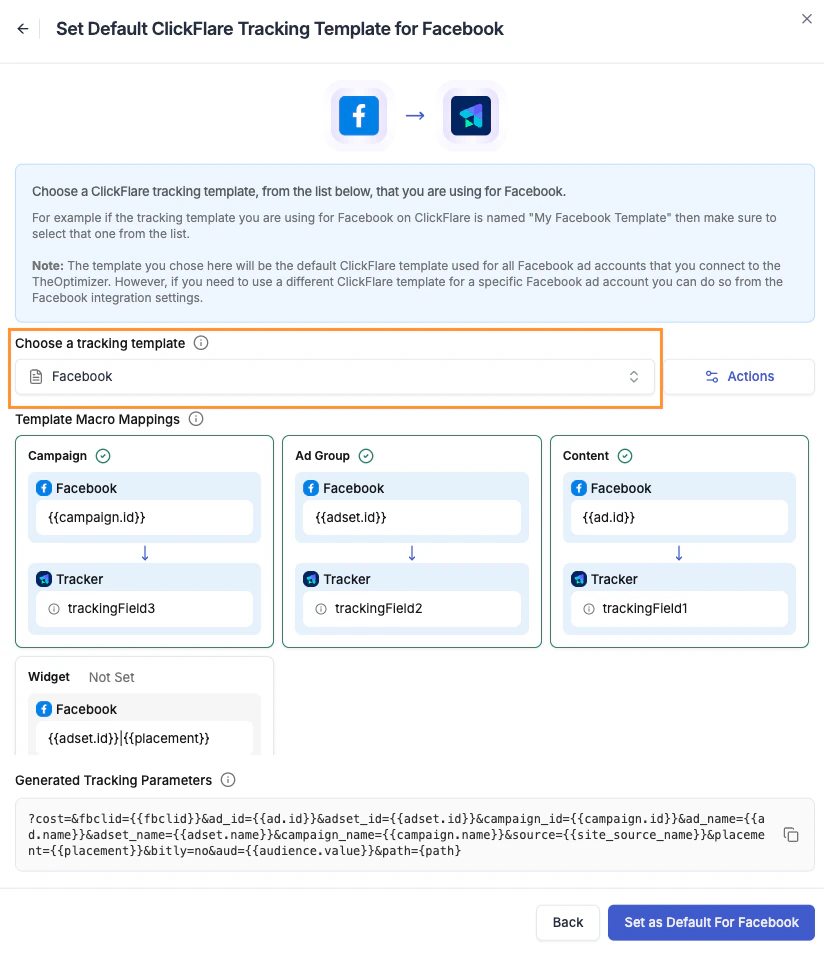
\
Confirm the Connection
Once a tracking template is selected for an ad network, the connection status updates to Connected.Turn off the connection if you want to stop receiving data from your tracker for a specific ad network without removing the integration entirely.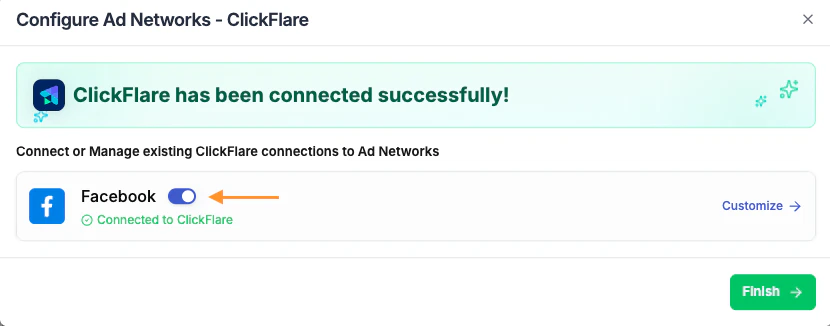
Add Tracking Parameters to Your Campaigns
Make sure the generated tracking parameters code is added to your campaigns on the ad network. This is what enables the tracker to receive the correct campaign and ad data and report it back to TheOptimizer.Without the tracking code added to your campaigns, the tracker will receive visits but won’t be able to match them to your campaigns IDs — meaning no conversion or revenue data will flow into TheOptimizer.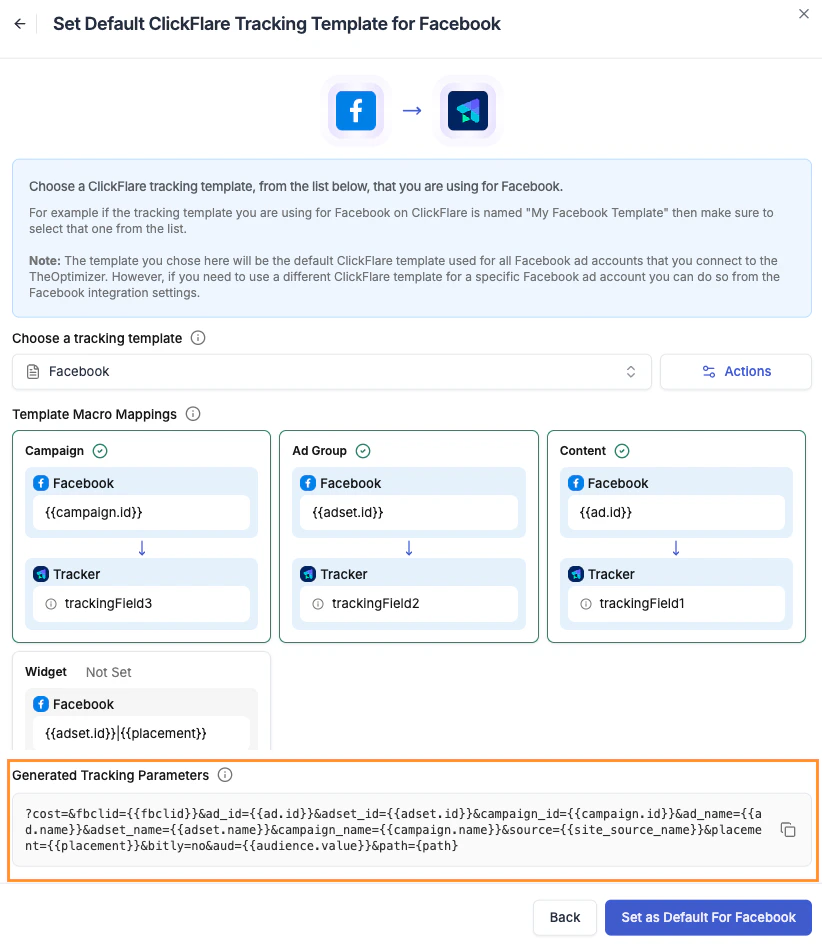
The One Tracker Per Campaign Rule
Only one instance of a tracker type should track any individual campaign at a time. Using two instances of the same tracker type (for example, two ClickFlare trackers) on the same campaign causes conflicts in data matching and attribution. Running multiple different tracker types simultaneously on the same campaign is fine — for example, using ClickFlare for affiliate attribution alongside Google Analytics on the same campaign is a supported and common setup.Customising Tracker Connections Per Ad Account
From your ad network’s integration page, you can customise the tracker connection at the individual ad account level: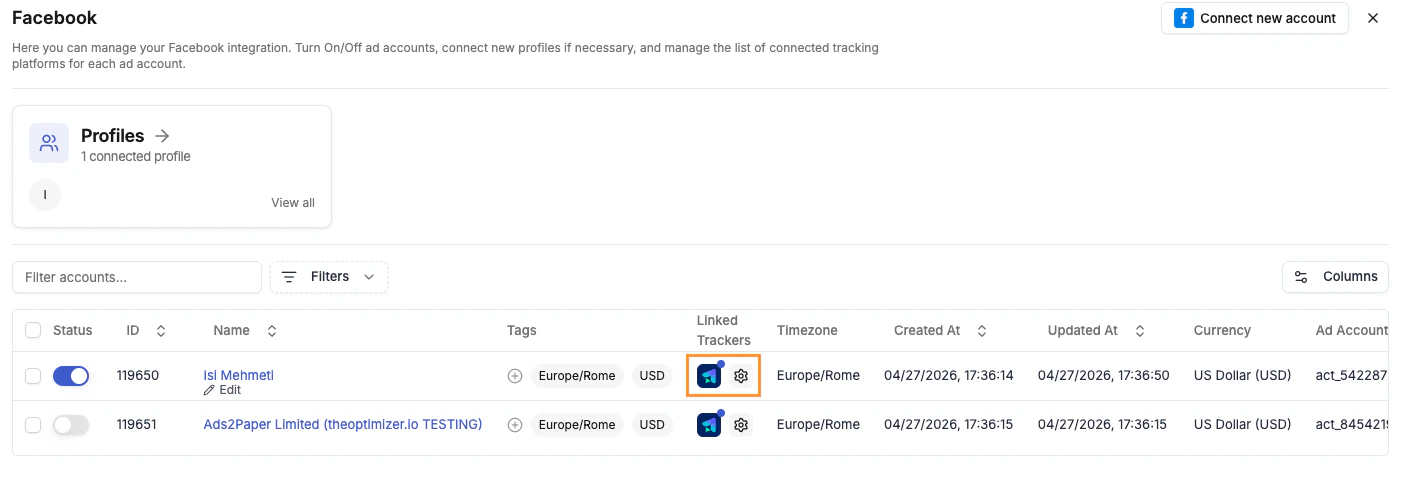
- Link a different tracker to a specific ad account
- Pause the tracker connection for an account without removing it
- Edit the tracking template for a specific account without affecting others in the same integration