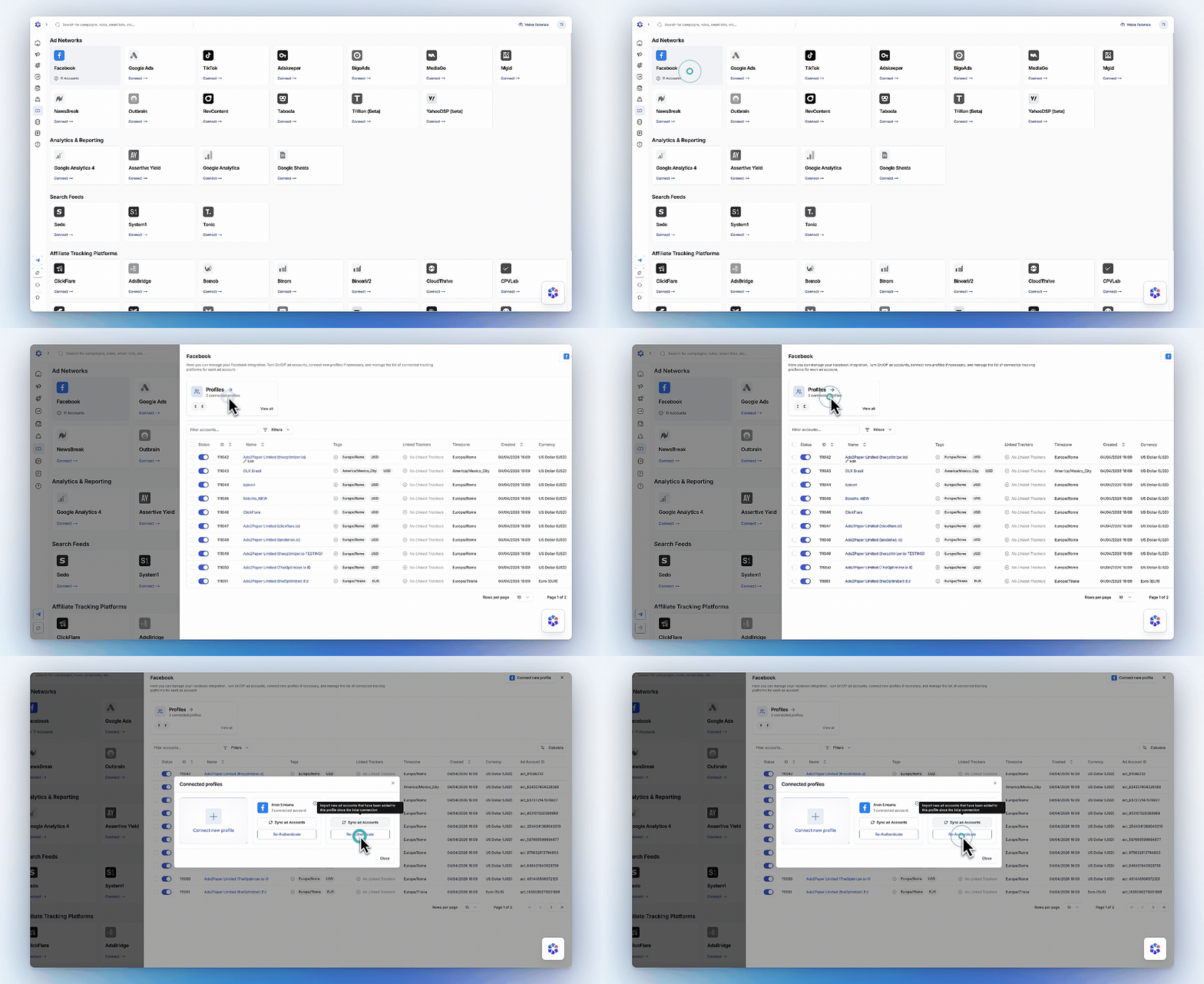
Ad Accounts
Click on the Facebook integration to see the full list of ad accounts pulled from your connected profiles.Enable and Disable Accounts
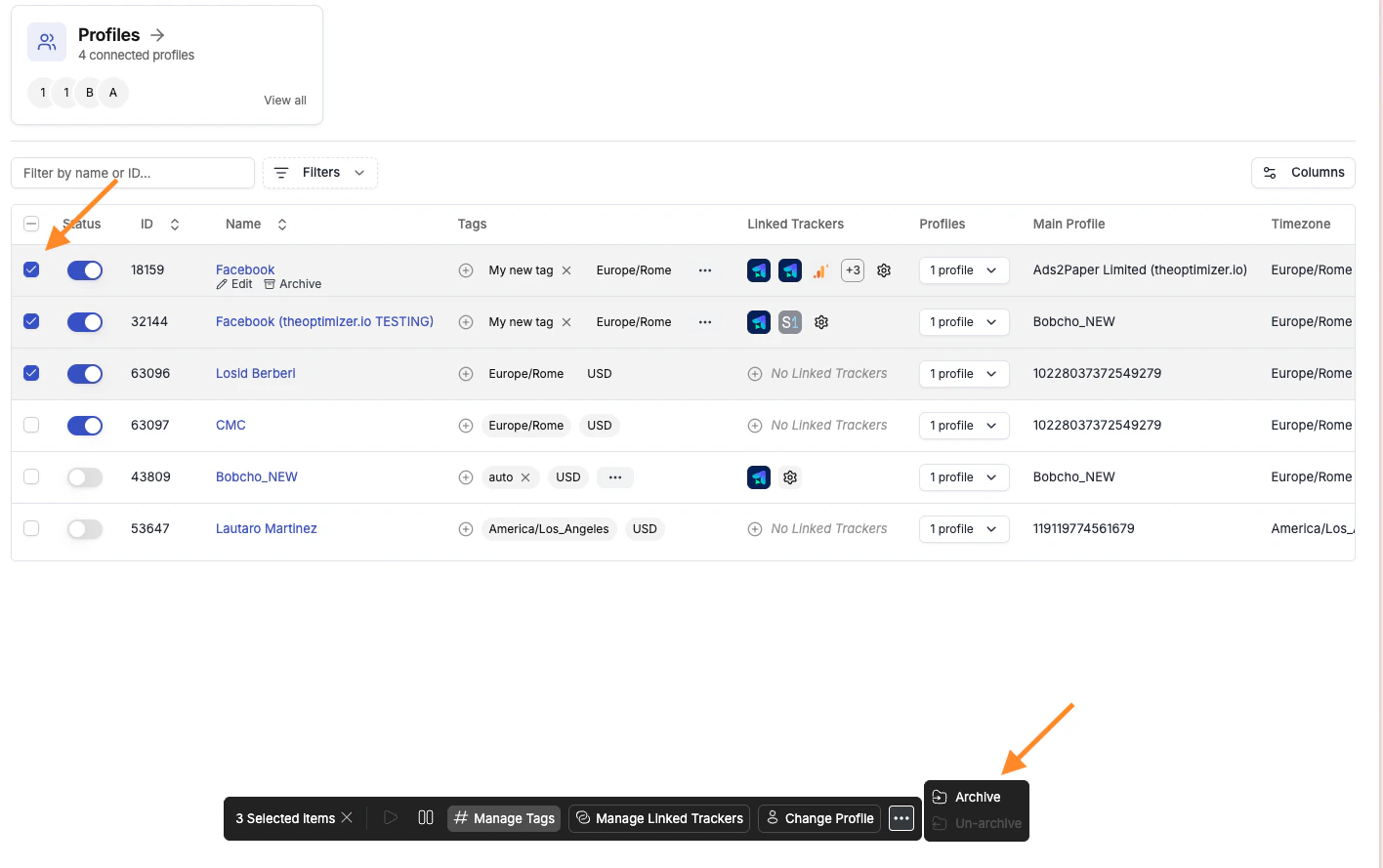
Each ad account has an ON/OFF toggle. Disabling an account stops TheOptimizer from syncing data and running automation rules for that account. All historical data is retained — you can re-enable it at any time and data will resume syncing. You can also disable multiple accounts at once using the bulk actions menu.Archive Ad Accounts
Archiving is a stronger form of removal than disabling. When an ad account is archived it is completely hidden from the system — it no longer appears in dropdown selectors, filters, or the Campaign Creator, and TheOptimizer stops all processing for it: no data sync, no automation rules, no campaign or resource visibility. Use archiving when you want to permanently retire an ad account from your workflow without losing the ability to restore it later if needed. Archive a single account Hover over any ad account row in the list. Below the account name, two inline actions appear: Edit and Archive. Click Archive to archive that account immediately.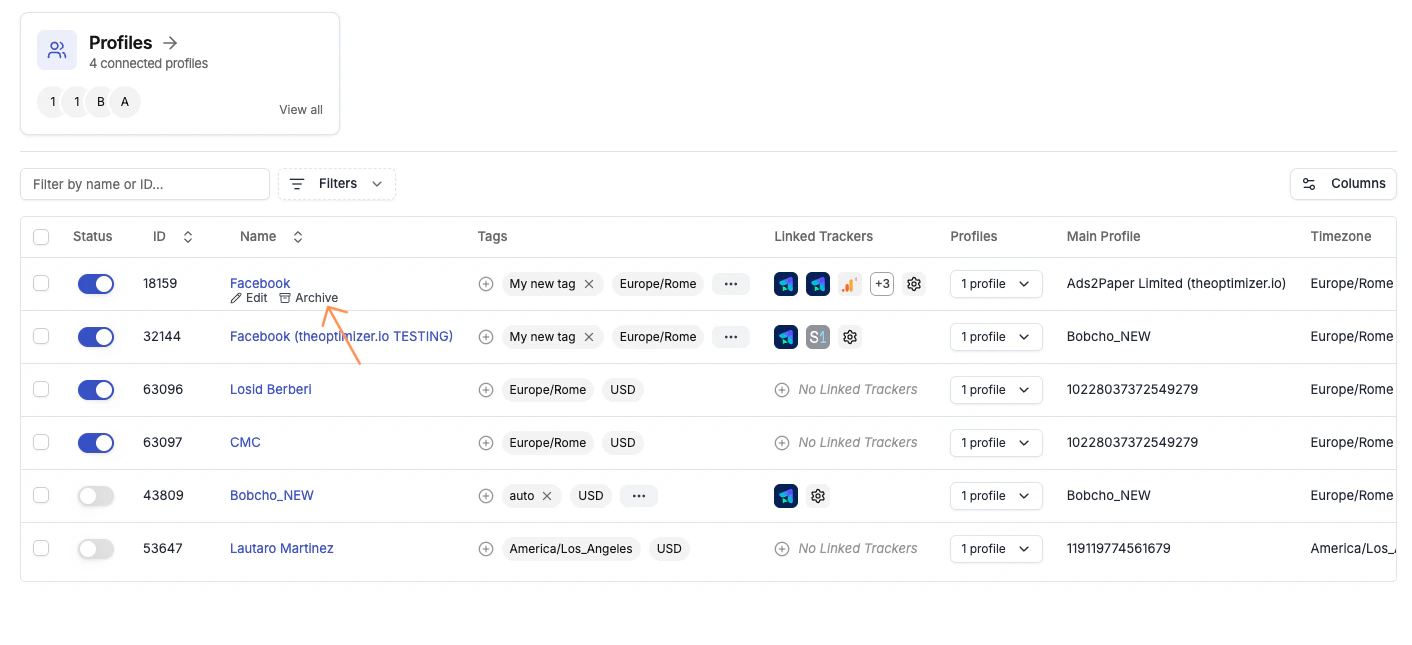
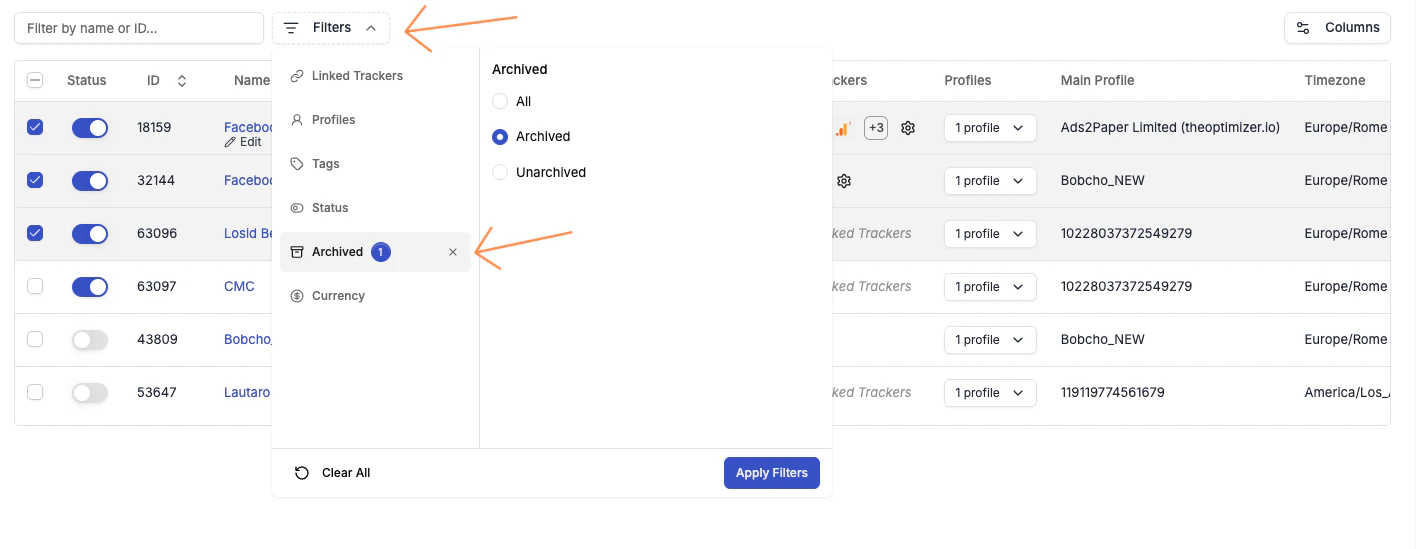
- Click Filters at the top of the ad accounts list.
- Select Archived from the filter menu.
- Choose Archived (to see only archived accounts) or All (to see both active and archived).
- Click Apply Filters.
Add Tags
Ad accounts can be tagged with any labels you define — by client, brand, vertical, team, or any other convention. Tags appear as filters throughout TheOptimizer, making it easy to work with specific subsets of accounts. Some tags (timezone, currency) are applied automatically by TheOptimizer when the account is first synced. To add a tag: hover the ad account row and click Edit, or use the tag controls directly in the Tags column.Customise Tracker Connections Per Account
By default, tracker connections are configured at the integration level and apply to all ad accounts. But you can override this at the individual account level:- Link a different tracker — use a different tracking platform for this specific account.
- Pause the tracker connection — stop pulling tracker data for this account without affecting others.
- Change the tracking template — use a different template (macro mapping) for this account.
Profiles
Profiles are the Facebook logins or access tokens that TheOptimizer uses to access your ad accounts. Each profile appears as a card in the Profiles panel, showing the profile name, how many ad accounts are assigned to it, and quick-action buttons.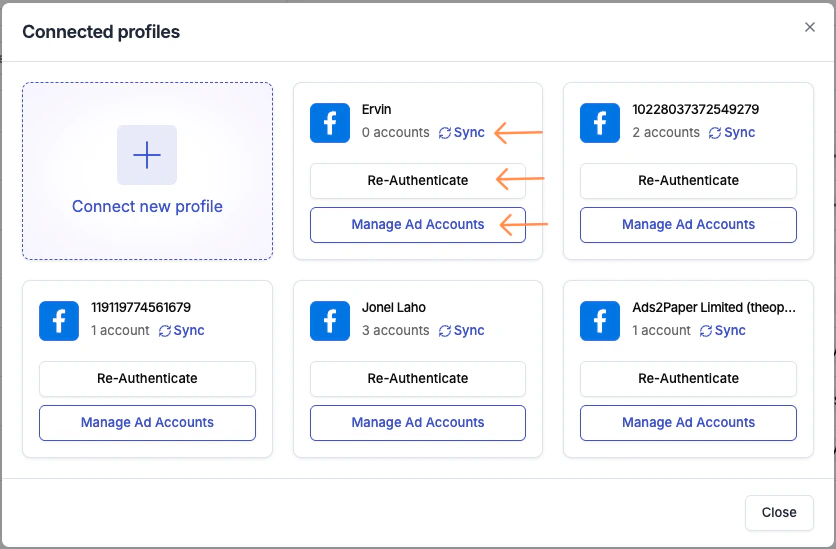
- Account count — number of ad accounts currently assigned to this profile
- Sync — re-queries Facebook to pull in any new ad accounts accessible to this profile
- Re-Authenticate — refreshes the OAuth token or replaces a token that has expired
- Manage Ad Accounts — opens the assignment dialog to control which ad accounts use this profile
Add New Profiles
Go to Integrations → Facebook → Profiles and click the Connect new profile card. Choose your connection method (Business profile, Personal profile, or Access Token) and complete the flow. Reasons to add multiple profiles:- Team access — each team member manages their own set of accounts under their own login.
- Backup access — if a primary profile is restricted, a backup profile can take over the affected accounts immediately.
- Multiple Business Managers — different Business Managers often have different admin logins.
- Access Token isolation — keep system user tokens separate from personal logins for more stable long-running integrations.
Assign Ad Accounts to a Profile
Each ad account must be assigned to exactly one profile — the profile TheOptimizer uses to access it. To change which profile an account uses, click Manage Ad Accounts on the profile you want to assign accounts to.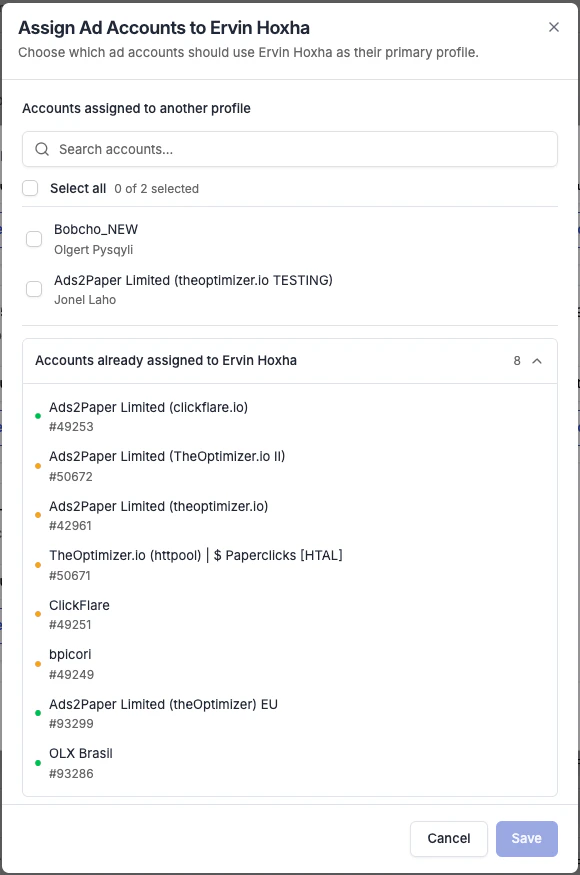
- Accounts assigned to another profile — ad accounts that this profile has access to but which are currently using a different profile. Select any you want to reassign to this profile.
- Accounts already assigned to this profile — ad accounts currently using this profile, listed for reference.
You can also reassign a single ad account directly from the ad accounts table — hover the row and click Edit to change its assigned profile without opening the profiles panel.
Sync New Ad Accounts
When you add a new ad account to a Business Manager you’ve already connected, it won’t appear automatically. To pull in the new account, click Sync on the relevant profile card. This re-queries Facebook for that profile and pulls in any newly accessible accounts.Grant Access to New Pages
If you create a new Facebook Page after connecting TheOptimizer, it won’t automatically be available for use in the Campaign Creator. You need to re-authenticate the relevant profile and explicitly grant access to the new Page during the OAuth flow.- Go to Integrations → Facebook → Profiles.
- Find the profile that should have access to the new Page and click Re-Authenticate.
- On the first step of the Facebook dialog, click Edit settings instead of Continue.
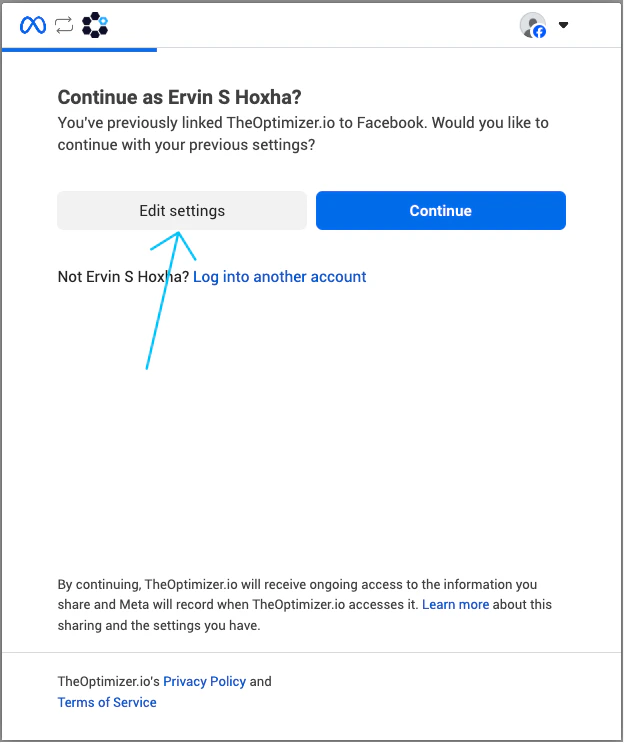
- On the Pages selection screen, select the new Pages you want to grant TheOptimizer access to.
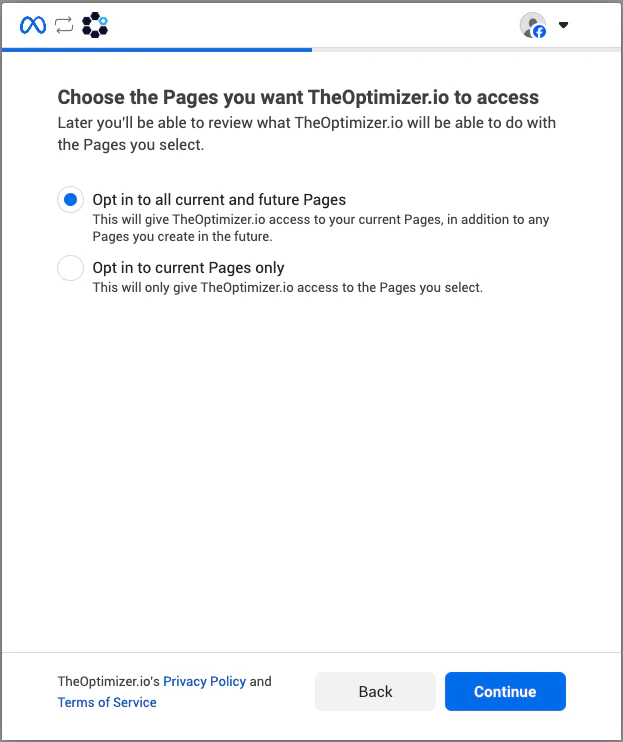
- Complete the rest of the OAuth flow as normal.
Re-authenticate a Profile
Facebook OAuth tokens expire or become invalid when you:- Change your Facebook account password
- The ad network detects suspicious activity on your account
- Security settings change (e.g., two-factor authentication changes)
- The token is manually revoked from Facebook’s security settings