Smart Lists are TheOptimizer’s mechanism for building and maintaining global placement blacklists for native ad networks. Once a placement is added to a Smart List, TheOptimizer automatically ensures it stays blocked across every campaign the list covers — so you don’t have to manually block it in each campaign one by one.
Smart Lists are exclusively for native ad networks (Taboola, Outbrain, MGID, RevContent, and similar). They are not available for Facebook, TikTok, or Google Ads.
How Smart Lists Work
Every Smart List does two things: it holds a set of placement IDs, and it applies those blocks to a set of campaigns or ad accounts.
Placements can be added in four ways:
- Paste from clipboard — copy a list of placement IDs and paste them directly into the list.
- Upload a CSV — import a CSV file of placement IDs, for example one exported from the reporting section of TheOptimizer or provided by your account manager.
- Import from another Smart List — pull placements from one or more existing Smart Lists into the current one. Useful when merging lists or building a new list that should inherit an existing blacklist.
- Via attached automation rules — attach any pause-placement rule (Pause Site, Pause Publisher, Pause Widget, etc.) to the Smart List. Each time that rule fires and blocks a placement, it also adds the placement to the Smart List automatically. This keeps your blacklist growing dynamically without any manual effort.
Only pause-placement rules can be attached to a Smart List. Rules that pause campaigns, ad sets, or ads are not compatible. If no rules appear when you try to attach one, check that you have at least one pause-placement rule created for the relevant ad network.
Execution Frequency
Smart Lists run every 30 minutes. This means that when you add placements to a list — whether by pasting, uploading a CSV, or importing — the blocks are not applied immediately. Allow at least 30 minutes before checking whether placements have been blocked.
Every time a Smart List executes and blocks a placement, a record is written to Logs. If you want to confirm that blocking is happening as expected, go to Logs, filter by type List, and look for entries from your Smart List.
Scope: Campaign Level vs. Ad Account Level
When you create a Smart List, you choose its scope — this is one of the most important decisions.
| Scope | How it works |
|---|
| Campaign Level | You manually select individual campaigns the list protects. Any new campaign you launch later must be added manually or it won’t be covered. |
| Ad Account Level | You select ad accounts. The list automatically covers all campaigns within those accounts — including any new campaigns you create in the future. |
The Smart Lists View
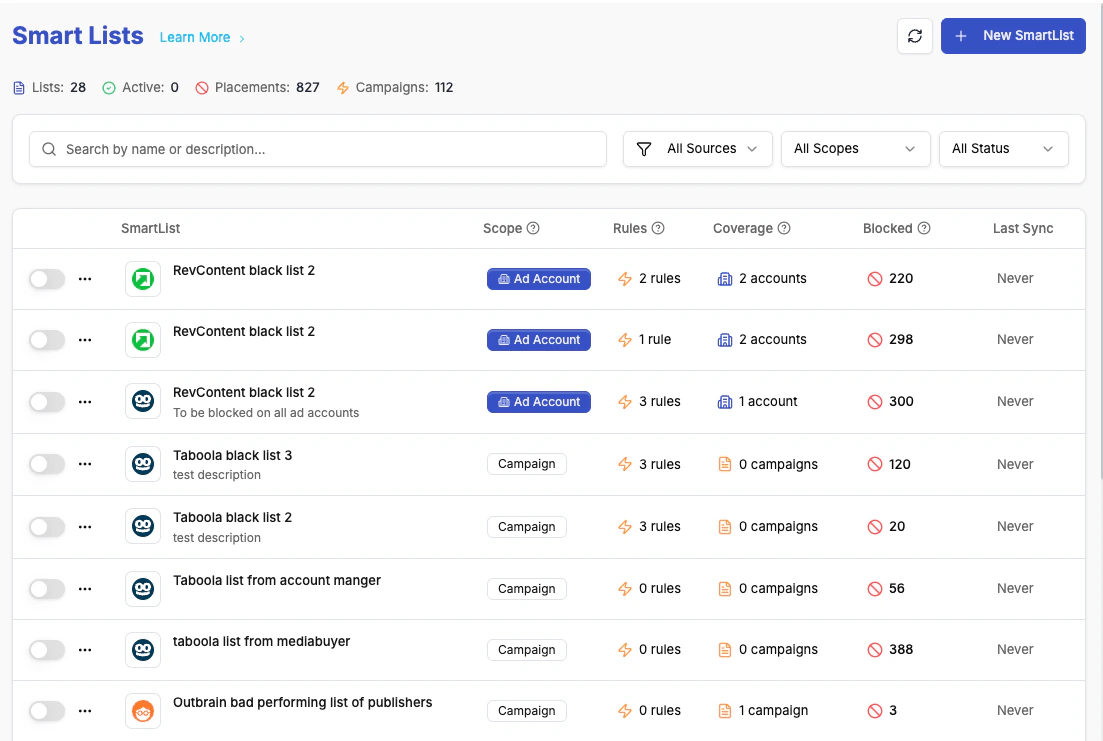
Navigate to Automation → Smart Lists to see all your lists.
Stats Bar
At the top of the page, a summary bar shows:
- Lists created — total number of Smart Lists in your account
- Active lists — how many lists are currently running
- Total placements — the combined number of placement IDs across all lists
- Total campaigns — the combined number of campaigns being protected across all lists
Search and Filters
Use the search bar to find lists by name or placement content. Filter the list view by:
- Ad network — show only lists for a specific network (e.g., Taboola only)
- Scope — filter by Campaign Level or Ad Account Level
- Status — filter by active or inactive lists
Table Columns
| Column | Description |
|---|
| Name | The list name, with the ad network logo shown alongside it |
| Scope | Whether the list operates at campaign level or ad account level |
| Rules | Number of automation rules currently attached to this list |
| Coverage | Number of ad accounts or campaigns this list is applied to |
| Blocked | Number of placements inside this list that are actively being blocked |
| Last Sync | The last time the system executed this list and enforced its blocks |
Inline Actions
Each row has inline controls:
- Start / Stop toggle — immediately activate or deactivate the list without opening it
- Three-dot menu — options to Edit, Duplicate, or Delete the list
Creating a Smart List
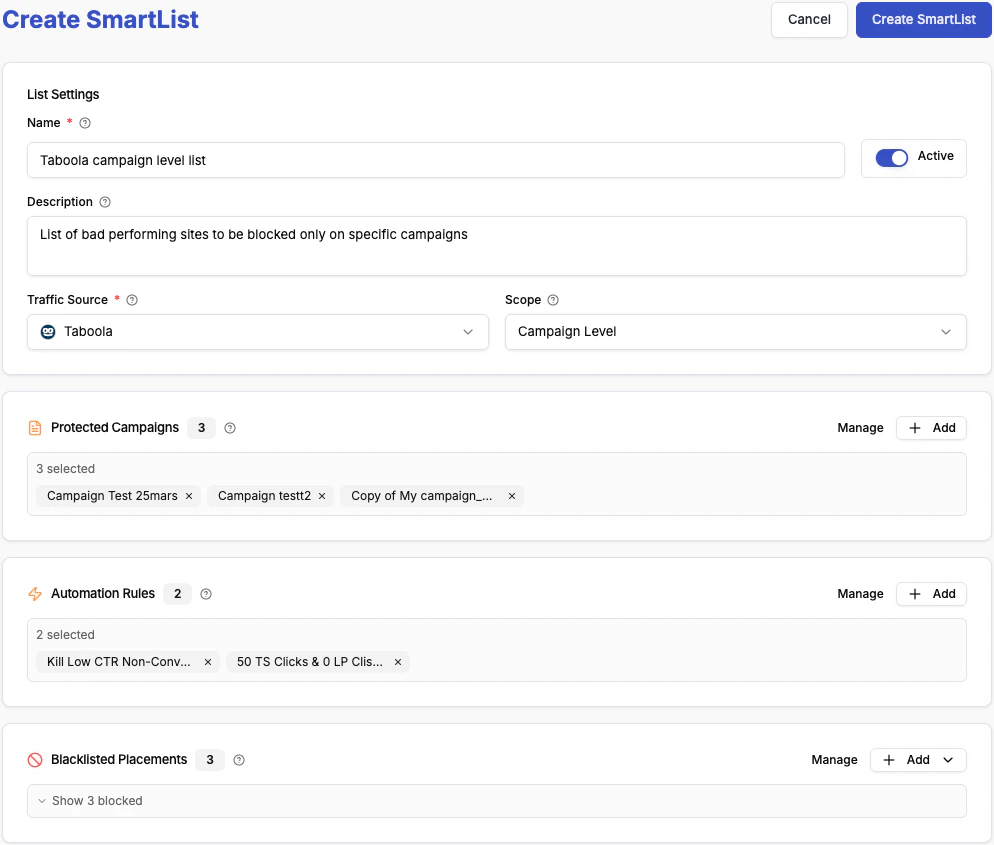
Click the New Smart List button in the top-right corner to open the creation modal.
1. Name and Description
Give the list a descriptive name that explains what it does and where it applies — for example, Taboola – Global Blacklist – US rather than List 1.
The description field (new in this version) lets you add freeform context: what kind of placements are on this list, which campaigns it’s meant to protect, or how it gets populated. This is especially useful when multiple team members manage lists or when returning to a list after some time away.
2. Traffic Source
Select the ad network this list is for. A Smart List is always network-specific — a Taboola blacklist will only block placements on Taboola campaigns.
3. Scope
Choose Campaign Level or Ad Account Level (see Scope section above).
4. Protected Ad Accounts or Campaigns
Based on your scope selection, this section will show either Protected Ad Accounts or Protected Campaigns.
Click Add in the top-right corner of this section to open the selector. You can search for accounts or campaigns by name, scroll to browse, or select multiple at once. When you’re done selecting, click Add to confirm. The selected items will appear in the protected list.
To remove an account or campaign, click Manage (which appears next to the Add button once items are added) and deselect the ones you want to remove.
5. Automation Rules
In the Automation Rules section, attach the pause-placement rules that should populate this list automatically.
Click Add to open the rules selector. Only pause-placement rules for the ad network you selected will appear here. Select the rules you want, then click Add to attach them.
For Taboola, these are “Pause Site” rules. For Outbrain, “Pause Publisher” rules. For RevContent and MGID, “Pause Widget” rules. The terminology varies by network, but they all appear in the selector when relevant.
6. Placements
The Placements section is where the actual blacklisted placement IDs live. You can populate it in three ways from within the creation modal:
- Paste from Clipboard — paste a list of placement IDs directly. Useful when you have a list from your account manager or another source.
- Upload CSV — upload a CSV file containing placement IDs. Ideal for bulk imports from reporting exports.
- Import from Smart List — select one or more existing Smart Lists to import their placements into this new list. The dialog shows all existing lists; select any combination and click Import to copy their placements in.
You can combine all three methods — paste some, upload more, and import from existing lists in the same creation session.
7. Create
Click Create Smart List in the top-right navigation to save the list. It will appear in the main table and will begin syncing immediately if set to active.
Editing a Smart List
To edit an existing list:
- Click the row in the Smart Lists table — this opens the edit modal directly.
- Or click the three-dot menu on the row and select Edit.
Editing works identically to creation. You can change the name, description, scope, add or remove protected accounts or campaigns, attach or detach rules, and add or remove placements.
Tips & Best Practices
Use Ad Account Level scope for all new lists. Campaign Level lists require ongoing maintenance as you launch new campaigns. Ad Account Level lists are self-managing — any new campaign in the covered accounts is protected automatically.
Start with a seed list, then let rules grow it. Import your current list of bad placements from your account manager or a reporting export, then attach a pause-placement rule. From that point on, the list grows automatically as your rules execute.
Use the description field. A list named Taboola Blacklist tells you little six months later. Descriptions like “Populated via Taboola Pause Site rule. Applied to all US ad accounts. Excludes whitelisted premium publishers.” pay off every time you need to audit or adjust the list.
Merge lists with Import from Smart List. If you have multiple smaller blacklists and want to consolidate them, create a new list and import from all the existing ones in one step.