
This article will guide you through the step-by-step process of how to connect your MGID account to TheOptimizer Native.
Once you have successfully logged in to your TheOptimizer Native account, click on the Account Wizard on the left-side panel of your screen then follow the 5 steps below.
Step 1: When on the Account Wizard page, click on Add new button.
Step 2: On the pop-up integration, click on the traffic source drop-down list and select MGID.
Step 3: Fill in the required information as noted in the screenshot below.
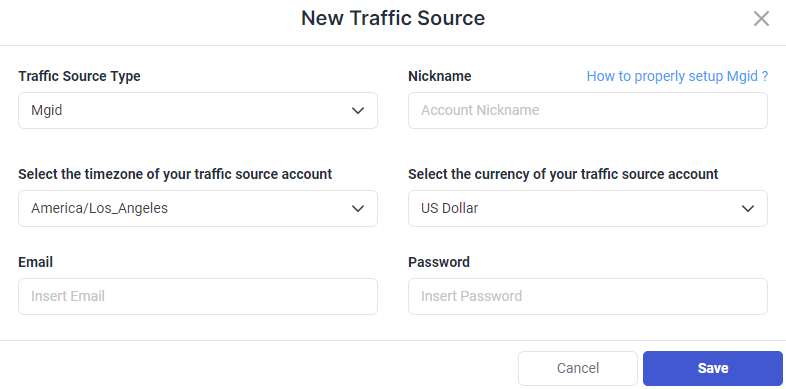
Time Zone and Currency Selection – Please make sure to select the correct time zone and currency based on the settings your account was set up with. Failing to set the correct values may result in campaign statistics discrepancies.
Step 4: Click Save and move to the next step to connect your tracking platform or finish the process if you don’t use a click tracker.
Required input information details:
– Nickname: Add a friendly name for the MGID account you are about to connect.
– Email: Enter the email address associated with your MGID account.
– Password: Enter the password associated with your MGID account.
– Time zone: Specify the reporting time zone of your MGID account.
– Currency: Specify the currency your MGID account is set up with.
Click here for more information on how to connect your tracking platform to TheOptimizer Native.