
Documentation Index

Fetch the complete documentation index at: https://theoptimizer.io/docs/llms.txt

Use this file to discover all available pages before exploring further.

If the default metrics don’t cover something you track, you can define up to 10 custom metrics using your own formulas. Once created, they appear as columns in any column preset and are also available as conditions inside your automation rules.
Campaigns Custom Metrics1

Creating a Custom Metric

1

Open Column Management

Click the column settings icon at the bottom-left of the table.
2

Select Custom Metric

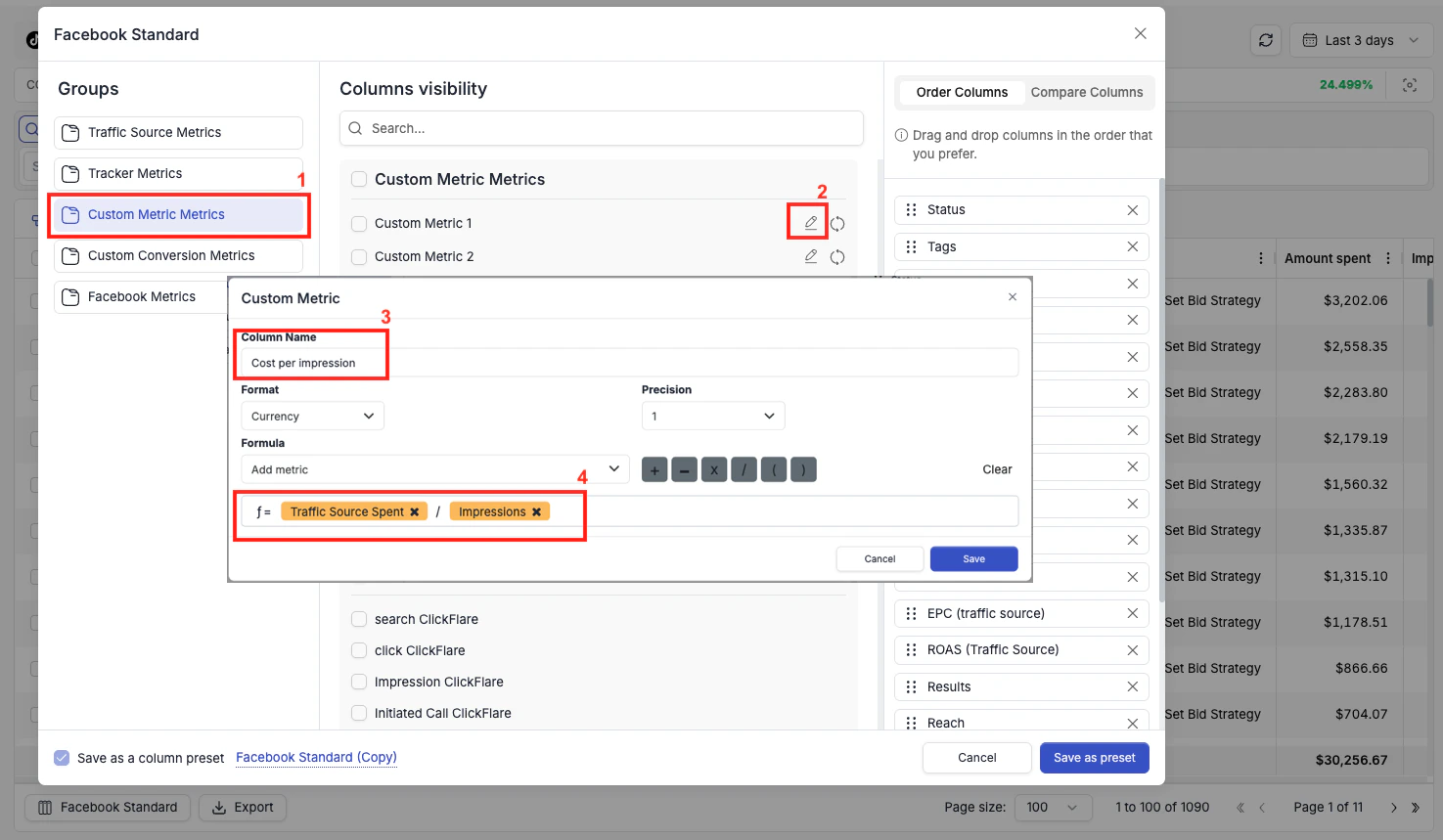
Click Custom Metric in the left panel. You will see a list of 10 custom metric slots.
3

Edit a slot

Click the edit icon next to any empty slot.
4

Configure the metric

Enter a Column Name, select the Format (Currency or Percentage), and set the Precision (number of decimal places to display).
5

Build the formula

Use the formula builder to select metrics from the dropdown and combine them using +, , ×, /, (, ) operators.
6

Save

Click Save. Your custom metric is immediately available as a column in any preset and as a condition in your automation rules.
Custom metrics are available across all ad networks — not just the one you created them on. Make sure your formula references metrics that exist for each network you plan to use the column with.