Inline Actions
For individual items, several actions are available directly in the table row without opening any dialog:
- On/Off toggle — the toggle at the left of each row pauses or activates the item immediately.
- Budget — if the budget cell is editable (indicated by a pencil icon on hover), click it to modify the daily or lifetime budget inline.
- Bid — bid values can be edited inline where supported by the ad network.
Click the value, make your change, and press Enter to confirm or Escape to cancel.
Name Hover Options
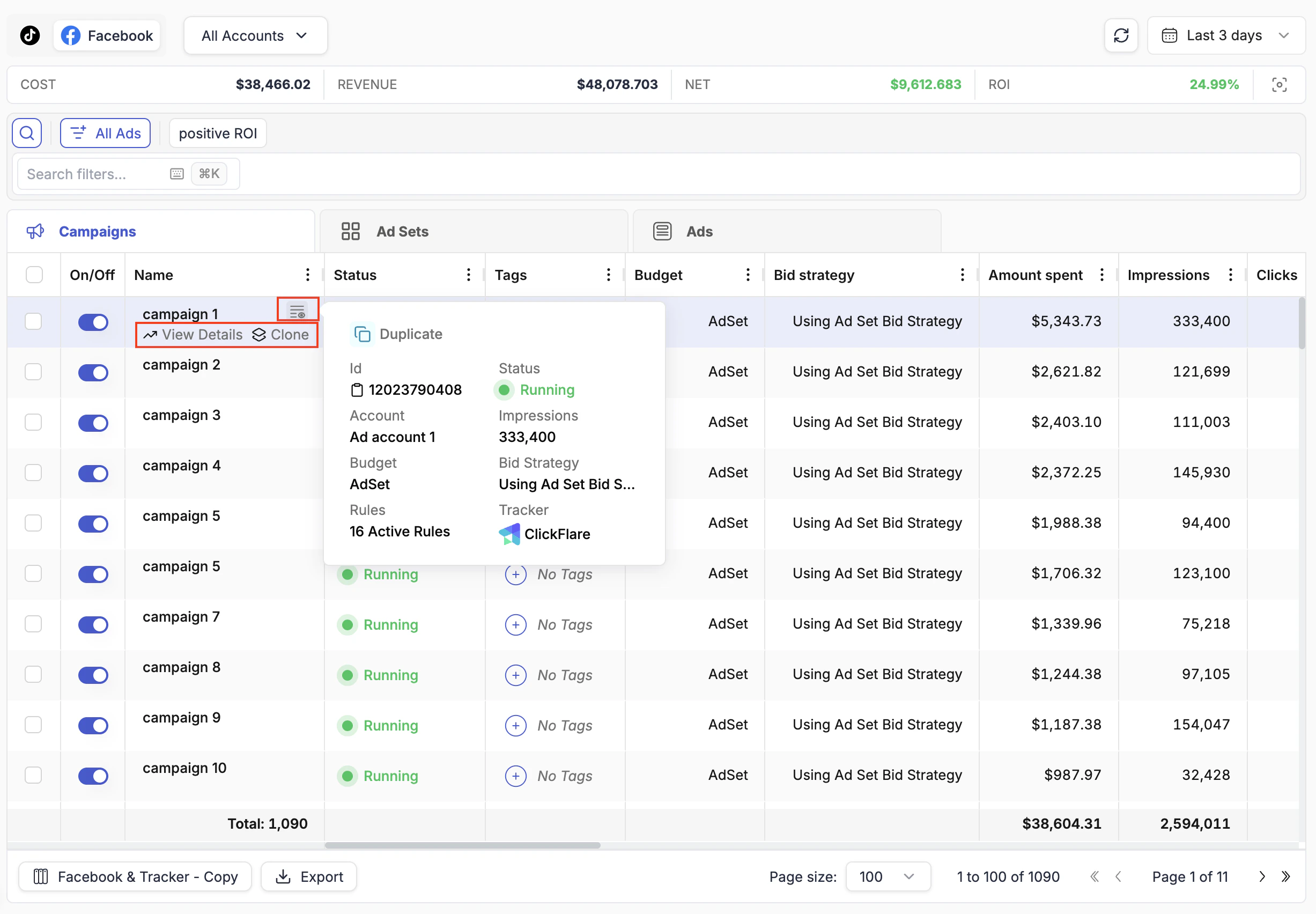
Hovering over any campaign, ad set, or ad name in the table reveals three additional options to the right of the name:
| Option | What it does |
|---|
| View Details | Opens the full Details View side panel for that item |
| Clone | Starts the cloning workflow for the campaign, ad set, or ad |
| Quick Details (info icon) | Shows a compact popup with the campaign ID, ad account, advertising objective, budget, and bid strategy |
Use Quick Details to copy a campaign ID instantly. Hover over the campaign name, click the info icon, and the ID is right there — no need to open the full campaign settings.
Bulk Actions
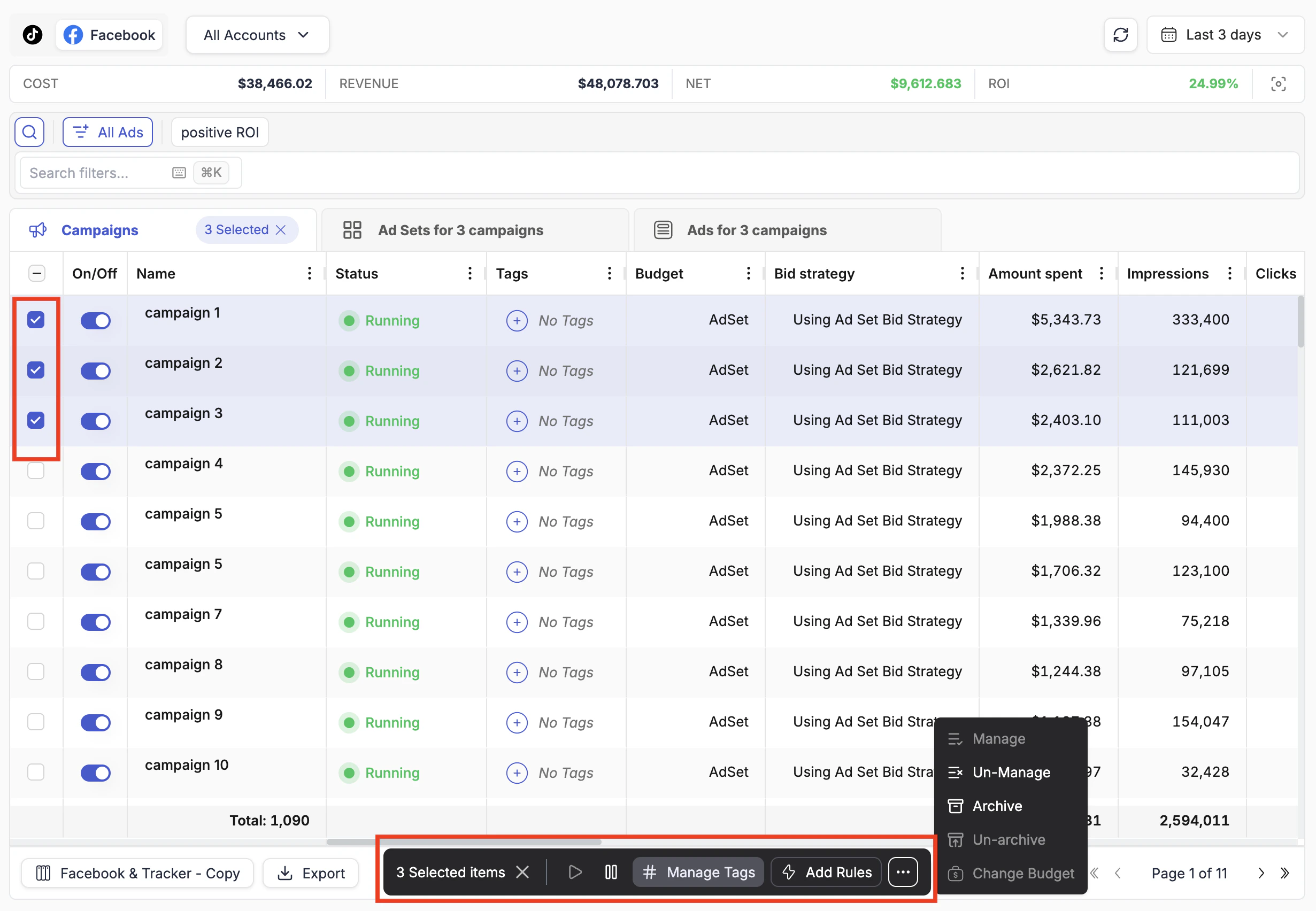
To act on multiple items at once, check the boxes at the left of each row. Once one or more items are selected, a floating action bar appears at the bottom of the page.
| Bulk action | What it does |
|---|
| Play / Pause | Activate or pause all selected items |
| Change Budget | Apply a budget change to all selected items at once |
| Manage Tags | Add or remove tags on selected items |
| Add Rules | Attach an automation rule to all selected items simultaneously |
| Manage / Un-Manage | Include or exclude items from TheOptimizer’s automation scope |
| Archive / Un-archive | Archive campaigns you no longer want displayed |
Archive and Manage / Un-Manage are only available through the bulk action bar, not as inline row actions. These are higher-impact operations most commonly applied to multiple items at once, so they are intentionally kept out of the inline row to prevent accidental single-item changes.