Documentation Index
Fetch the complete documentation index at: https://theoptimizer.io/docs/llms.txt
Use this file to discover all available pages before exploring further.
This section walks through creating a campaign with one ad set and multiple ads — no variations, no restructuring. This is the foundation. All advanced features (groups, restructuring, multi-account launch) build on top of this base.
Campaign Level
Click on the campaign in the left panel tree and configure the following:
| Field | Description |
|---|
| Ad Account | The Facebook ad account to create the campaign in |
| Campaign Name | A name for the campaign, or use a dynamic naming template |
| Status | Whether the campaign is uploaded as Active or Paused |
| Special Ad Categories | Select if applicable (Housing, Credit, Employment, etc.) |
| Buying Type | Auction (the only type currently supported) |
| Campaign Objective | Sales, Traffic, Leads, or Engagement |
Upload campaigns as Paused if your team uses a two-step workflow where one person prepares campaigns and a reviewer activates them after QA.
To start from a previously saved template, find it in the My Space tab on the right panel and click Apply.
Campaign Budget
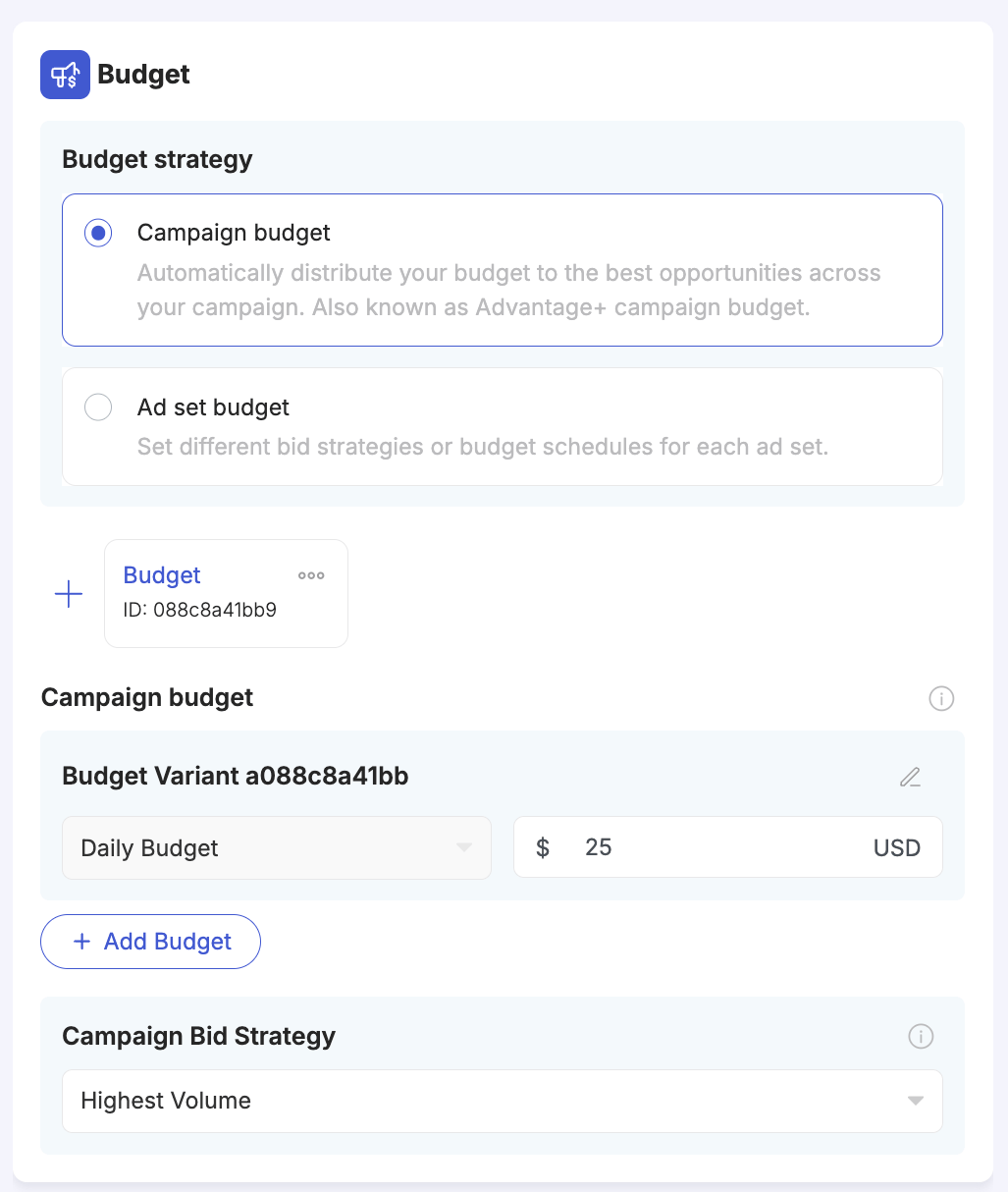
The Budget section at the campaign level has two modes:
Budget Strategy — choose one:
- Campaign budget (Advantage+ Campaign Budget) — Facebook automatically distributes the total budget across your ad sets, allocating more to the best-performing ones. This is the recommended option for most use cases.
- Ad set budget — each ad set gets its own independent budget, which you configure individually at the ad set level. Use this when you need strict budget control per ad set.
Budget Variants — if Campaign budget is selected, the budget amount is set here via Budget Variants. Each group card represents a separate budget variation. Click + Add Budget within a group to add multiple budget amounts to the same group if needed. When you add more Budget groups (by clicking + next to the group cards), each group generates a separate campaign variation — one campaign per budget.
Campaign Bid Strategy — controls how Facebook bids for your ads:
| Strategy | How it works |
|---|
| Highest Volume | Spends the full budget to get as many results as possible |
| Cost Per Result Goal | Targets a specific average cost per result (soft cap — Facebook may exceed it) |
| Bid Cap | Sets a maximum bid per auction (hard cap — stricter delivery constraints) |
| ROAS Goal | Targets a minimum return on ad spend |
Ad Set Level
Click on the Ad Set in the left panel tree and configure the following:
| Field | Description |
|---|
| Ad Set Name | A name for the ad set, or use a naming template |
| Conversions Location | Website, App, Website and App, or Calls |
| Performance Goal | For example, Maximize Number of Conversions or Maximize Value of Conversions |
| Pixel | The Facebook pixel to use for optimisation |
| Conversion Event | The conversion event to optimise toward |
| Beneficiary | Enter the beneficiary for ad transparency. If left blank, TheOptimizer uses the default from your ad account settings |
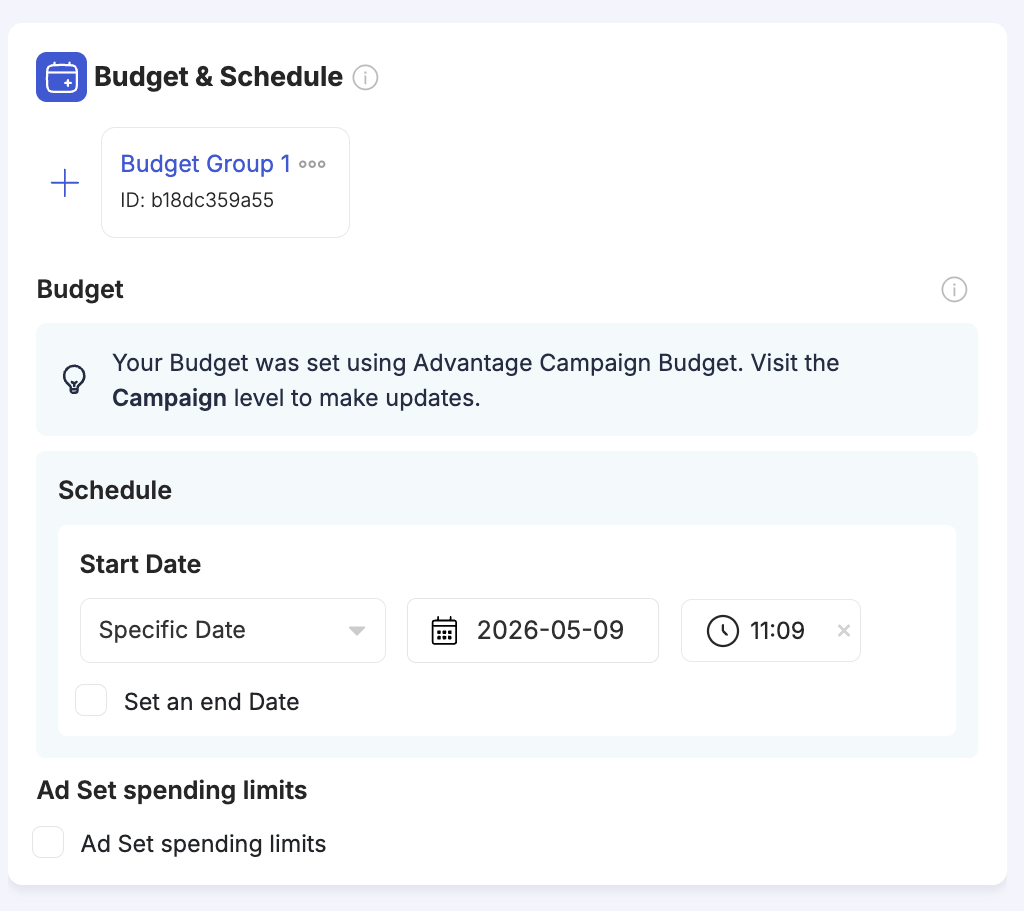
Budget & Schedule
Budget — if you selected Ad set budget at the campaign level, the per-ad-set budget is configured here. If you selected Campaign budget (Advantage+), the budget section at the ad set level shows an informational note and is not editable — return to the campaign level to change it.
Schedule:
| Option | Description |
|---|
| Start Date | Choose Specific Date to set an exact date and time for the ad set to go live, or leave it to start immediately upon publish |
| Set an end Date | Optionally tick this checkbox to define when the ad set should stop running |
Under the My Space tab on the right panel, you will see a list of your most frequently used targeting configurations with an Apply button next to each. One click applies a previous targeting setup — no need to reconfigure locations, age, gender, and placements from scratch.
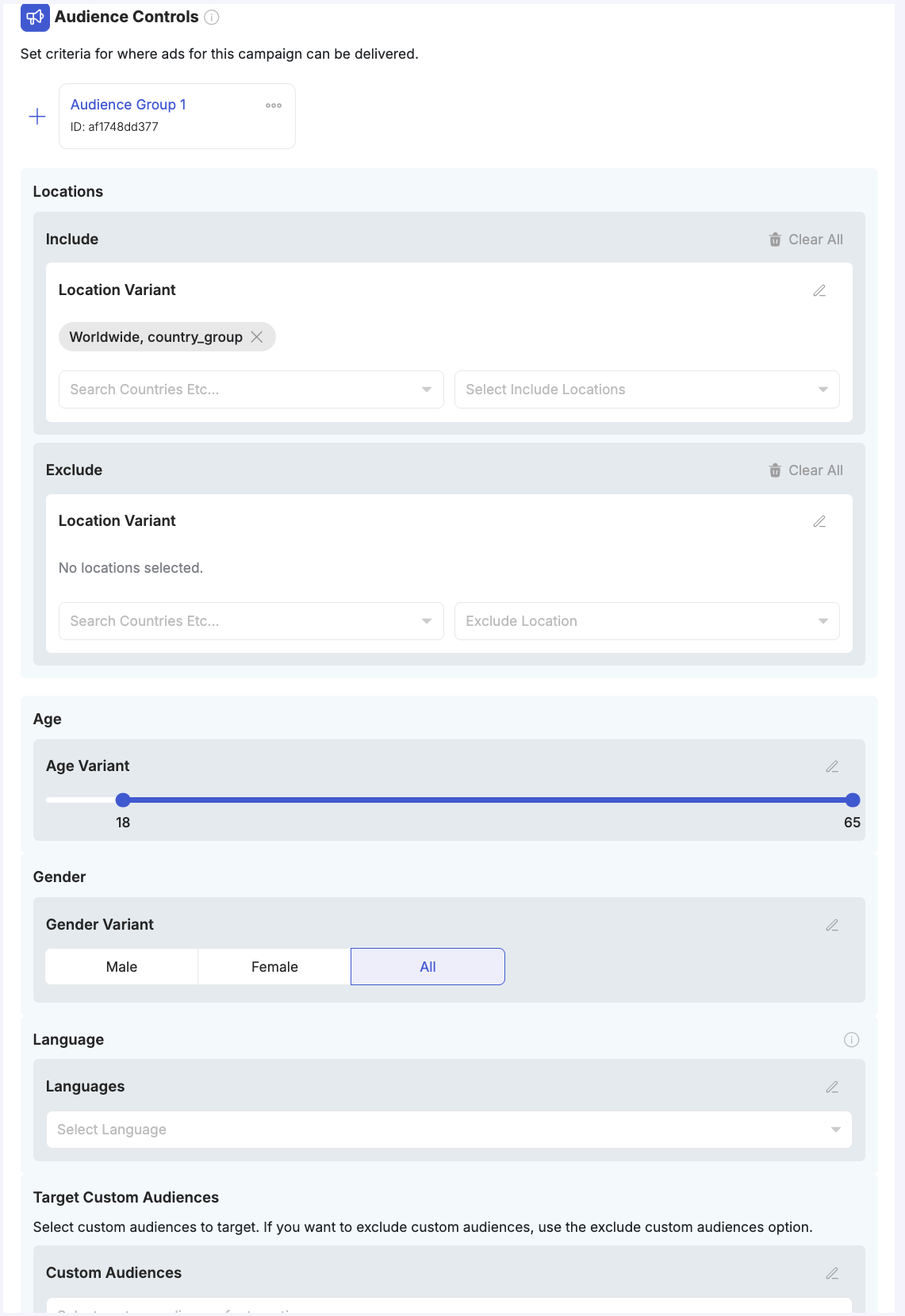
Audience Controls
The Audience Controls section defines who sees your ads. Each audience group card at the top represents a separate audience variation — add more groups by clicking +.
Locations:
- Include — add countries, regions, cities, or postal codes. Use the Location Variant field to apply a location preset (e.g., “Worldwide, country_group” to target all countries at once) or search and select specific locations.
- Exclude — remove specific locations from your targeting. Useful for blocking countries where you are not set up to take orders, or removing existing customer locations from a prospecting campaign.
Age — drag the Age Variant slider to set your minimum and maximum target age (18–65+).
Gender — select Male, Female, or All.
Language — optionally restrict delivery to users whose Facebook language matches a specific language. Leave empty to target all languages.
Target Custom Audiences — select previously created Custom Audiences from Facebook to include or exclude. Typical uses: retargeting website visitors, targeting existing customer lists, or excluding current customers from prospecting campaigns.
TheOptimizer does not currently support creating Custom Audiences. If you work with custom or lookalike audiences, create them in Facebook Ads Manager first — they will then appear in the audience selector here.
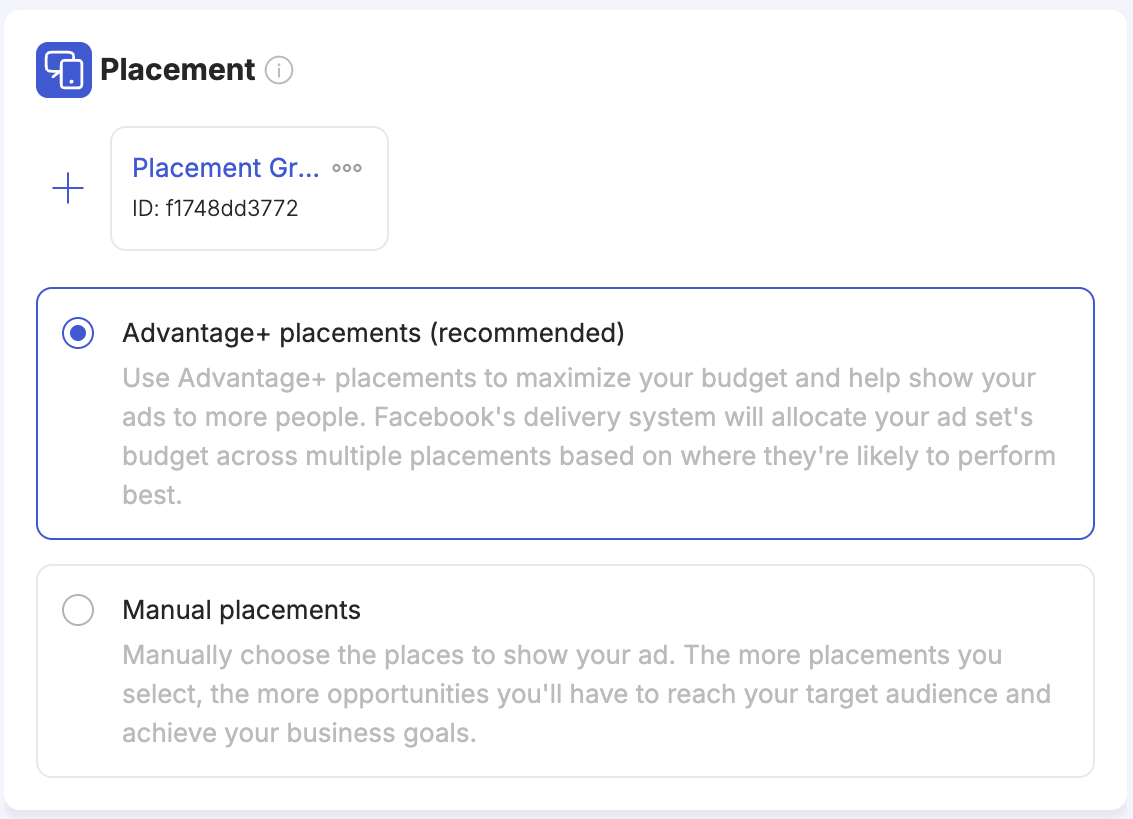
Placements
Each placement group card represents a separate placement variation — add more groups with + to test different placement configurations against each other.
| Option | Description |
|---|
| Advantage+ placements (recommended) | Facebook’s delivery system automatically allocates your budget across all eligible placements — Feed, Stories, Reels, Audience Network, Messenger, etc. — based on where your ads are likely to perform best. Typically delivers the best cost efficiency. |
| Manual placements | You choose exactly which platforms (Facebook, Instagram, Audience Network, Messenger) and positions (Feed, Stories, Reels, In-stream, etc.) to run on. Use this when you have a specific reason to exclude certain placements or want to isolate placement performance. |
Ad Level
Click on the ad in the left panel tree and configure the following:
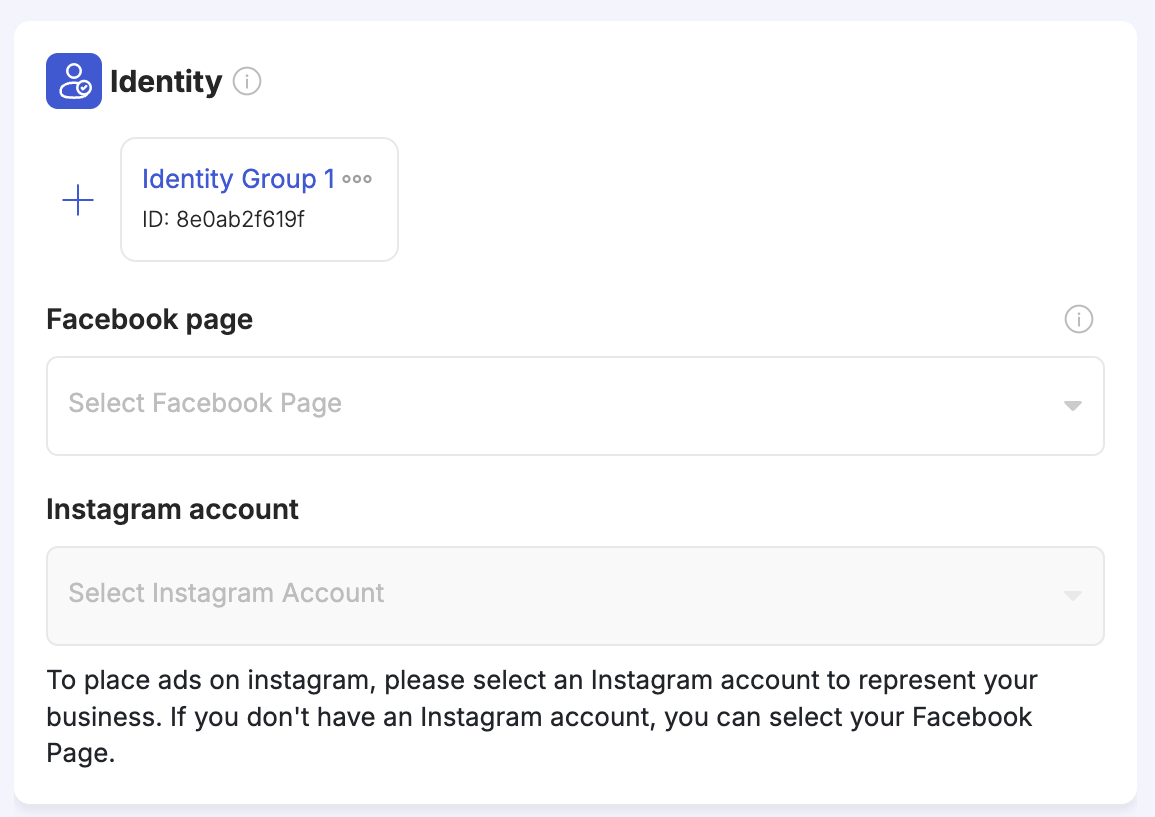
Identity
| Field | Description |
|---|
| Facebook page | The Facebook Page your ad will appear to come from. Required for all ads. |
| Instagram account | The Instagram account your ad will be associated with when running on Instagram placements. If you do not have an Instagram account, select your Facebook Page — Facebook will use it to represent your business on Instagram. |
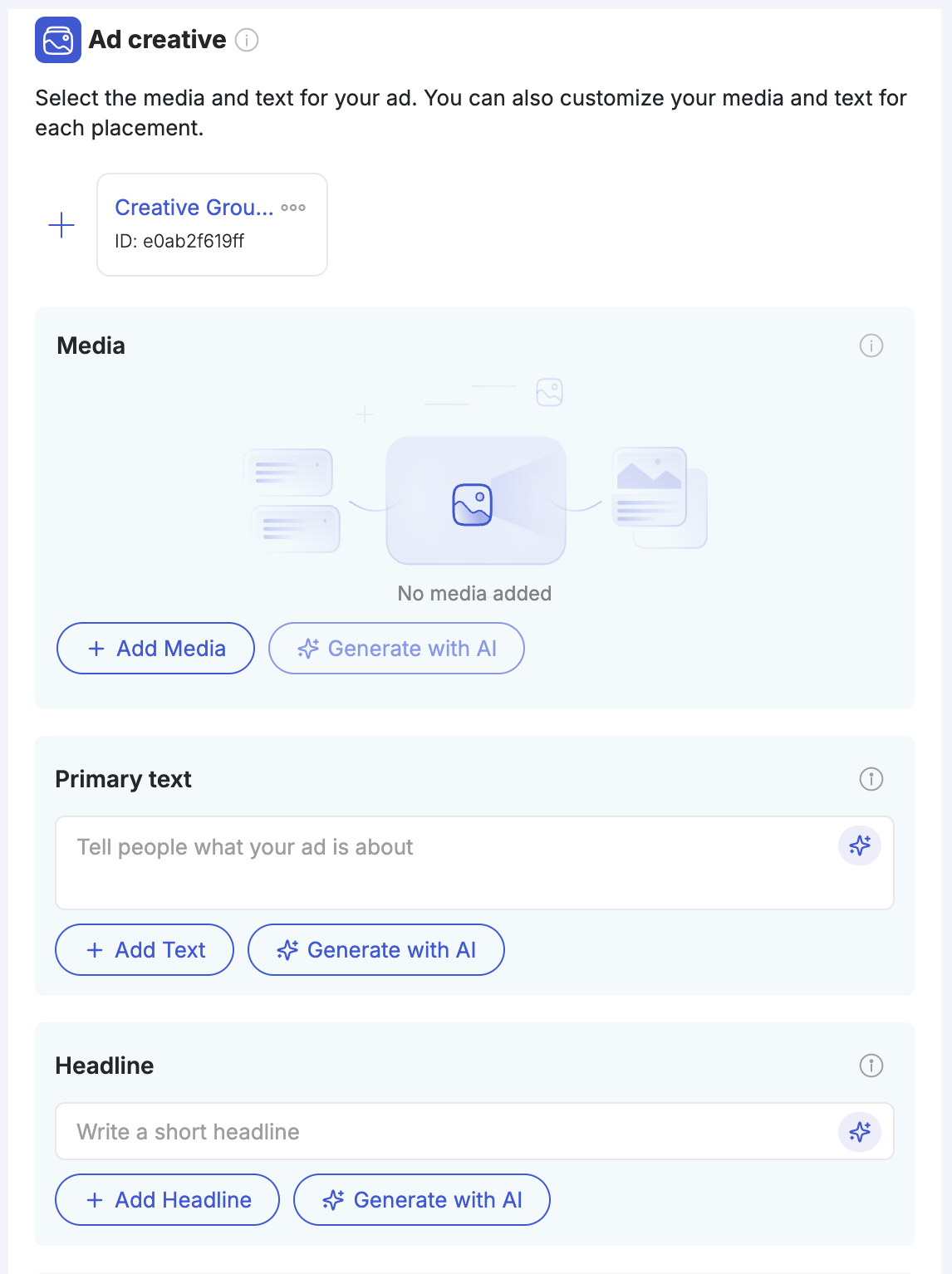
Ad Creative
Ad Name and Format:
| Field | Description |
|---|
| Ad Name | A name for the ad, or use a naming template |
| Status | Active or Paused |
| Ad Format | Single Image or Video |
- Browse existing creatives — TheOptimizer displays all images and videos from your active campaigns across all connected Facebook accounts. Sort by newest, oldest, highest spend, highest EPC, most used, or least used. Filter by Creative Library tags.
- Upload new media — click Upload to add new images or videos directly.
- Generate with AI — click ✨ Generate with AI to create new image variations using an AI prompt or example images. Useful for quickly producing creative variants without leaving the launcher.
Each uploaded image or video generates one ad. If you upload five images, five ads are created — the count updates immediately in the Variation Preview panel.
Per-creative options:
- Enhance with AI — generate a new version of any image by providing a prompt or example images.
- Customize by Placement — assign a different image for specific placements (for example, a different crop for Instagram Stories). You can do this per image, or use Bulk Placement Customization at the bottom of the media section to apply placement overrides across all ads at once.
Ad copy:
| Field | Notes |
|---|
| Primary Text | The main body copy. Click + Add Text to add one or more variations, or ✨ Generate with AI to generate copy based on a prompt. |
| Headline | Short headline below the media. Click + Add Headline to add variations, or ✨ Generate with AI to generate options. |
| Description | Optional additional text. Add one or more variations. |
| Call to Action | Select from available options (Learn More, Shop Now, etc.) |
| Field | Notes |
|---|
| Destination URL | The landing page for the ad |
| Pixel | The tracking pixel for this ad |
| URL Parameters | Add tracking parameters for third-party trackers |
For the best workflow, upload and tag your creatives in the Creative Library first, then come back to the Campaign Creator and filter by tag. This is especially useful when your creative team and media buying team are separate — creatives upload and tag assets, media buyers pull them in by tag.
What Happens When You Upload Multiple Images
Every image or video you upload becomes a separate ad. If you upload 10 images, you get 10 ads. This is the simplest way to test multiple creatives — one ad per creative, all in the same ad set, sharing the same targeting and budget.
The Variation Preview panel on the right updates in real time as you add media. Always check the totals before moving to the next step.
Next: Generating Variations
Once your base campaign is configured, you can move to Generating Variations to multiply this structure into dozens or hundreds of campaigns using Groups, Restructuring, and Duplication.
Structure your campaigns and ad sets before you configure them. The restructuring options — which decide how your ad sets and ads are distributed across campaigns — appear at the very top of Step 1, immediately after selecting your ad account and campaign name. It is worth reading the Generating Variations page before you start, so you can plan your structure upfront rather than needing to come back and adjust it later.